
Google Docs Pamphlet Template for Informational Leaflets
Prefer a file? Download .docx · Download PDF
How it works: “Use this template” opens Google’s copy screen. Sign in to your Google account and the document is copied to your own Drive, where you can edit every line. Need help copying the document?
What's inside the pamphlet template
-
Why recycle at home?
-
What goes in the blue bin
- Paper, newspapers and cardboard
- Glass bottles and jars
- Food and drink cans
- Plastic bottles with the cap on
-
What stays out
- Plastic bags and film
- Food waste
- Batteries and electronics
- Nappies and textiles
-
Three quick habits
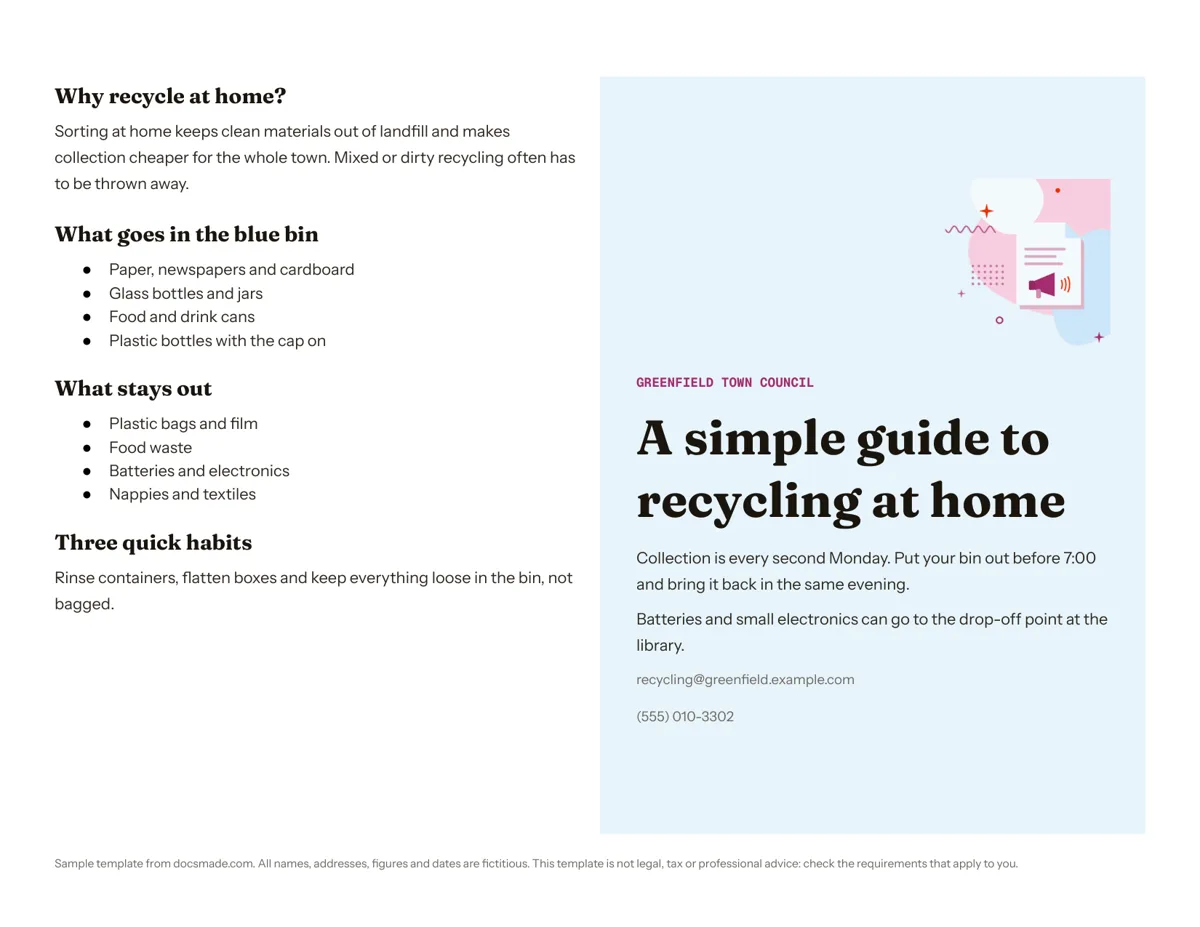
This Google Docs pamphlet template is a one-sheet informational leaflet: a landscape Letter page split into two halves, with the practical details on one side and a cover with the title and contact details on the other. It is a real Google Doc, so you can preview it here, make your own copy in one click and fold the printout in half. It is written for councils, clinics, schools, libraries and community groups that need to explain one topic clearly to the public.
What the free pamphlet template for Google Docs includes
The sample is a recycling guide from a fictitious town council, which shows the tone a good pamphlet takes: calm, specific and easy to scan. The two halves are cells of a single table, so they stay aligned while you edit.
- Information half (left). Four short sections: "Why recycle at home?" with a two-sentence explanation, "What goes in the blue bin" with four bullets, "What stays out" with four bullets, and "Three quick habits" with one practical sentence.
- Cover half (right). A small label with the organization name (Greenfield Town Council), a large title ("A simple guide to recycling at home"), two paragraphs with the collection day and a drop-off point, and an email and phone line at the bottom. An illustration sits at the top of the cover on a light background.
- Footer note. A one-line notice that all names and details are fictitious.
How to make a pamphlet in Google Docs that people actually read
A pamphlet works when it answers one question well. Before you replace any text, write that question down ("How do I recycle at home?", "What happens at my first appointment?", "How does the school bus route work?"). Then:
- Put the answer in the title. The cover title should tell the reader what they will learn, not just name the topic. "A simple guide to recycling at home" beats "Recycling".
- Split the inside into three or four headed sections. Each heading is a question or a plain label. Readers jump straight to the part that applies to them.
- Use do and don't lists. The "goes in" and "stays out" bullets in the sample are the most useful part of the page because they remove doubt. Most informational topics have an equivalent: what to bring and what to leave at home, who qualifies and who does not.
- Give one concrete next step. A date, a place or a number to call. The sample tells readers when to put the bin out and where to take batteries.
- Check facts with the people responsible. If the pamphlet gives times, rules or eligibility, confirm them with whoever runs the service before printing.
Keep the language plain. If you would not say a sentence out loud to a neighbor, rewrite it.
Customizing the pamphlet template in Google Docs
Choose Use this template on this page, or open the preview and use File > Make a copy. Our guide on how to copy a Google Doc walks through it with screenshots. Once it is in your Drive:
- Edit headings and text. Click and type. If you restyle one heading, select it, click the Paint format brush in the toolbar and click the other headings to copy the same look.
- Change the colors. The cover background is a table cell color. Click inside the cover, right-click, open Table properties and pick a new cell background color that fits your organization.
- Swap the illustration for your logo. Right-click the image and choose Replace image, or select it and press Delete if you prefer a text-only cover.
- Change paper size. The Doc is US Letter in landscape. For A4, use File > Page setup and keep the landscape orientation.
Printing, folding and sharing your pamphlet
Print with File > Print at 100% scale. Fold the sheet in half with the printed side facing out: the cover half becomes the front and the information half becomes the back, so a single-sided print works. If you want a four-page leaflet, add a second page with two more panels and print double-sided, flipping on the short edge.
For a print shop or an email attachment, use File > Download > PDF document or the PDF button on this page. File > Download > Microsoft Word (.docx) gives you a copy for Word. To publish it online, click Share, set General access to "Anyone with the link" as Viewer and paste the link on your website or in a message. Colleagues added as commenters can flag changes with Insert > Comment before you print.
Pamphlet template ideas: health, school and community leaflets
- Health or clinic information. "Before your visit" on the inside, clinic name and phone on the cover. Have the clinical team review any medical wording.
- School and library guides. Enrollment steps, library card rules or how a reading program works.
- Community or club welcome pamphlet. Who you are, when you meet, how to join.
- Student project. A pamphlet on a historical event or a science topic, with sources listed on the inside half.
Need three panels instead of two? The tri-fold brochure template splits the page into thirds and suits promotional content. For a one-sided announcement, use the flyer template, and browse the rest of the marketing and print templates for more layouts.
Pamphlet template for Google Docs: common questions
What is the difference between a pamphlet and a brochure?
The words overlap, but a pamphlet is usually an informational leaflet on one topic, often unbound and folded once, while a brochure is more often promotional and folded into three panels. That is how the two templates on this site are set up.
How do I make a pamphlet in Google Docs from scratch?
Set the page to landscape in File > Page setup, insert a table with one row and two columns, remove or lighten the borders in Table properties and write one half as the cover. Copying this template gets you the same result with the styling already done.
Can I turn this into a tri-fold pamphlet in Google Docs?
Yes. Right-click inside the table and choose Insert column right to get three panels, then drag the borders until they are equal. Our brochure template is already built that way if you want to skip the setup.
Is the pamphlet template free to download?
Yes. Making a copy, editing it and downloading it as .docx or PDF is free, and the sample content is fictitious, so there is nothing to clear before reuse.
More templates
-
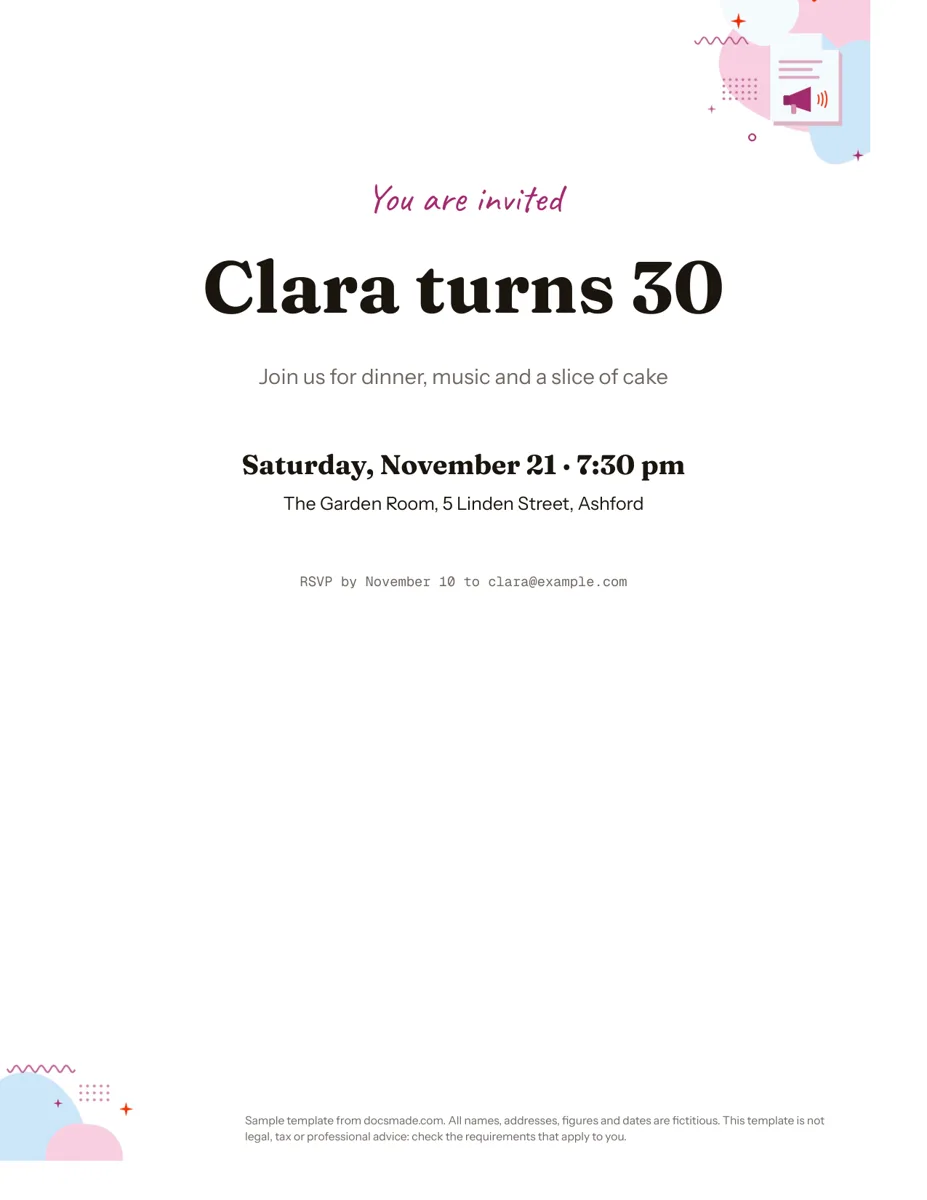 Marketing & print Google Docs Invitation Template: One-Page Party Invite Free invitation template for Google Docs: a one-page party invite you can preview, copy and edit, or download as .docx or PDF. Ready to print. View template →
 -
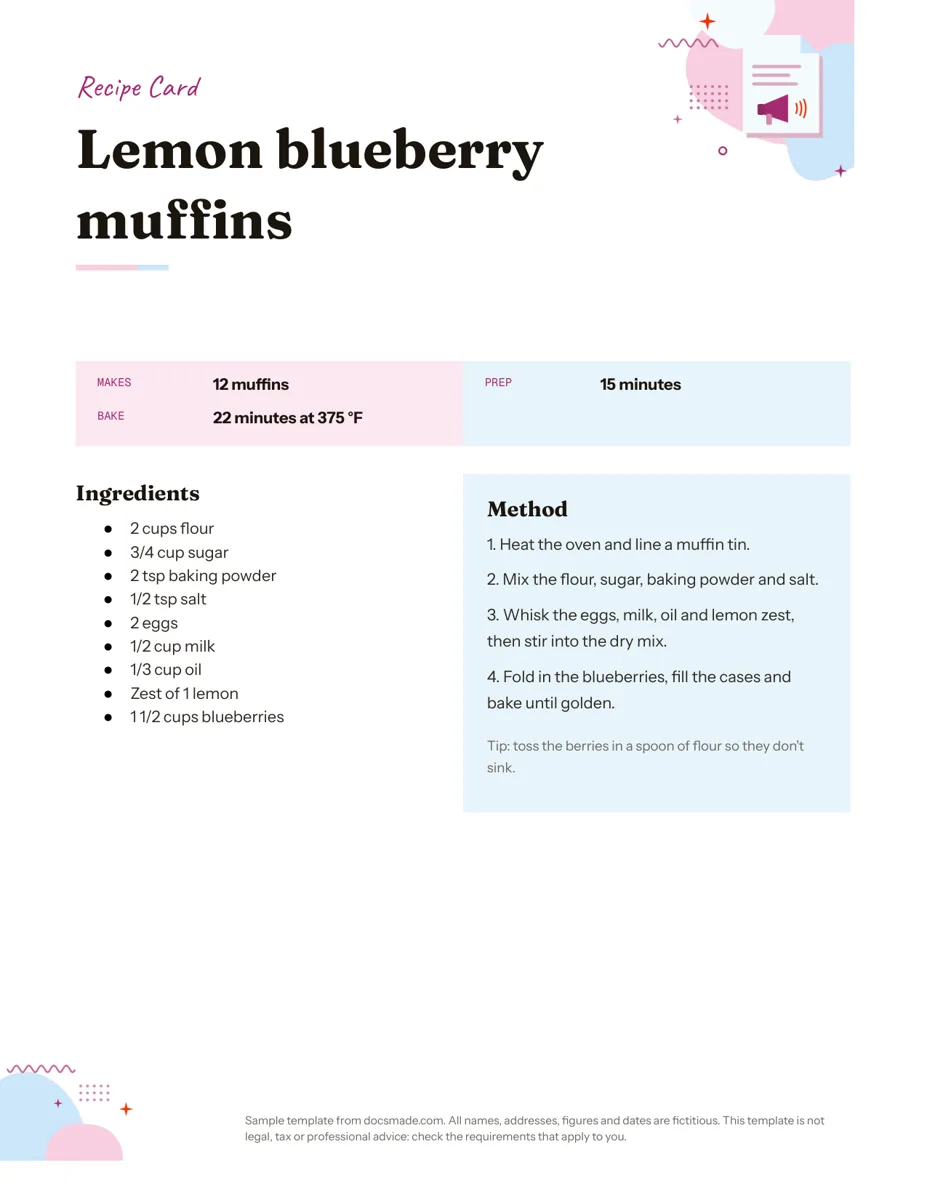 Marketing & print Google Docs Recipe Template: Printable Recipe Card Free recipe card template for Google Docs with ingredients and method side by side. Preview, copy and edit it, or download as .docx or PDF. View template →
 -
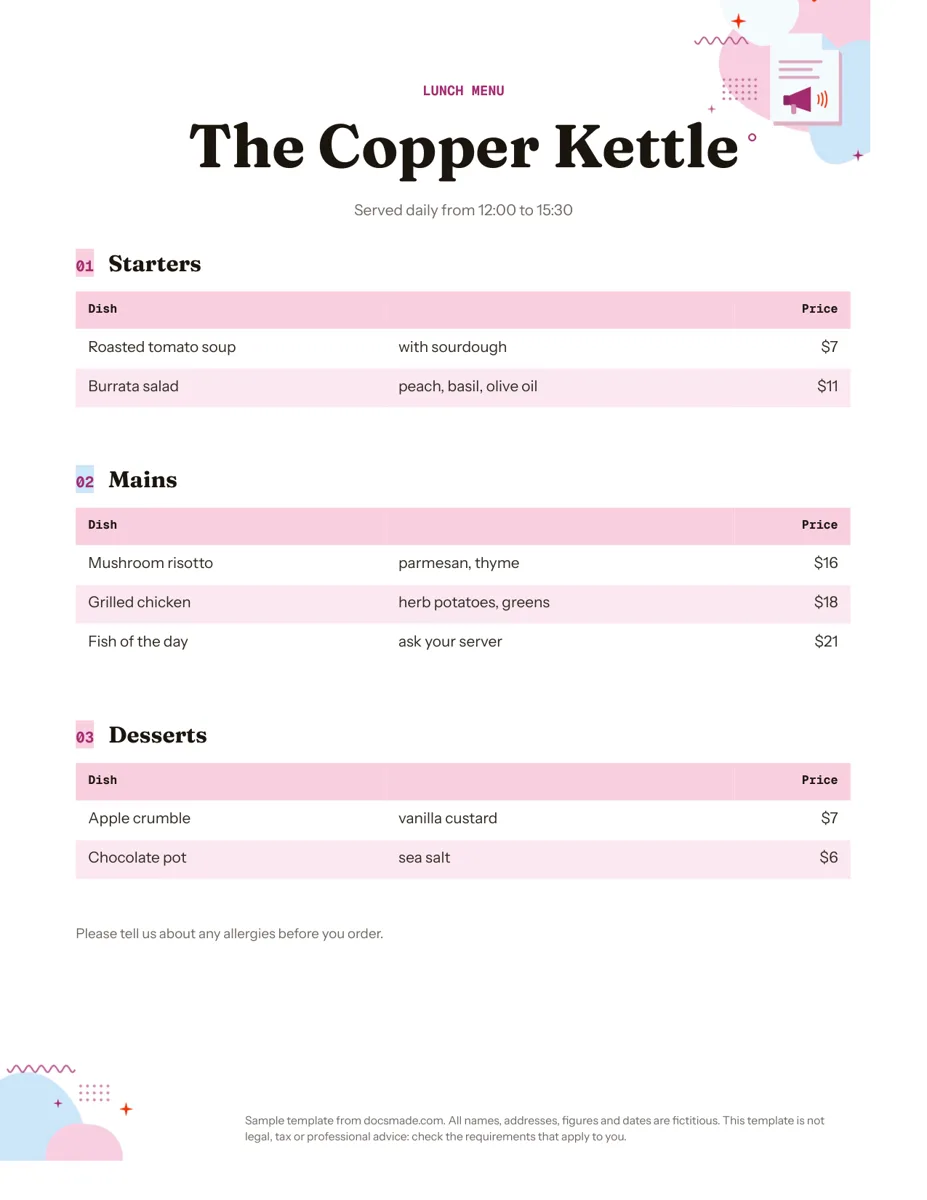 Marketing & print Google Docs Menu Template for Restaurants and Cafes Free restaurant menu template for Google Docs: starters, mains and desserts with prices. Preview it, make a copy, or download .docx or PDF. View template →
 -
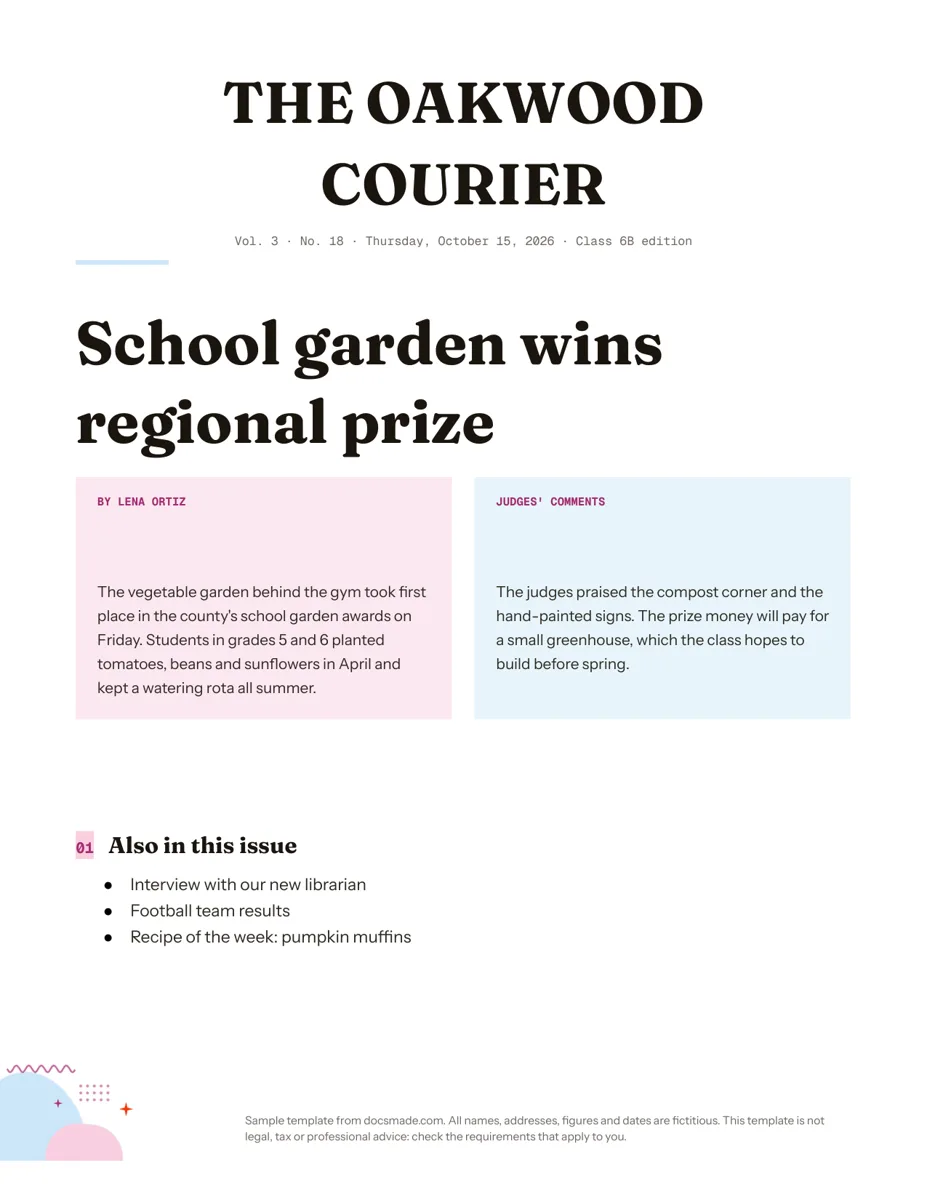 Marketing & print Google Docs Newspaper Template for Class and School Papers Free newspaper template for Google Docs: masthead, headline and two-column story. A real Doc to preview, copy, or download as .docx or PDF. View template →