
Templates
Google Docs Marketing Templates for Print
-
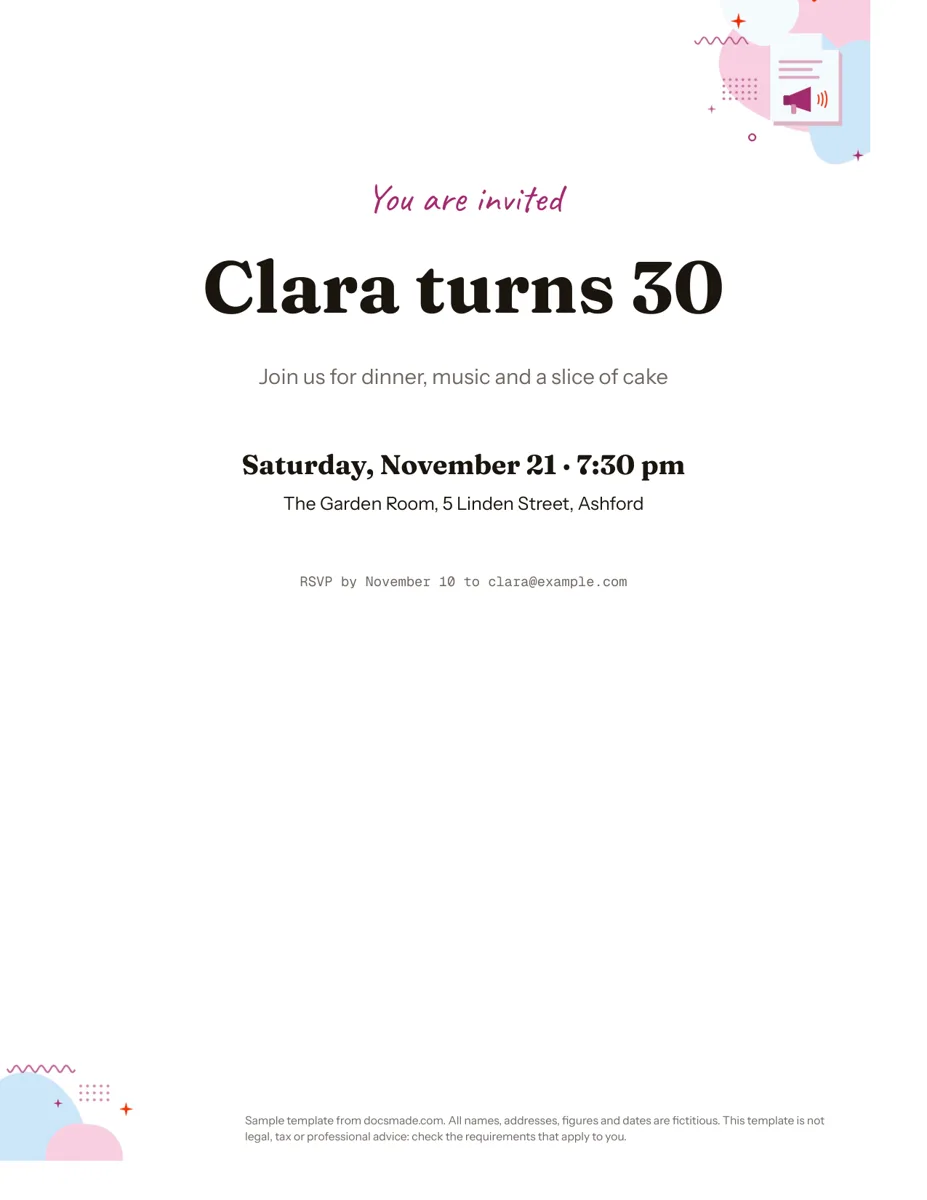 Marketing & print Google Docs Invitation Template: One-Page Party Invite Free invitation template for Google Docs: a one-page party invite you can preview, copy and edit, or download as .docx or PDF. Ready to print. View template →
 -
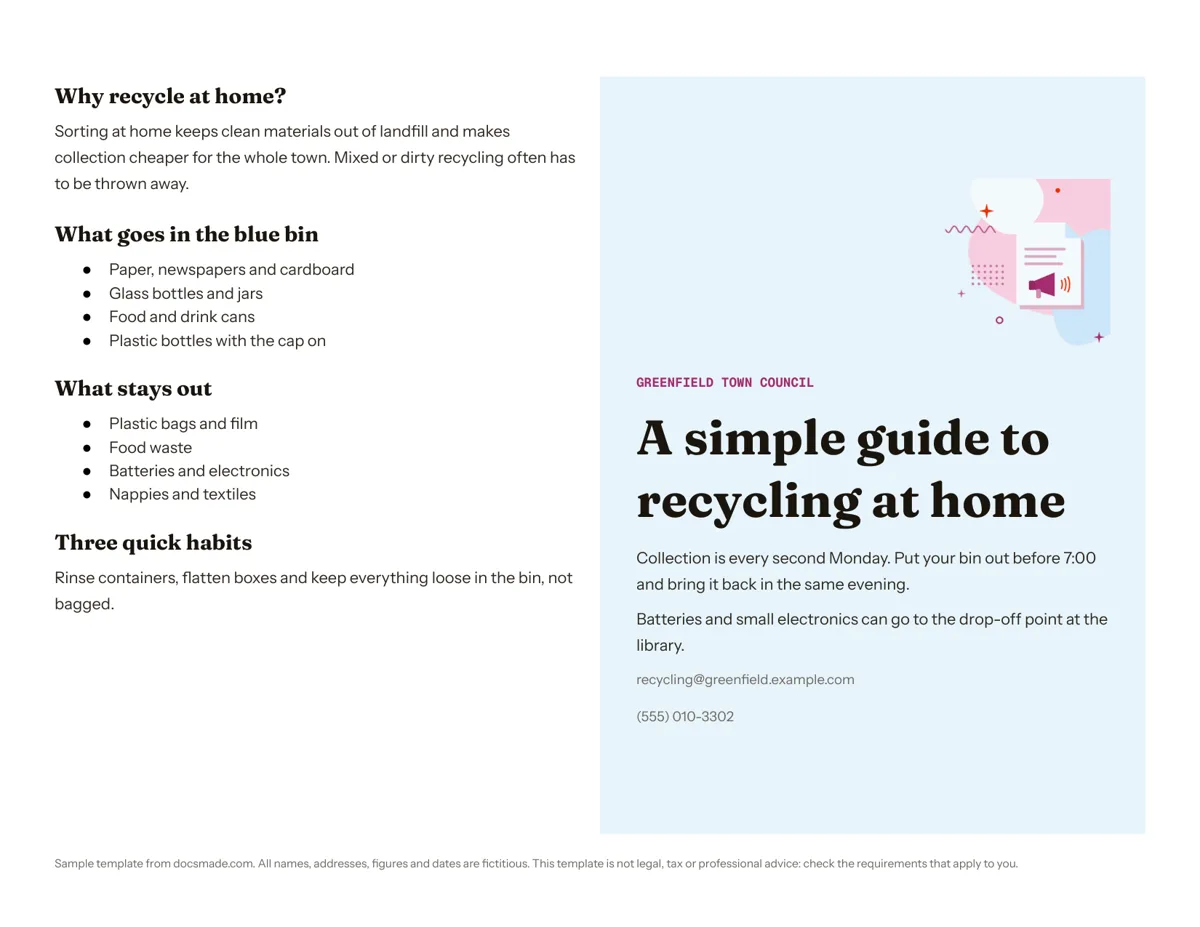 Marketing & print Google Docs Pamphlet Template for Informational Leaflets Free pamphlet template for Google Docs: a folded, two-panel info leaflet as a real Doc. Preview it, make a copy, or download .docx and PDF. View template →
 -
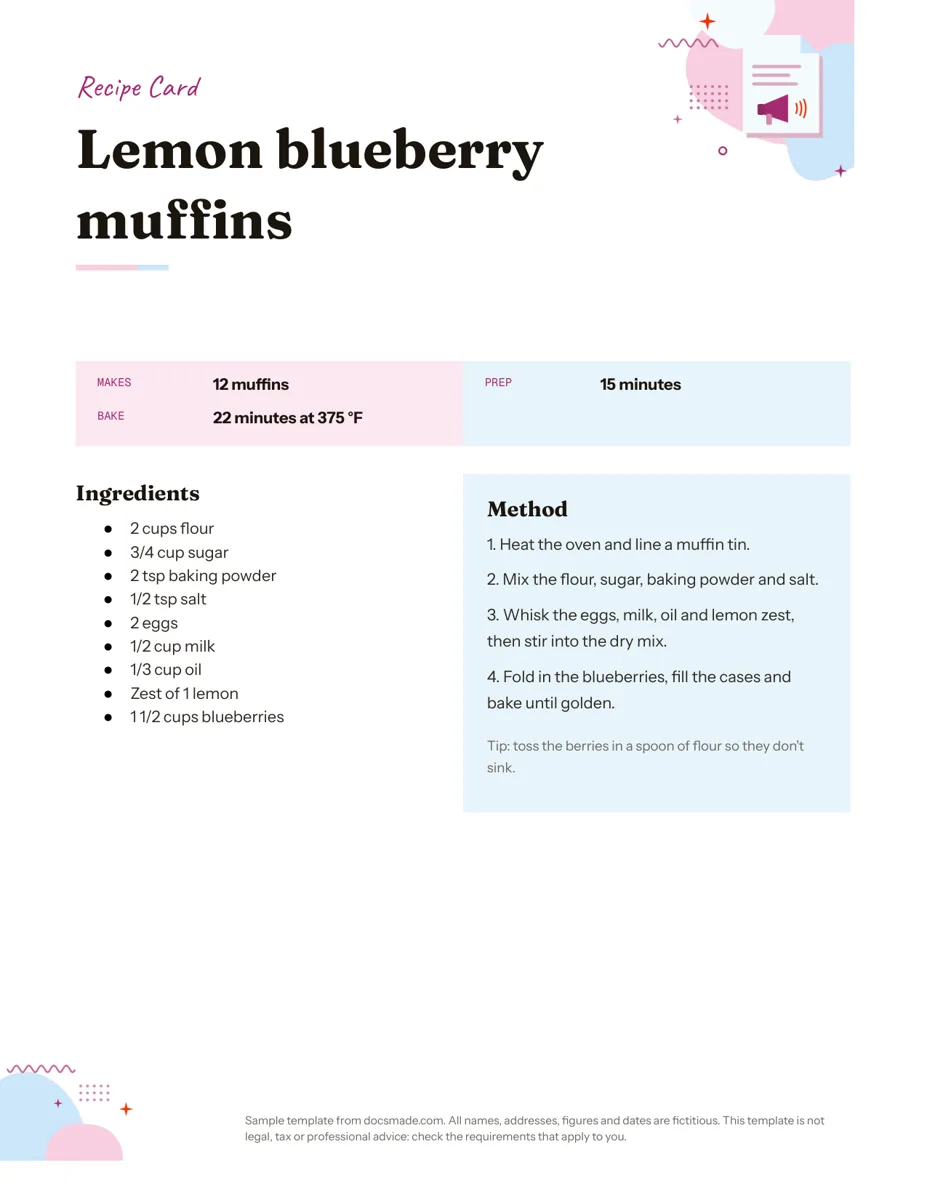 Marketing & print Google Docs Recipe Template: Printable Recipe Card Free recipe card template for Google Docs with ingredients and method side by side. Preview, copy and edit it, or download as .docx or PDF. View template →
 -
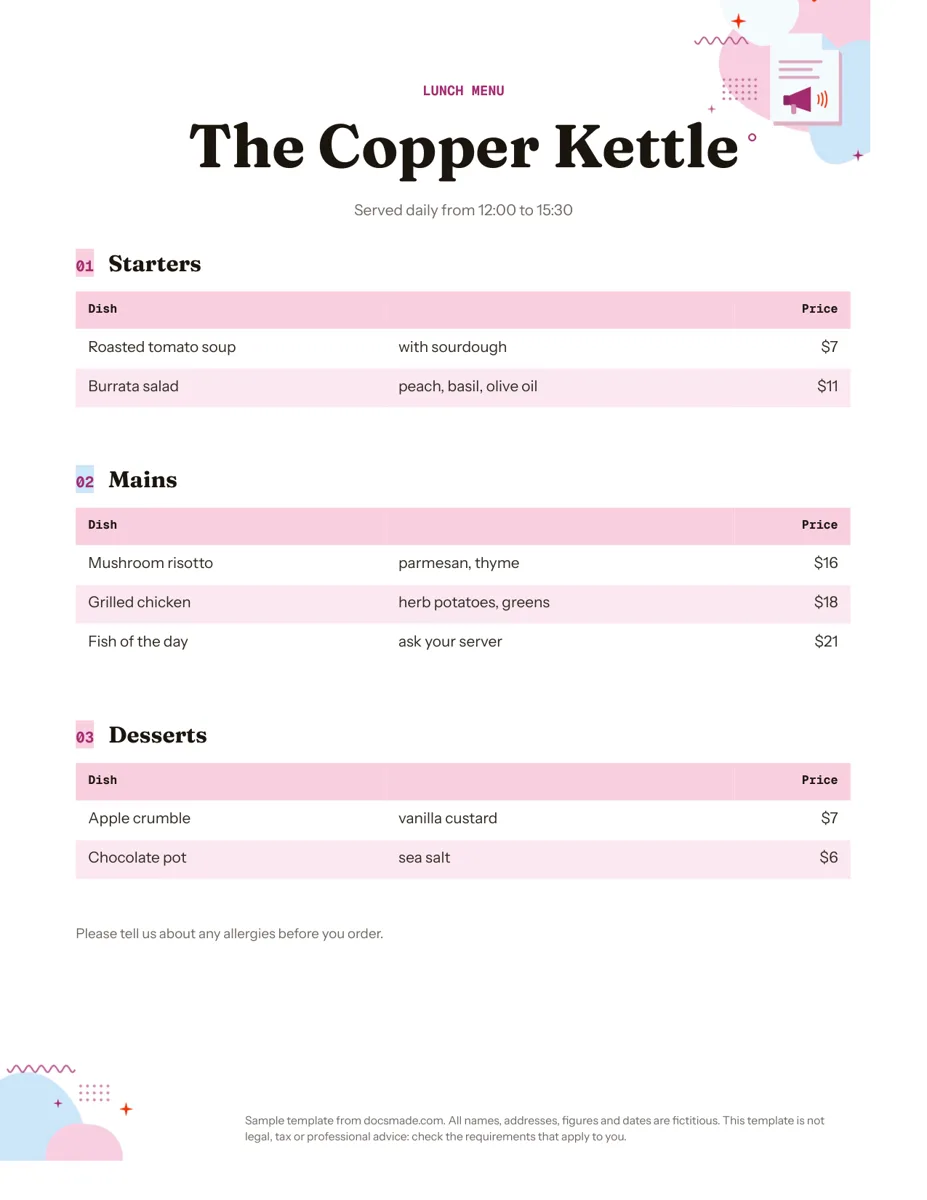 Marketing & print Google Docs Menu Template for Restaurants and Cafes Free restaurant menu template for Google Docs: starters, mains and desserts with prices. Preview it, make a copy, or download .docx or PDF. View template →
 -
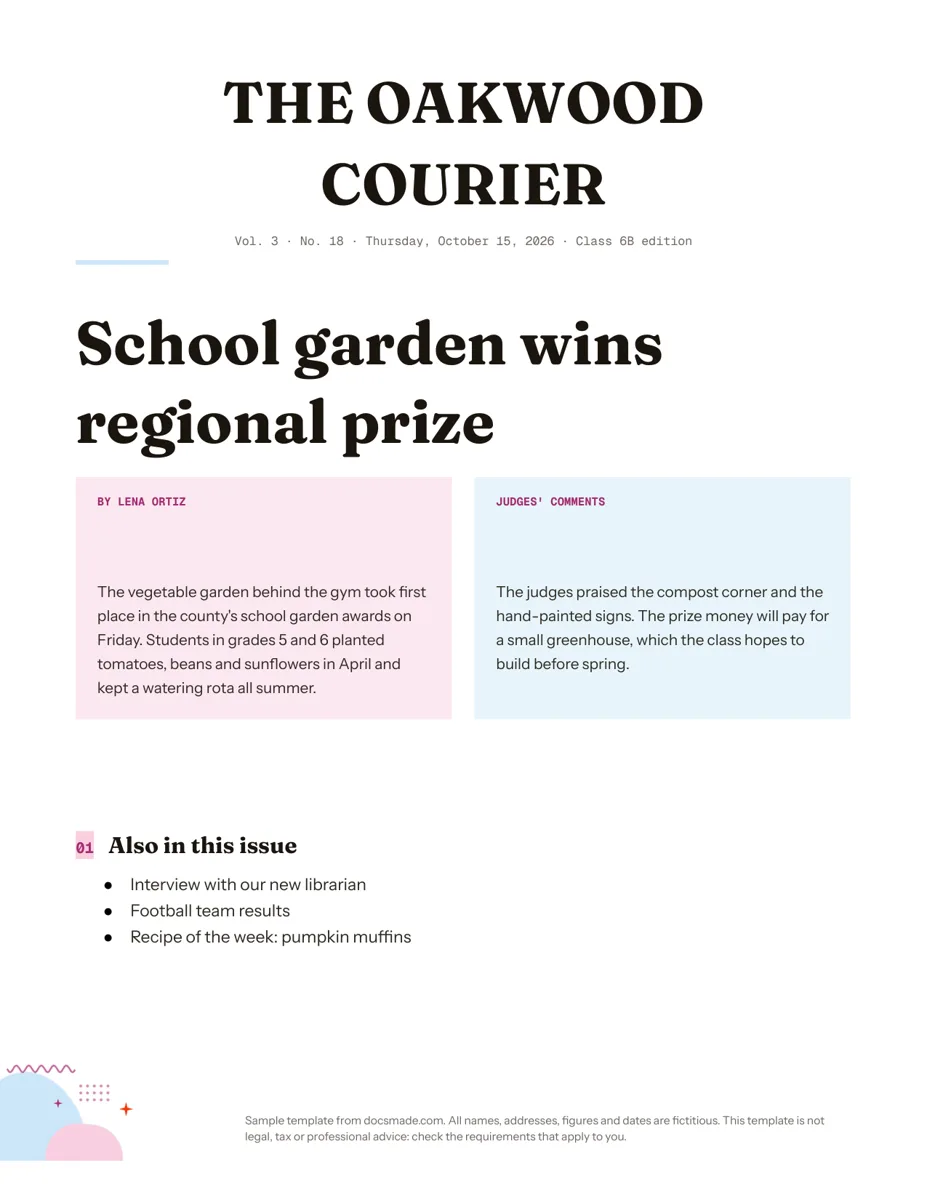 Marketing & print Google Docs Newspaper Template for Class and School Papers Free newspaper template for Google Docs: masthead, headline and two-column story. A real Doc to preview, copy, or download as .docx or PDF. View template →
 -
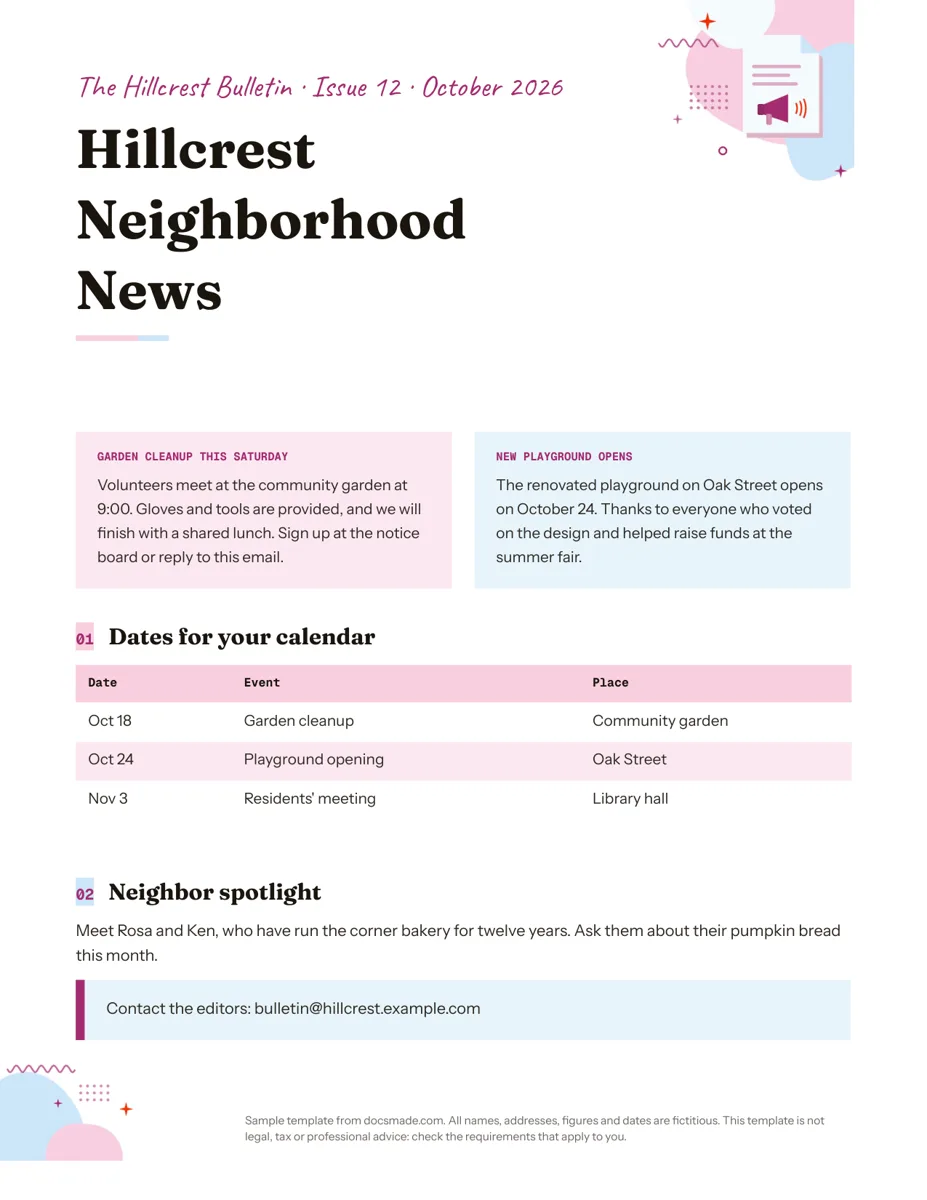 Marketing & print Google Docs Newsletter Template for Community and School News Free newsletter template for Google Docs: one page with two stories, a dates table and a spotlight. Preview, copy, or download .docx or PDF. View template →
 -
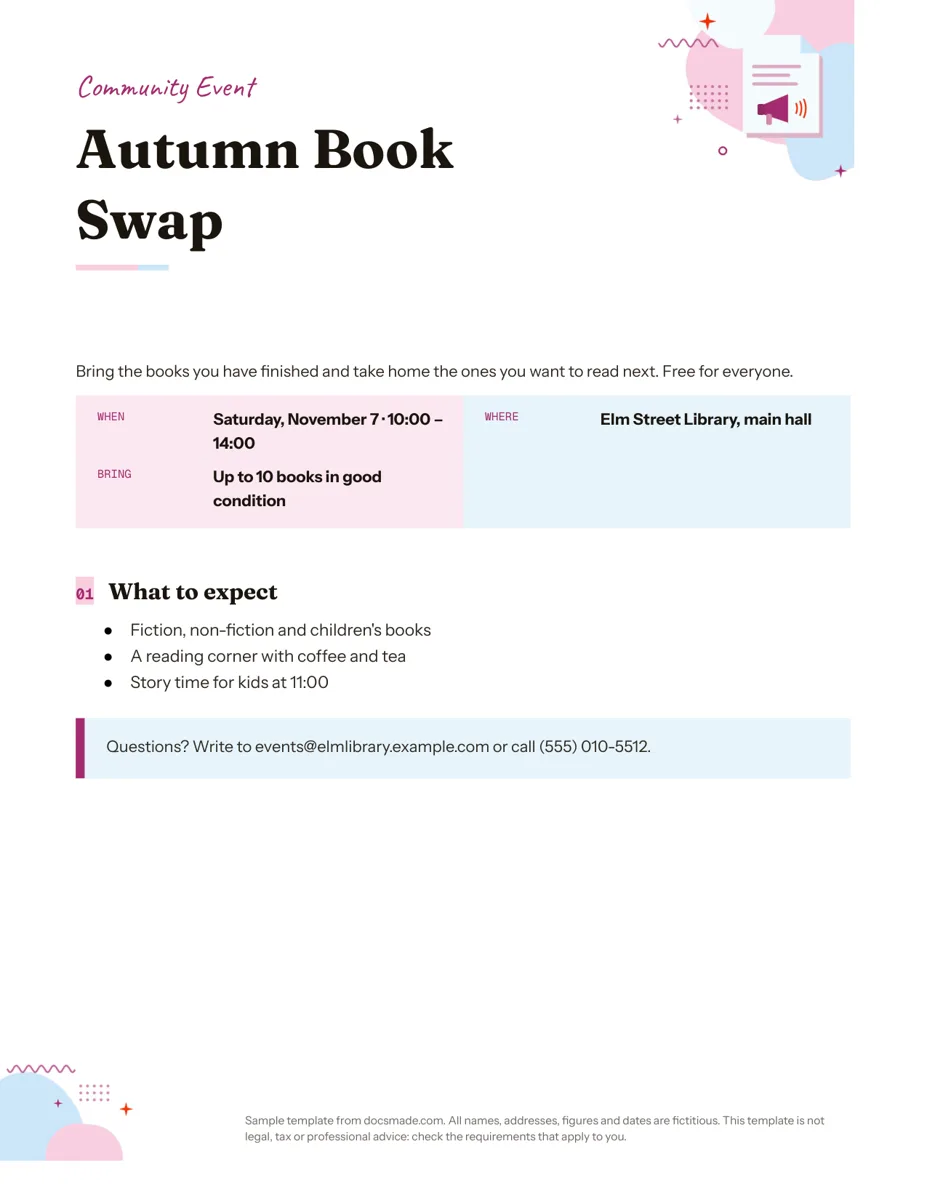 Marketing & print Google Docs Flyer Template for Events and Announcements Free event flyer template for Google Docs: a real Doc with title, when/where box and details. Preview it, copy it, or get it as .docx or PDF. View template →
 -
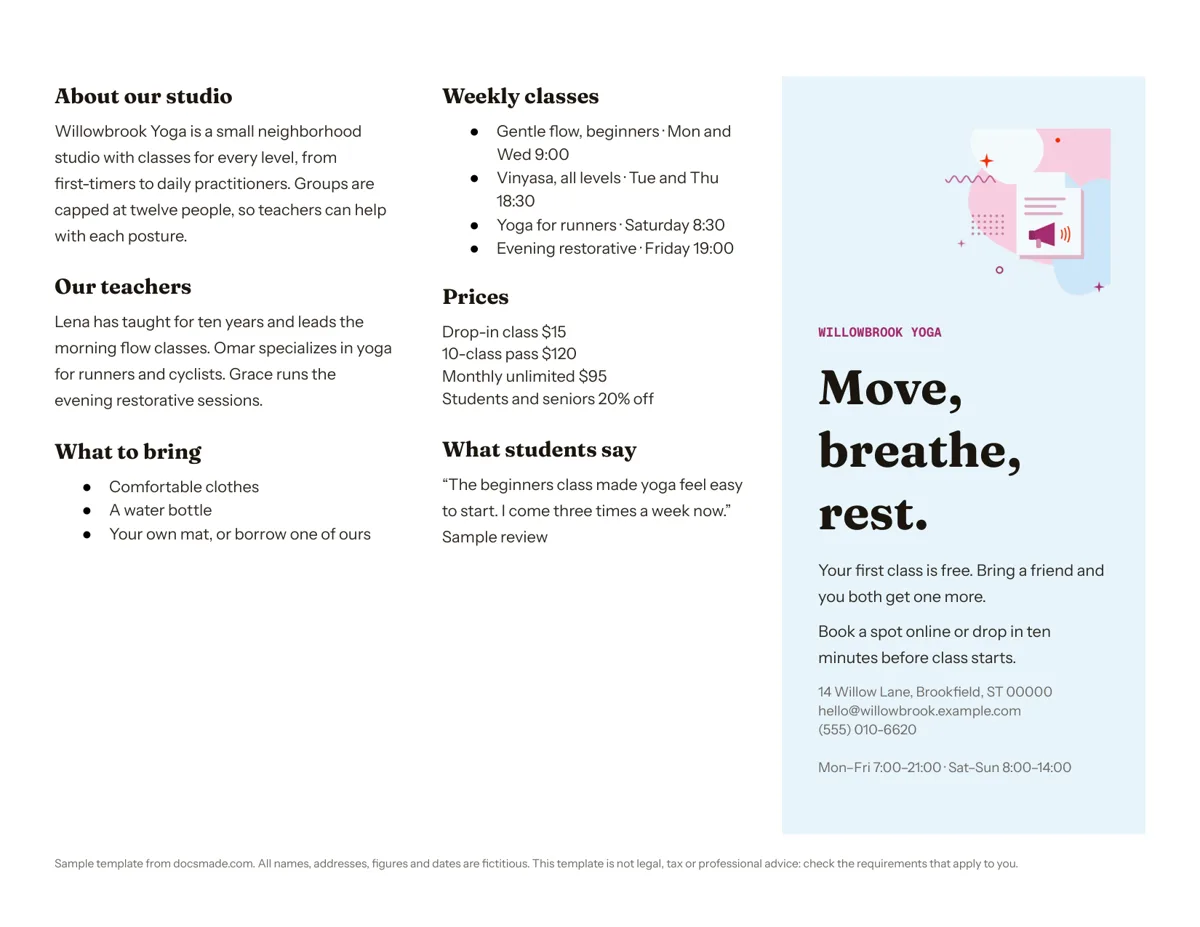 Marketing & print Tri-Fold Brochure Template for Google Docs Free tri-fold brochure template for Google Docs: a real Doc with three panels. Preview it, make a copy, or download it as .docx or PDF. View template →
These Google Docs marketing templates are made for paper first: documents you print, fold, pin to a board or hand out at the counter. Brochures and pamphlets for a small business, a flyer for a community event, a newsletter for a school or neighborhood, a menu for a cafe. Each is a real Google Doc with fictitious sample content, so you can preview it, copy it and replace the text and colors without opening a design app.
Printable marketing templates in Google Docs: what is here
- Brochure: a landscape trifold with three panels per side, for services, prices and contact details.
- Pamphlet: a landscape, folded information leaflet on a single topic; the sample explains home recycling for a town council.
- Flyer: a one-page event or promotion sheet with a large headline, date, place and a short list of what to expect.
- Newsletter: a two-column bulletin with a lead story, a dates table and a spotlight section.
- Newspaper: a front page with a masthead, headline, columns and an "also in this issue" list.
- Menu: starters, mains and desserts in tables with aligned prices.
- Invitation: a centered one-page party invite with date, venue and RSVP.
- Recipe card: a card with yield and timings at the top, then ingredients and method side by side.
Google Docs brochure and flyer templates vs. design apps
Design tools give you more freedom with images and effects. Google Docs gives you something else: anyone on your team can edit the text, the layout survives the edit, and the file sits in the same Drive as the rest of your work. For documents where the words change often, such as a monthly newsletter, a seasonal menu or an event flyer reused every year, that matters more than special effects. The templates here are built with Docs tables and section columns, so adding a sentence pushes text down instead of breaking a floating text box.
How to print marketing templates from Google Docs
- Check the page setup. The brochure and pamphlet are landscape; the others are portrait. Confirm Letter or A4 in File > Page setup before printing.
- Print a test page. For folded documents, print one double-sided copy, fold it and check that each panel lands where you expect. Printers flip the second side on the long or short edge depending on settings.
- Send a PDF to a print shop. File > Download > PDF Document keeps fonts and colors fixed. Ask the shop whether they need bleed; these Docs keep content inside standard margins.
- Use heavier paper for handouts. Brochures, menus and invitations feel more finished on card stock, which most home printers can feed one sheet at a time.
Customizing marketing templates in Google Docs
Start with the words, then the look. Replace the sample headline and body, then change the accent color: select a colored band or table cell and use the fill color button in the toolbar. To swap fonts across the document, change one heading in Format > Text, then use Format > Paragraph styles > Update to match so every heading follows. Add your logo with Insert > Image and keep it small in the header area. If you need photos, use ones you own or have a license for.
The step-by-step guide how to copy a Google Doc explains copying, downloading and sharing, and the business templates cover the invoices and proposals that follow a successful campaign.