
Templates
Google Docs Planner Templates to Get Organized
-
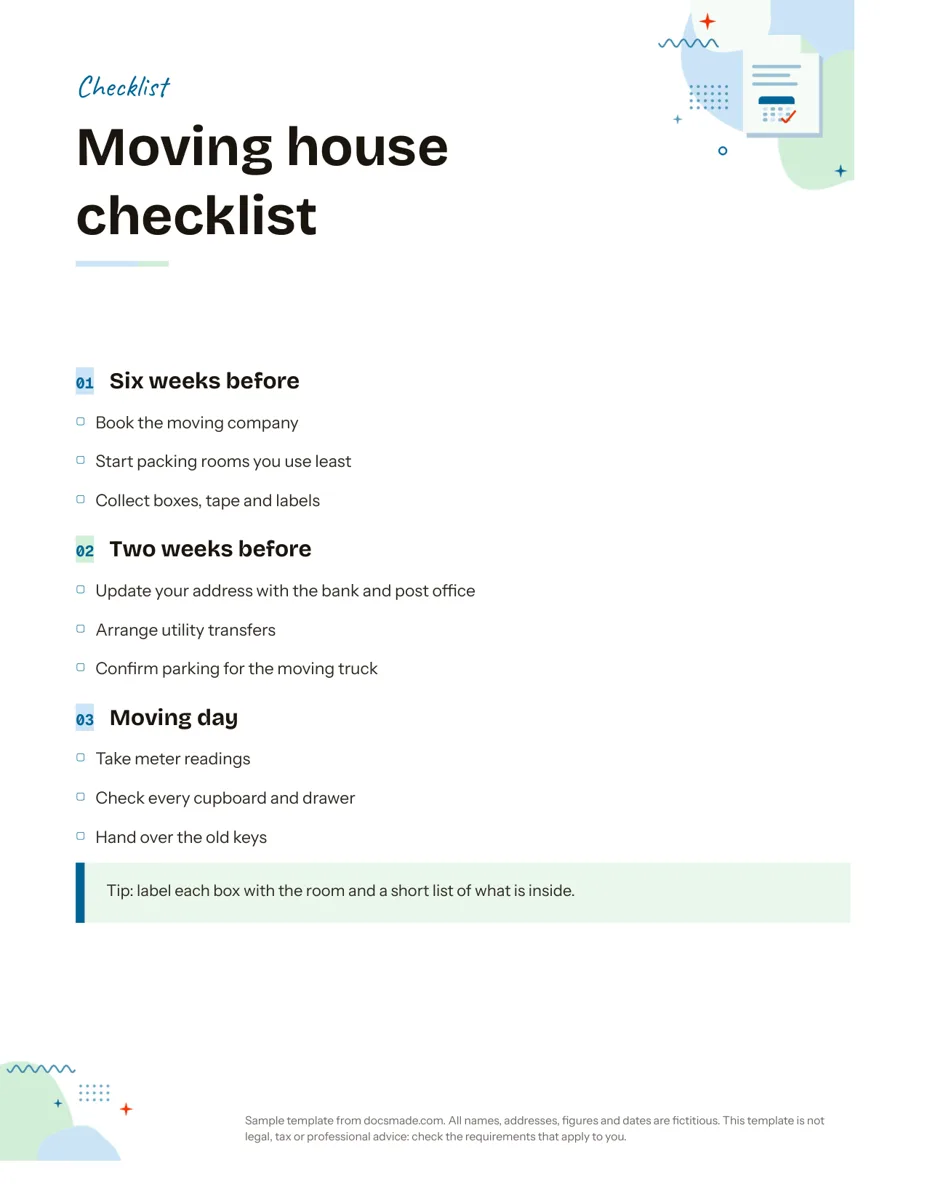 Organization Google Docs Checklist Template, Printable and Editable Free printable checklist template for Google Docs, grouped by stage with tick boxes and a tip box. Preview it, copy it, or download .docx and PDF. View template →
 -
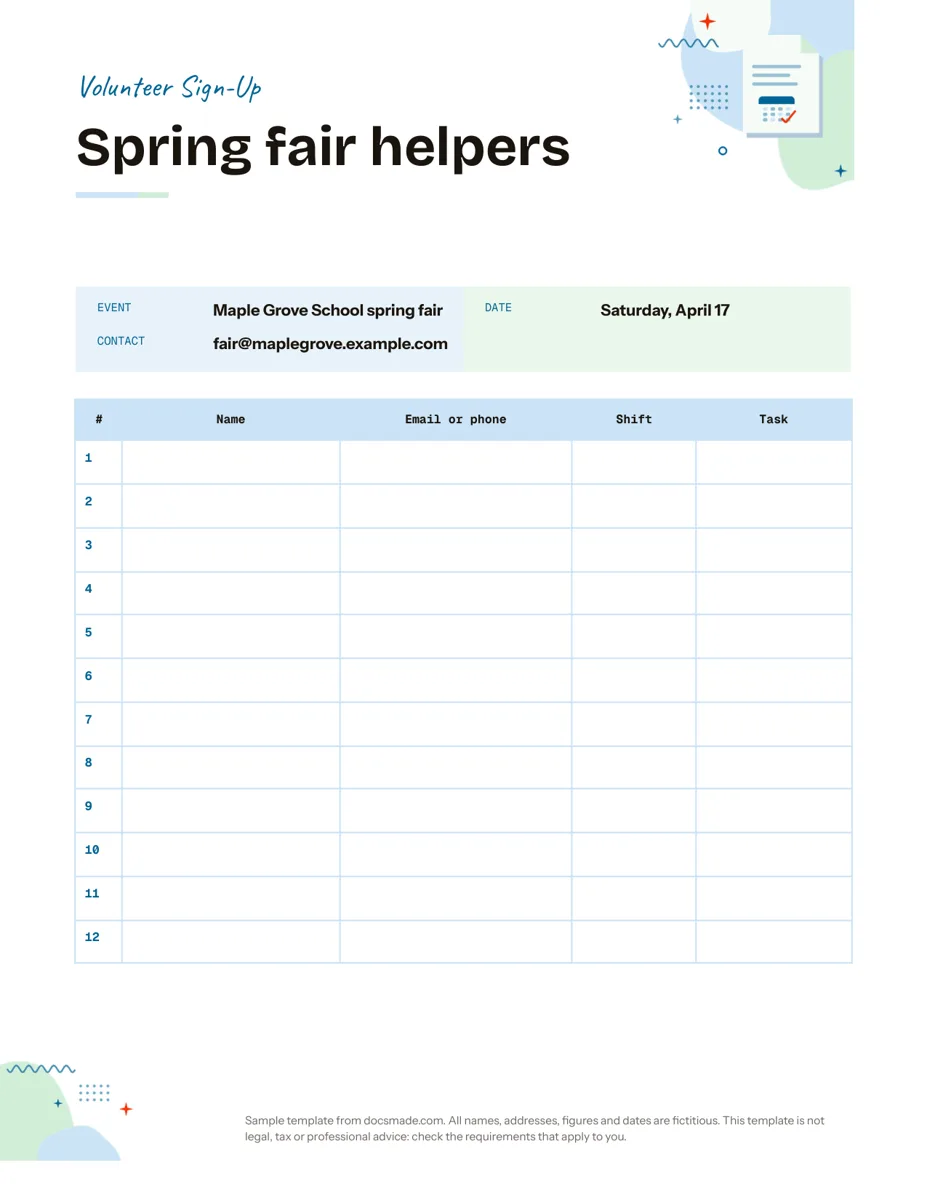 Organization Google Docs Sign Up Sheet Template for Volunteers and Events Free volunteer sign up sheet template for Google Docs with name, contact, shift and task columns. Preview it, copy it, or print the PDF. View template →
 -
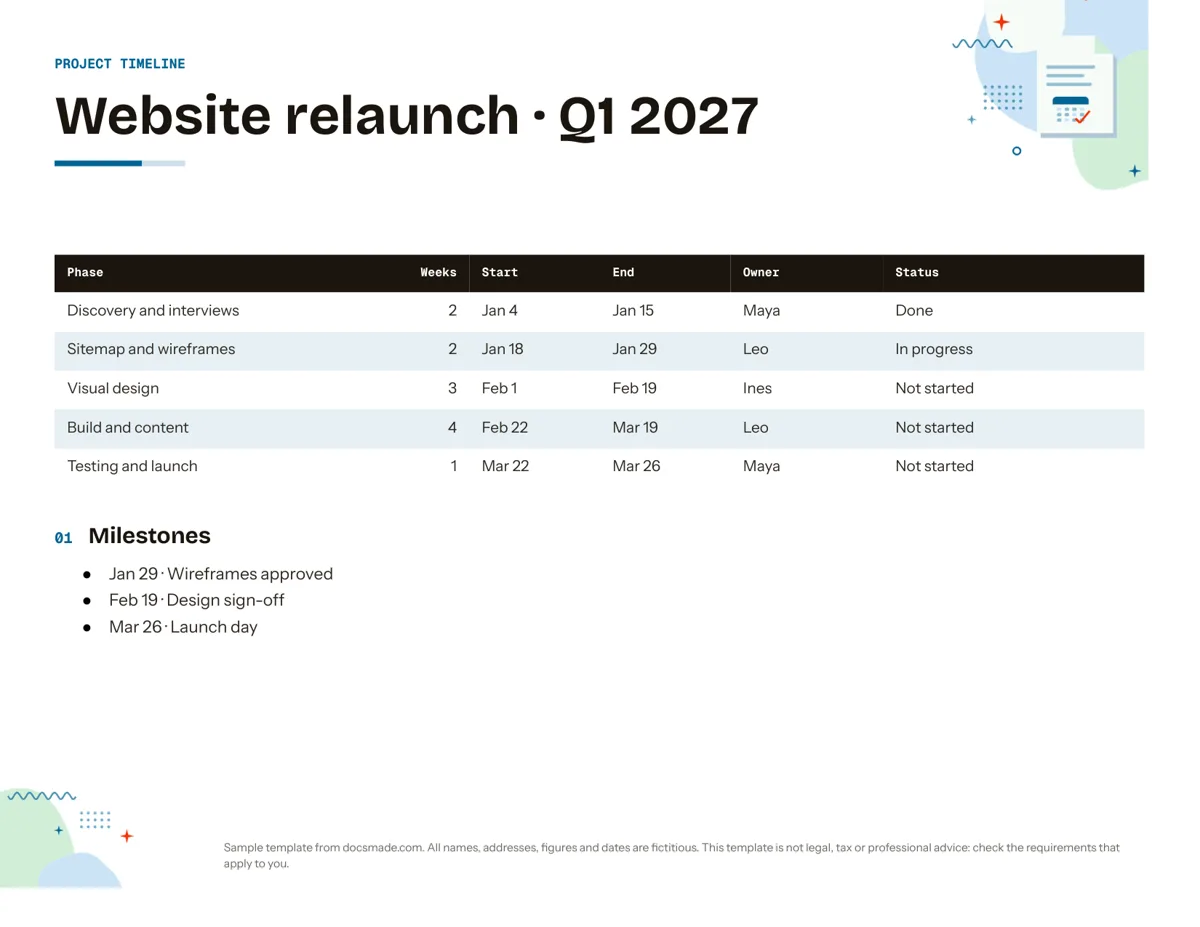 Organization Google Docs Timeline Template for Project Planning Free project timeline template for Google Docs: phases, dates, owners, status and milestones. Preview it, make a copy, or download .docx and PDF. View template →
 -
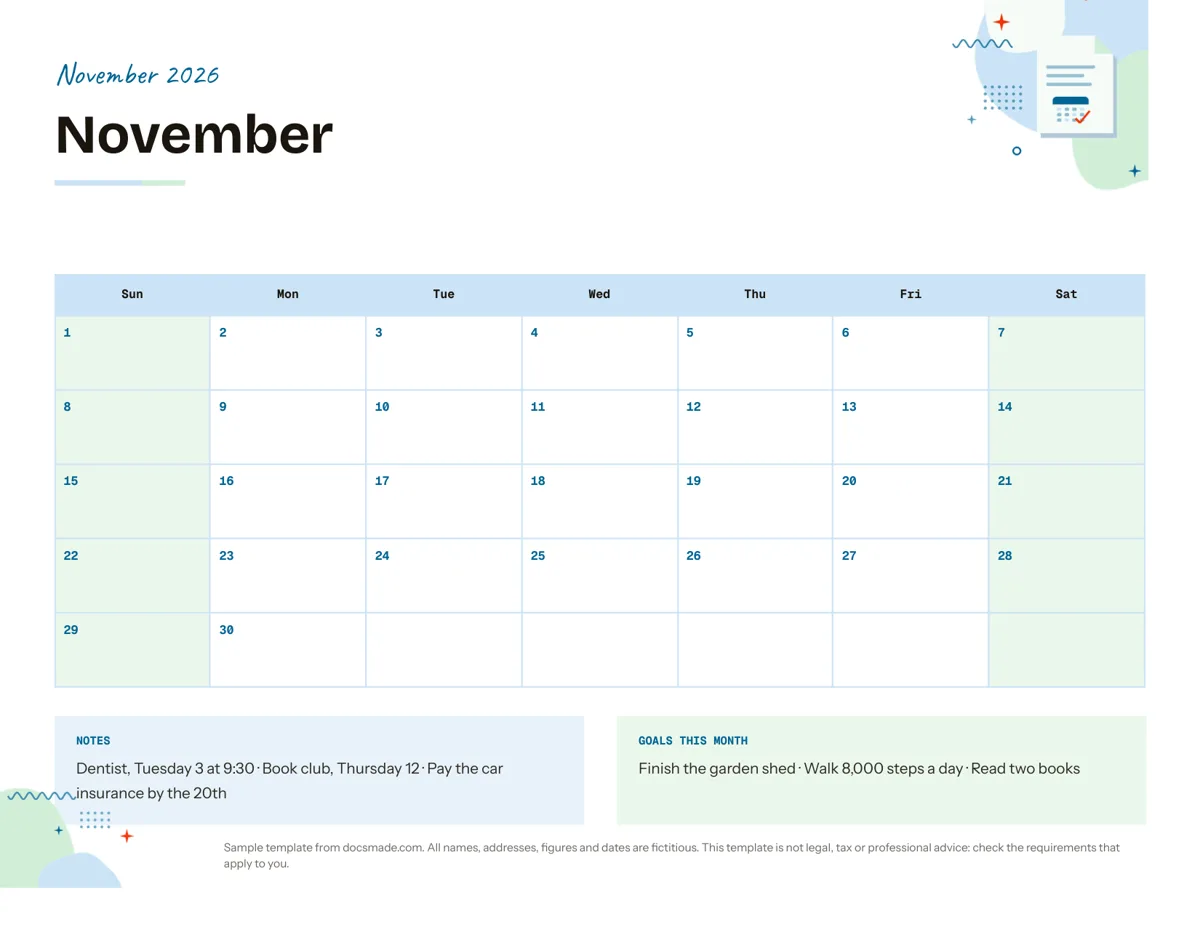 Organization Google Docs Calendar Template: Printable Monthly Planner Free monthly calendar template for Google Docs: a landscape grid with notes and monthly goals. Preview it, make a copy, or get .docx and PDF. View template →
 -
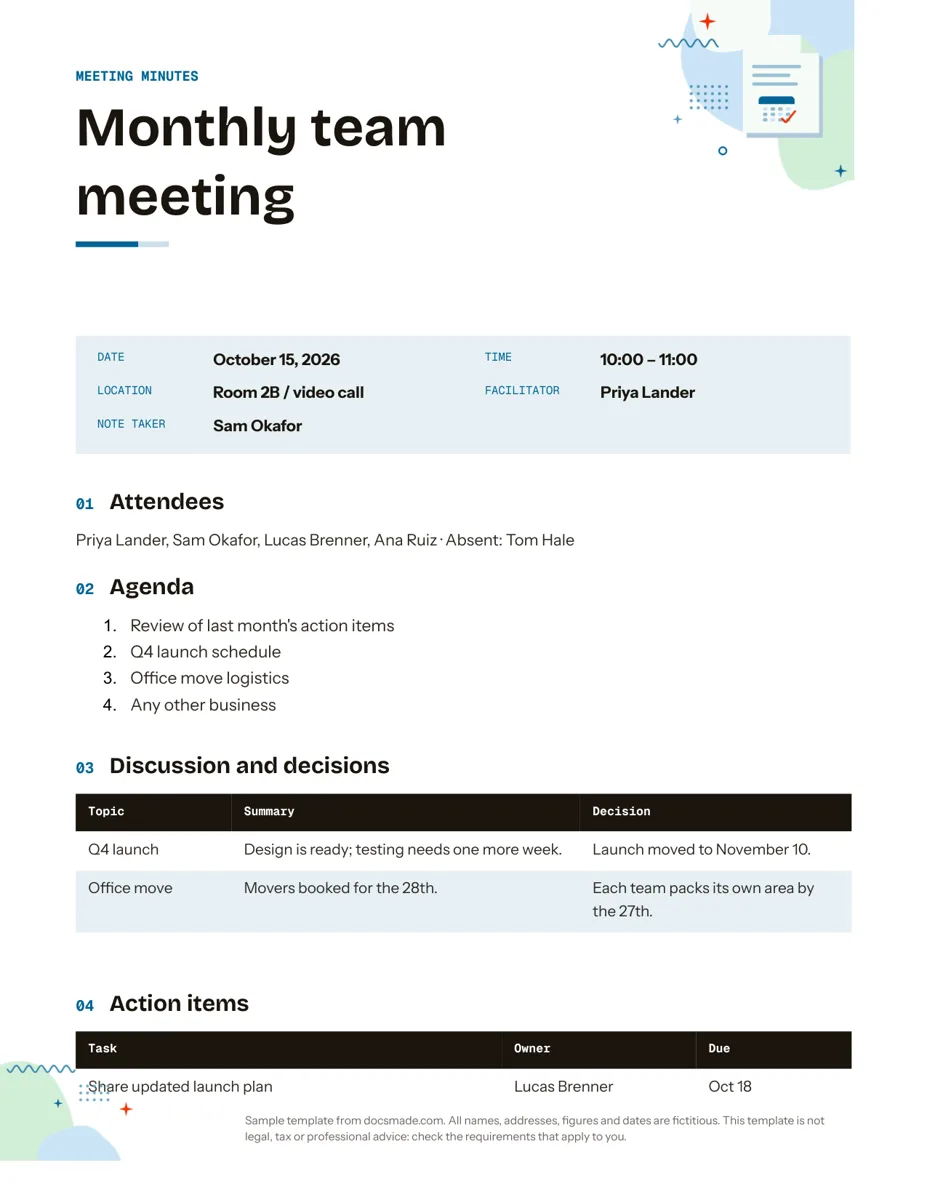 Organization Google Docs Meeting Minutes Template with Action Items Free meeting minutes template for Google Docs with agenda, decisions and an action items table. Preview it, make a copy, or get .docx and PDF. View template →
These Google Docs planner templates help with the practical side of getting things done: seeing a month at a glance, laying out a project over several weeks, ticking off tasks in order, finding volunteers and recording what a meeting decided. Each template is a real Google Doc you can copy into your Drive, edit together with other people and print. The events, names and dates in the samples are fictitious.
Planner templates in Google Docs: what each one is for
- Calendar: a landscape monthly grid, Sunday to Saturday, with a notes area for appointments and reminders.
- Timeline: a landscape project table with phase, length in weeks, start and end dates, owner and status, followed by a milestones list.
- Checklist: tasks grouped by stage, each with a tick box, plus a tip callout. The sample is a house move.
- Sign-up sheet: event details at the top and a numbered grid with columns for name, email or phone, shift and task.
- Meeting minutes: attendees, agenda, a table of discussion points and decisions, an action items table and the next meeting date.
Free Google Docs planner templates vs. a spreadsheet or app
A spreadsheet is better when you need formulas, filters or hundreds of rows. A task app is better when you need reminders on your phone. A Google Doc wins when the plan is mostly words and has to be read, printed or signed by people who do not share your tools: a sign-up sheet on a clipboard, a calendar on the fridge, a timeline attached to a client email, minutes that a committee approves. Everyone can open a Doc, and the printed page looks like the screen.
How to plan with Google Docs templates as a team
- Copy the template once and share it. Make your copy, then use Share to add teammates as editors or commenters. Everyone works in the same file, so there is one current version.
- Use comments to assign work. Select any line and press the comment button to ask a question or assign a task; typing @ and a name in a comment notifies that person. The checklist boxes are printable symbols for ticking on paper; to tick on screen, select the tasks and choose the checklist option in the toolbar.
- Keep history instead of duplicates. File > Version history > See version history shows earlier states of the document, so you do not need a new file each week. Name important versions, such as the approved timeline.
- Print when paper helps. Sign-up sheets and calendars are often printed. Download a PDF from File > Download for a clean printout.
Schedule and calendar planning in Google Docs: tips
For the calendar, make one copy per month and change the month band and dates; the grid keeps its size. For the timeline, delete the phases you do not need by removing table rows rather than leaving them empty, and update the status column at each check-in. Meeting minutes work best when the action items table is filled in during the meeting: owner, task and due date, then shared with attendees the same day. If a sign-up sheet will be posted publicly, ask only for the contact details you need and remove them once the event is over.
See how to copy a Google Doc for the copy and download steps, and the business templates for memos and reports that often follow a planning meeting.