
Tri-Fold Brochure Template for Google Docs
Prefer a file? Download .docx · Download PDF
How it works: “Use this template” opens Google’s copy screen. Sign in to your Google account and the document is copied to your own Drive, where you can edit every line. Need help copying the document?
What's inside the tri-fold brochure template
-
About our studio
-
Our teachers
-
What to bring
- Comfortable clothes
- A water bottle
- Your own mat, or borrow one of ours
-
Weekly classes
- Gentle flow, beginners · Mon and Wed 9:00
- Vinyasa, all levels · Tue and Thu 18:30
- Yoga for runners · Saturday 8:30
- Evening restorative · Friday 19:00
-
Prices
-
What students say
This Google Docs brochure template lays out a classic tri-fold on a single landscape Letter page: two panels of information and a cover panel with your name, tagline and contact details. It is a real Google Doc, so you can preview it on this page, copy it to your Drive in one click and start replacing the sample text straight away. It suits small studios, shops, clubs, clinics and school projects that need a printed handout without opening a design app.
What the tri-fold brochure template for Google Docs includes
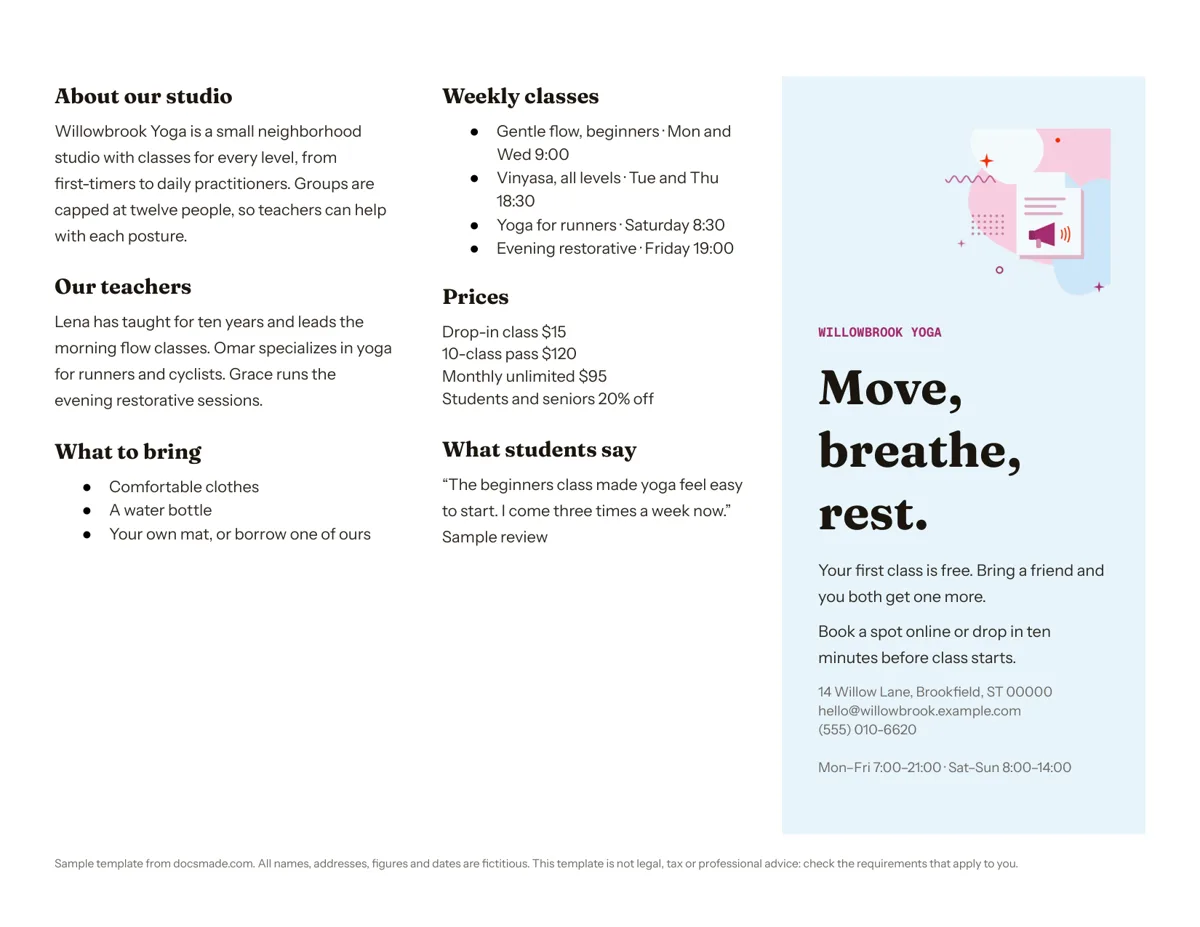
The sample is written for a fictitious yoga studio, Willowbrook Yoga, so every panel shows the kind of content a real brochure carries. The page is split into three equal columns built from a table, which keeps the panels aligned when you edit them.
- Left panel: about you. An "About our studio" paragraph, an "Our teachers" paragraph with three short profiles, and a "What to bring" checklist with three bullets.
- Middle panel: the offer. "Weekly classes" lists four sessions with day and time, "Prices" shows a drop-in rate, a 10-class pass, a monthly plan and a discount line, and "What students say" holds a short quote clearly marked as a sample review.
- Right panel: the cover. A colored band with the business name, a large tagline ("Move, breathe, rest."), two lines with the opening offer and how to book, and a small block with address, email, phone and opening hours. A light illustration sits at the top of this panel.
All names, prices and addresses are made up, and the footer line says so, so nothing in the sample points to a real business.
How to fill in a free brochure template so people keep reading
A brochure gets a few seconds of attention before someone decides to open it or put it down. Write it in this order:
- Start with the cover panel. Your name, one short promise and one reason to act now. The sample uses a free first class; yours could be a consultation, a sample, a seasonal date or simply "Open Saturdays".
- Answer the obvious questions inside. What you offer, when, where and for how much. Readers look for times and prices first, which is why the template gives them their own headings.
- Keep paragraphs to three or four lines. Panels are about 3.6 inches wide on Letter paper, so long paragraphs turn into gray blocks. Use bullets for anything that is a list.
- Use real proof, or none. Replace the sample quote with a review a customer actually gave you, with their permission. If you do not have one yet, delete the heading rather than inventing a testimonial.
- Finish with one clear way to contact you. An address, a phone number and an email are plenty. Check every digit before printing a batch.
Read the panels aloud once. If a sentence sounds like a slogan with no information in it, cut it and put a fact in its place.
Editing the trifold brochure template in Google Docs
Click Use this template on this page (or open the preview and choose File > Make a copy) and the Doc lands in your Google Drive. The step-by-step version is in our guide on how to copy a Google Doc. Then:
- Change fonts and colors. Select text and use the font menu, or Format > Text for size and style. The panel backgrounds are table cell colors: click inside a cell, right-click, choose Table properties and change the background color under Color.
- Replace or remove the illustration. Click the image on the cover panel, then right-click and choose Replace image to upload your logo or a photo, or press Delete to drop it.
- Adjust the panels. Drag the column borders if one panel needs more room, but keep them roughly equal or the folds will cut through text.
- Switch paper size. The Doc uses US Letter in landscape. For A4, go to File > Page setup, pick A4 and keep the landscape orientation.
Printing a two-sided brochure from Google Docs
To print, choose File > Print. Set the margins to default and the scale to 100% so the panels line up with the folds. The template is one page, so you can hand it out flat or fold it into thirds; a zigzag (Z) fold keeps the cover panel on the front and the reader unfolds it to see the other two.
For a classic two-sided tri-fold, duplicate the page (copy the table into a second page), turn it into the inside spread and print double-sided with "flip on short edge" selected. Print one test copy and fold it before running a full batch.
To send it to a print shop, use File > Download > PDF document, or the PDF button on this page. File > Download > Microsoft Word (.docx) gives you an editable file for Word. To get feedback first, click Share, add your colleagues as commenters and let them leave notes with Insert > Comment.
Brochure ideas: travel, product and school brochures in Google Docs
The same three-panel structure works for very different jobs once you rename the headings:
- Travel brochure. Cover panel with the destination name, inside panels for "Things to see", "Where to stay" and "Getting there". Teachers often assign this for geography or language classes.
- Product brochure. One panel for the problem the product solves, one for features and prices, the cover for the product name and where to buy it.
- Services or clinic brochure. Swap the class schedule for a list of services and opening hours, and the teachers for your team.
- Event or club brochure. Use the schedule heading for the program and the prices heading for tickets or membership.
If you need a folded sheet with only two halves, the pamphlet template is laid out that way. For a single-sided announcement, the flyer template is faster to fill in, and a newsletter template suits regular updates. More print designs are in the marketing templates section.
Google Docs brochure template FAQ
Does Google Docs have a tri-fold brochure template?
The Google Docs template gallery includes a couple of brochure designs, but they are not laid out as three panels on a landscape page. This template is built as a tri-fold from the start, so you only need to replace the text.
How do I make a bi-fold brochure in Google Docs?
Change the page to landscape in File > Page setup, insert a table with one row and two columns, and fill each half as one side of the fold. Our pamphlet template already uses this two-panel layout if you want a head start.
Can I get a blank brochure template for Google Docs?
Yes. Make a copy, then select the text inside each panel and delete it. The table, colors and cover band stay in place, so you keep the layout and get an empty tri-fold to fill in.
How do I print a brochure on both sides in Google Docs?
Add a second page with the inside panels, then in the print dialog turn on two-sided printing and choose flip on short edge, since the page is landscape. If your printer only prints one side, print page one, put the sheets back in the tray and print page two.
Is this Google Docs brochure template free?
Yes. Copying it, editing it and downloading it as .docx or PDF costs nothing and needs no account other than your Google account.
More templates
-
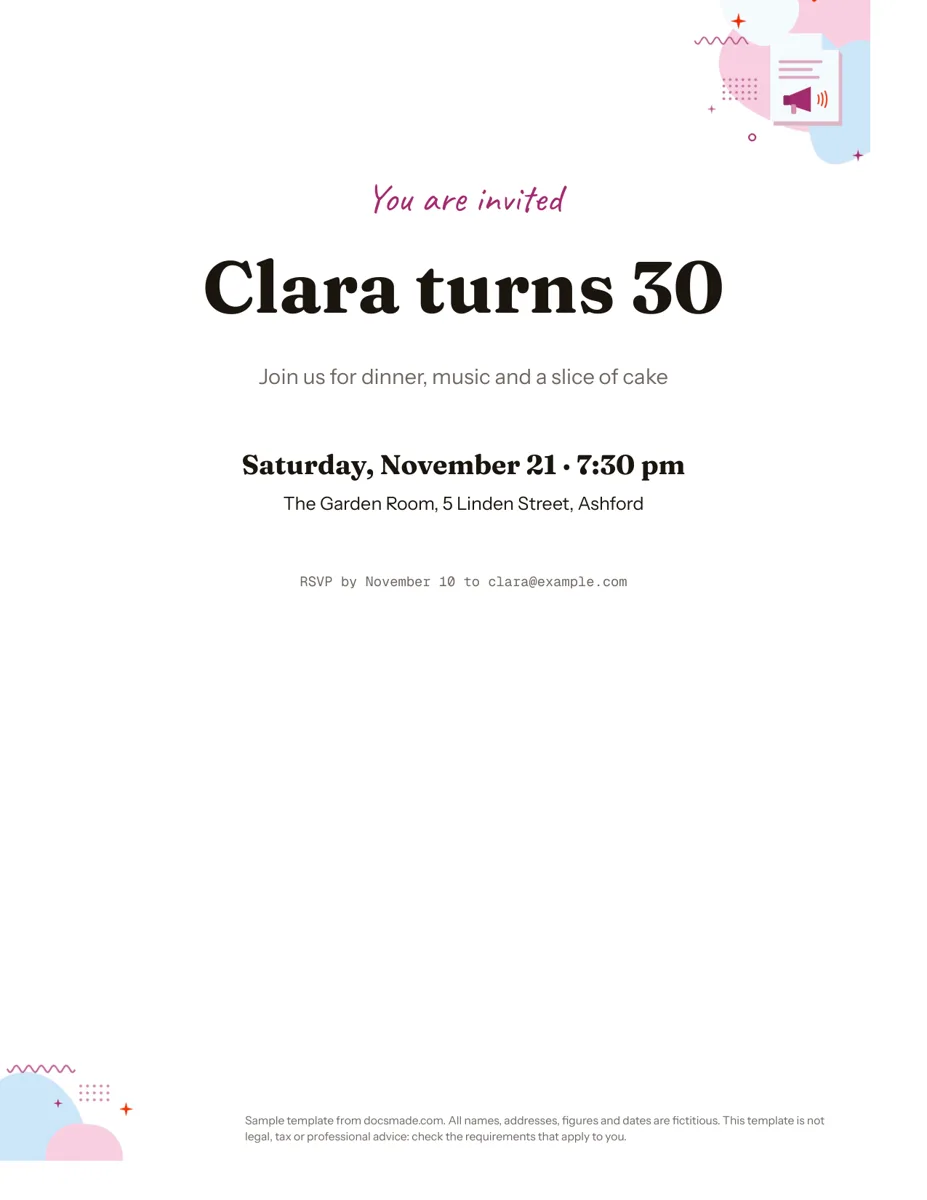 Marketing & print Google Docs Invitation Template: One-Page Party Invite Free invitation template for Google Docs: a one-page party invite you can preview, copy and edit, or download as .docx or PDF. Ready to print. View template →
 -
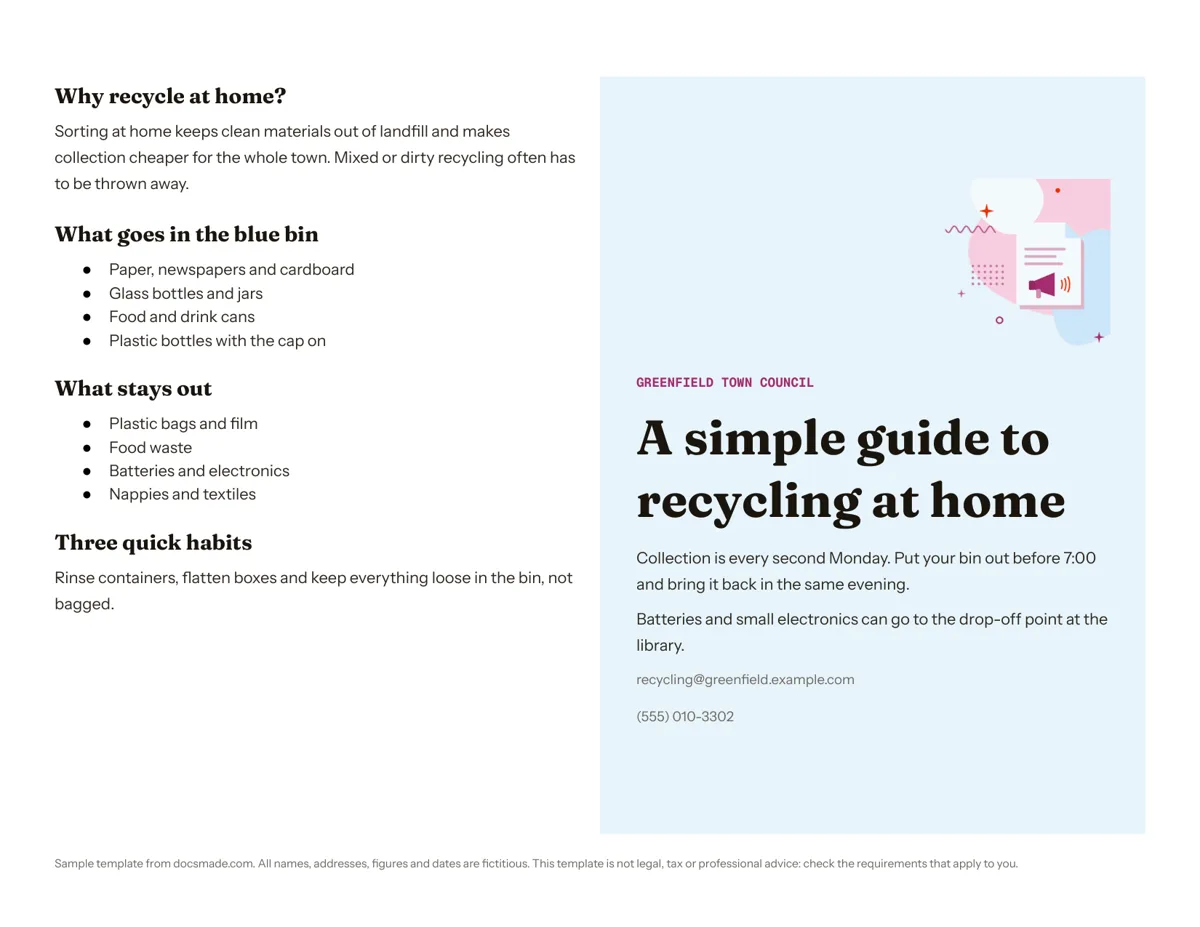 Marketing & print Google Docs Pamphlet Template for Informational Leaflets Free pamphlet template for Google Docs: a folded, two-panel info leaflet as a real Doc. Preview it, make a copy, or download .docx and PDF. View template →
 -
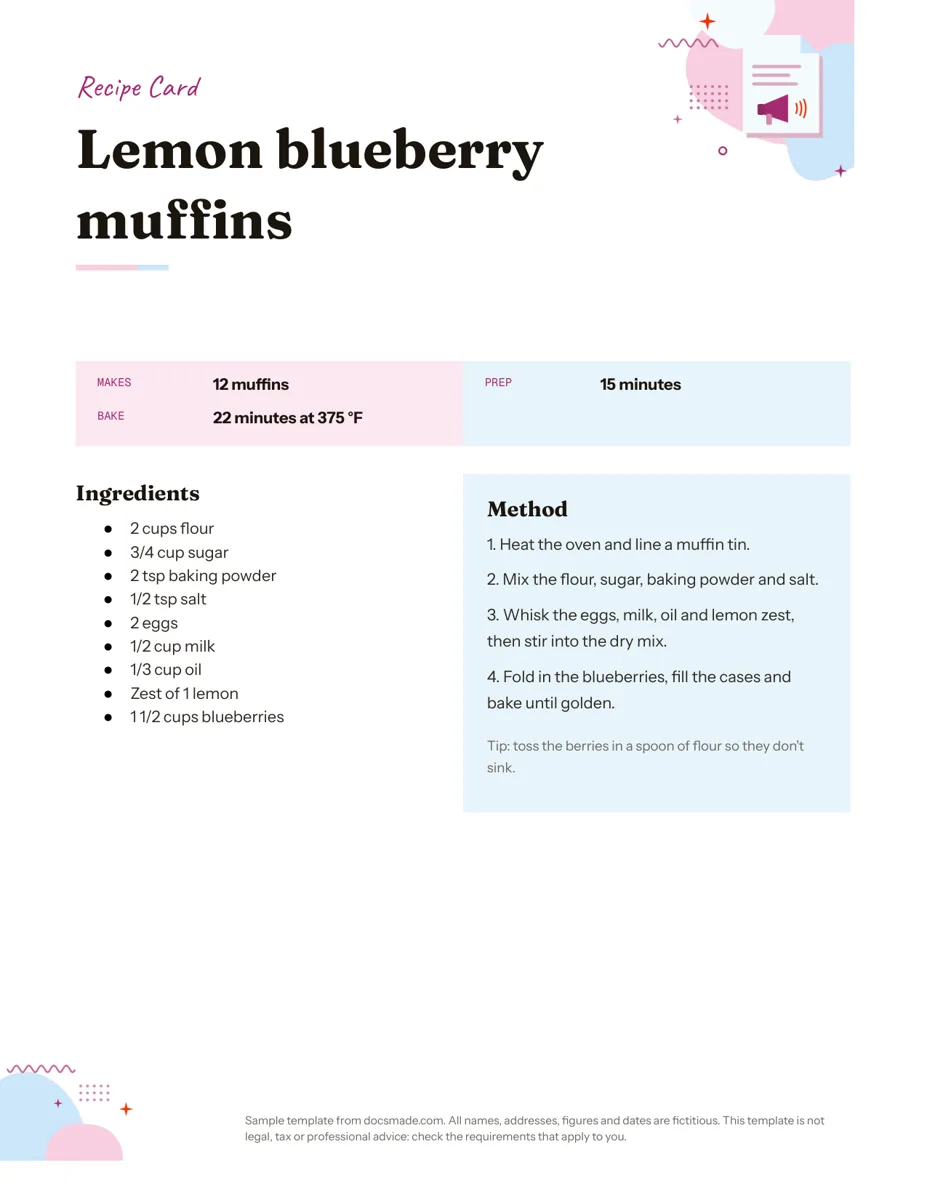 Marketing & print Google Docs Recipe Template: Printable Recipe Card Free recipe card template for Google Docs with ingredients and method side by side. Preview, copy and edit it, or download as .docx or PDF. View template →
 -
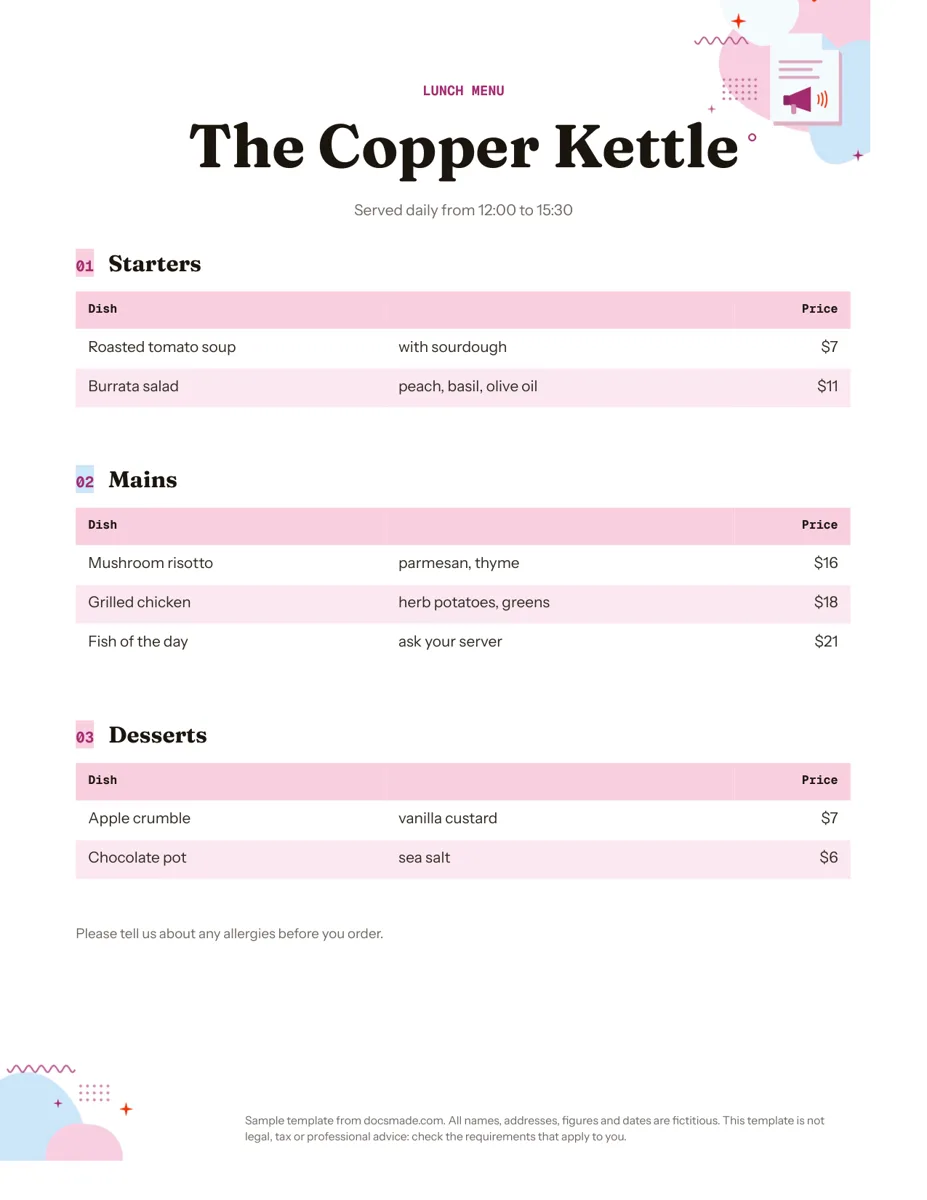 Marketing & print Google Docs Menu Template for Restaurants and Cafes Free restaurant menu template for Google Docs: starters, mains and desserts with prices. Preview it, make a copy, or download .docx or PDF. View template →