
Google Docs Menu Template for Restaurants and Cafes
Prefer a file? Download .docx · Download PDF
How it works: “Use this template” opens Google’s copy screen. Sign in to your Google account and the document is copied to your own Drive, where you can edit every line. Need help copying the document?
What's inside the menu template
-
Starters
- Table: Dish, Price
-
Mains
- Table: Dish, Price
-
Desserts
- Table: Dish, Price
This Google Docs menu template is a clean one-page menu with three courses, short dish descriptions and prices lined up on the right. It is a real Google Doc, so you can preview it here, copy it to your Drive in one click and update prices whenever they change, without a designer. It works for cafes, small restaurants, food trucks, catered events, school canteens and dinner parties at home.
What the restaurant menu template for Google Docs includes
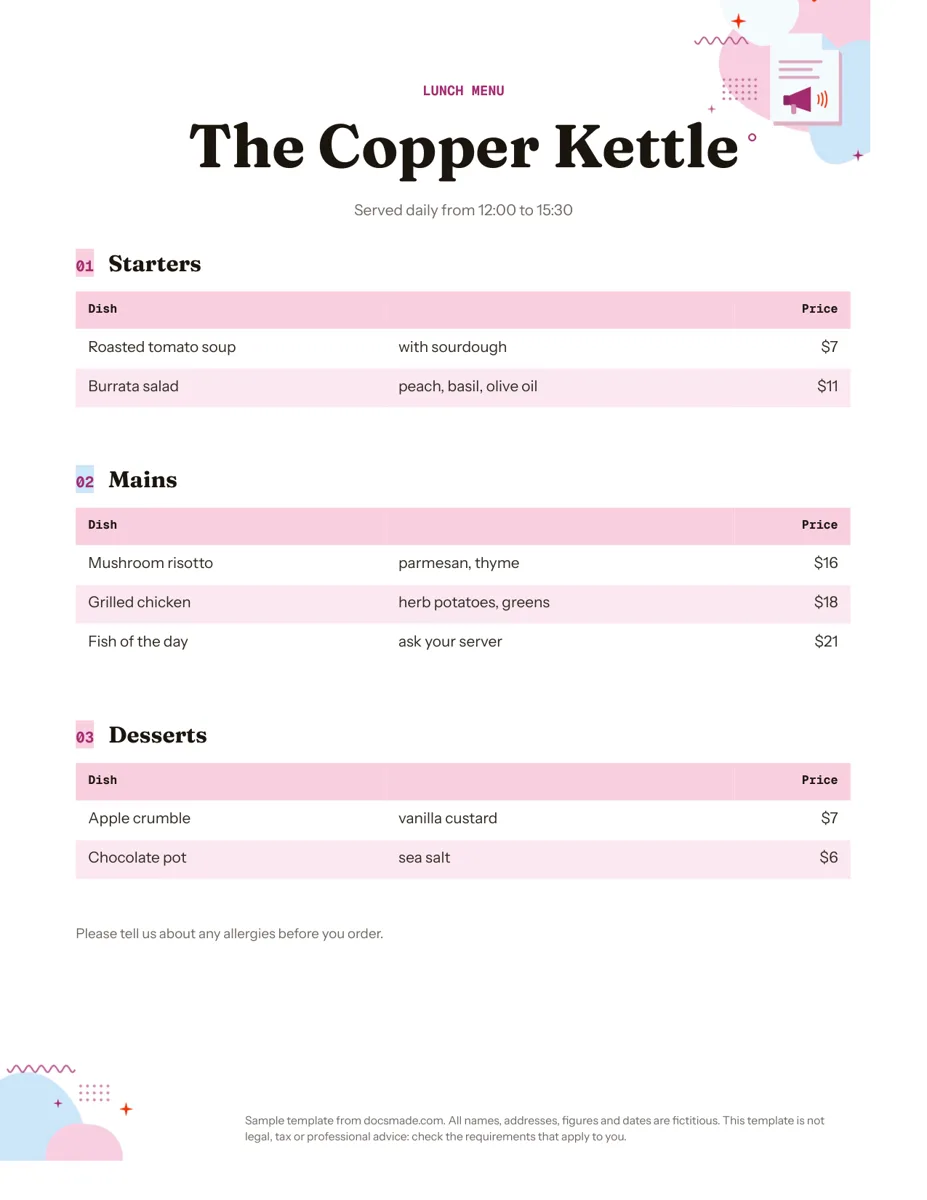
The sample is the lunch menu of a fictitious restaurant, The Copper Kettle, laid out on a US Letter page:
- Header. A small "Lunch Menu" label, the restaurant name in a large display font, and a line with service hours ("Served daily from 12:00 to 15:30").
- Starters. A numbered section with a table of two dishes: roasted tomato soup with sourdough and a burrata salad with peach and basil.
- Mains. Three dishes, including a "Fish of the day" line that tells guests to ask their server, which is useful when a dish changes daily.
- Desserts. Two dishes with short descriptions.
- Price tables. Each section uses a three-column table: dish name, a short description, and the price aligned right so the numbers form a clean column. Rows alternate in color for easier reading.
- Allergy note. A closing line asking guests to mention allergies before they order.
An illustration decorates the top corner, and the footer notes that names and prices are fictitious.
How to fill in a simple menu template
A good menu is easy to scan in under a minute. Work through your copy like this:
- Group dishes the way guests order. Starters, mains and desserts is the default, but you can rename sections to Breakfast, Sandwiches, Drinks or Specials.
- Keep descriptions to the main ingredients. The sample uses three or four words ("parmesan, thyme"). Guests want to know what is on the plate, not a story.
- Write prices the same way everywhere. Pick one format ("$16" or "16") and stick to it. Leave out cents unless you need them.
- Mark dietary options clearly. Add a letter such as (V) or (GF) after the dish name and explain it once at the bottom of the page.
- Keep the allergy line. Ask guests to tell staff about allergies. Labeling rules for allergens and calories differ by location, so check what applies to your business.
- Update the hours line. If you serve the menu only at certain times, say so under the name.
Editing the menu template in Google Docs
Click Use this template on this page, or open the preview and choose File > Make a copy. Our guide on how to copy a Google Doc has the details. In your copy:
- Add or remove dishes. Right-click a row in any table and choose Insert row below, or Delete row.
- Add a section. Select a heading and its table, copy them, paste below and rename the heading (for example "Drinks" or "Sides").
- Change colors and fonts. The table header and row stripes are cell background colors in Table properties. Choose colors that match your sign or interior, and keep body text dark on a light background.
- Add your logo. Right-click the illustration and choose Replace image, or delete it for a plainer look.
- Change the page size. The Doc is Letter size. In File > Page setup you can switch to A4, or set a custom size such as a half-letter insert.
Printing and sharing your Google Docs menu
Use File > Print at 100% scale. Heavier paper or card stock holds up better at the table, and a test print shows whether the pale row stripes are visible on your printer.
Download a PDF with File > Download > PDF document or the PDF button on this page to send to a print shop or post on your website. The .docx download opens in Microsoft Word. For a menu guests can read on their phones, click Share, set General access to "Anyone with the link" as Viewer and link to it from your site or a QR code. When you edit the Doc, the shared link shows the new prices right away.
Menu ideas: weekly, drink and holiday menus in Google Docs
- Weekly menu. Rename the sections to the days of the week and list one or two dishes per day. It works for canteens, meal prep and family meal planning.
- Drink menu. Use sections such as Coffee, Tea, Soft drinks and Wine, with sizes in the description column.
- Thanksgiving or holiday dinner menu. Drop the price column, list each course, and print one copy per place setting.
- Event or wedding menu. Add the couple's or event's name to the header and the date in the hours line.
For a recipe card to go with a dish, see the recipe template. A flyer template helps announce a new menu or special night, and the invitation template pairs well with a dinner party menu. Browse the marketing templates for more print designs.
Free menu template for Google Docs: FAQ
Is there a menu template in Google Docs?
The Google Docs template gallery does not include a restaurant menu. This template fills that gap: it is a ready Google Doc you copy and edit like any other document.
How do I line up menu prices in Google Docs?
Put prices in their own table column and align that column right, as the template does. Tables keep prices aligned even when dish names have different lengths, which is harder to do with spaces or tabs.
Can I make a two-column menu in Google Docs?
Yes. Select the menu content and choose Format > Columns, then pick two. You may need to narrow the tables to fit, or switch the page to landscape in File > Page setup.
How do I make a weekly menu template in Google Docs?
Copy this template, rename the section headings to the days you serve, and replace the price column with notes such as "vegetarian" or "with salad". Make a copy each week so you keep the old menus.
Is the menu template free to use?
Yes. Copying, editing, printing and downloading it as .docx or PDF are free.
More templates
-
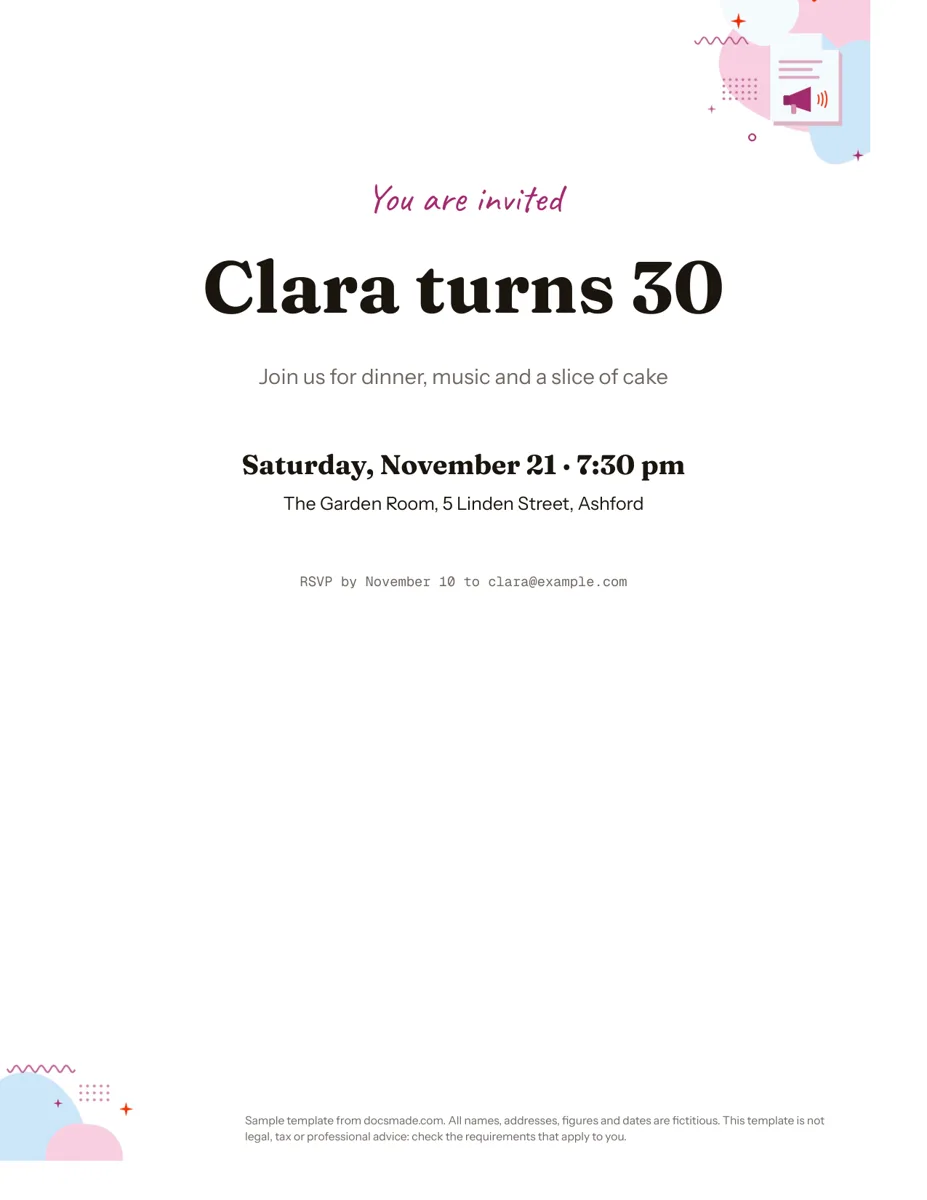 Marketing & print Google Docs Invitation Template: One-Page Party Invite Free invitation template for Google Docs: a one-page party invite you can preview, copy and edit, or download as .docx or PDF. Ready to print. View template →
 -
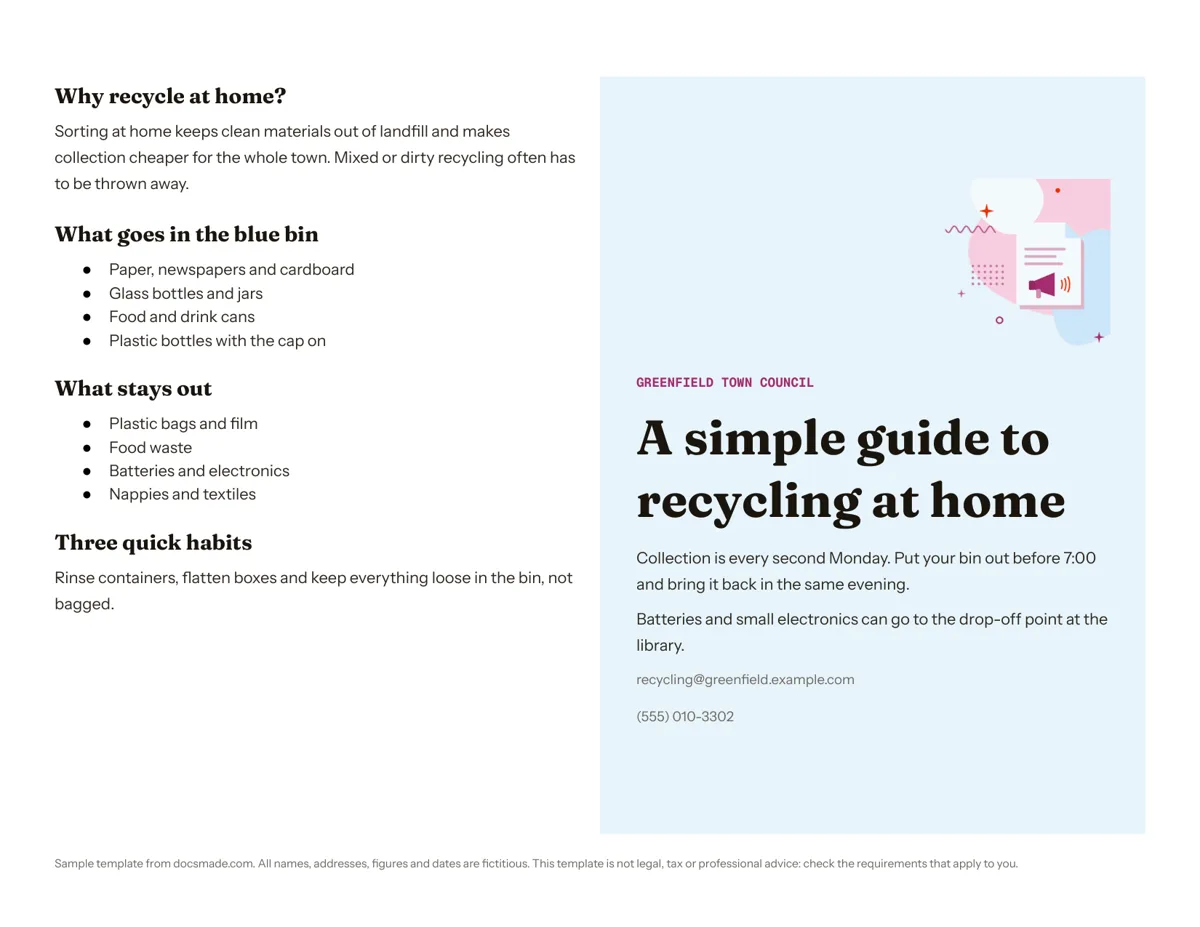 Marketing & print Google Docs Pamphlet Template for Informational Leaflets Free pamphlet template for Google Docs: a folded, two-panel info leaflet as a real Doc. Preview it, make a copy, or download .docx and PDF. View template →
 -
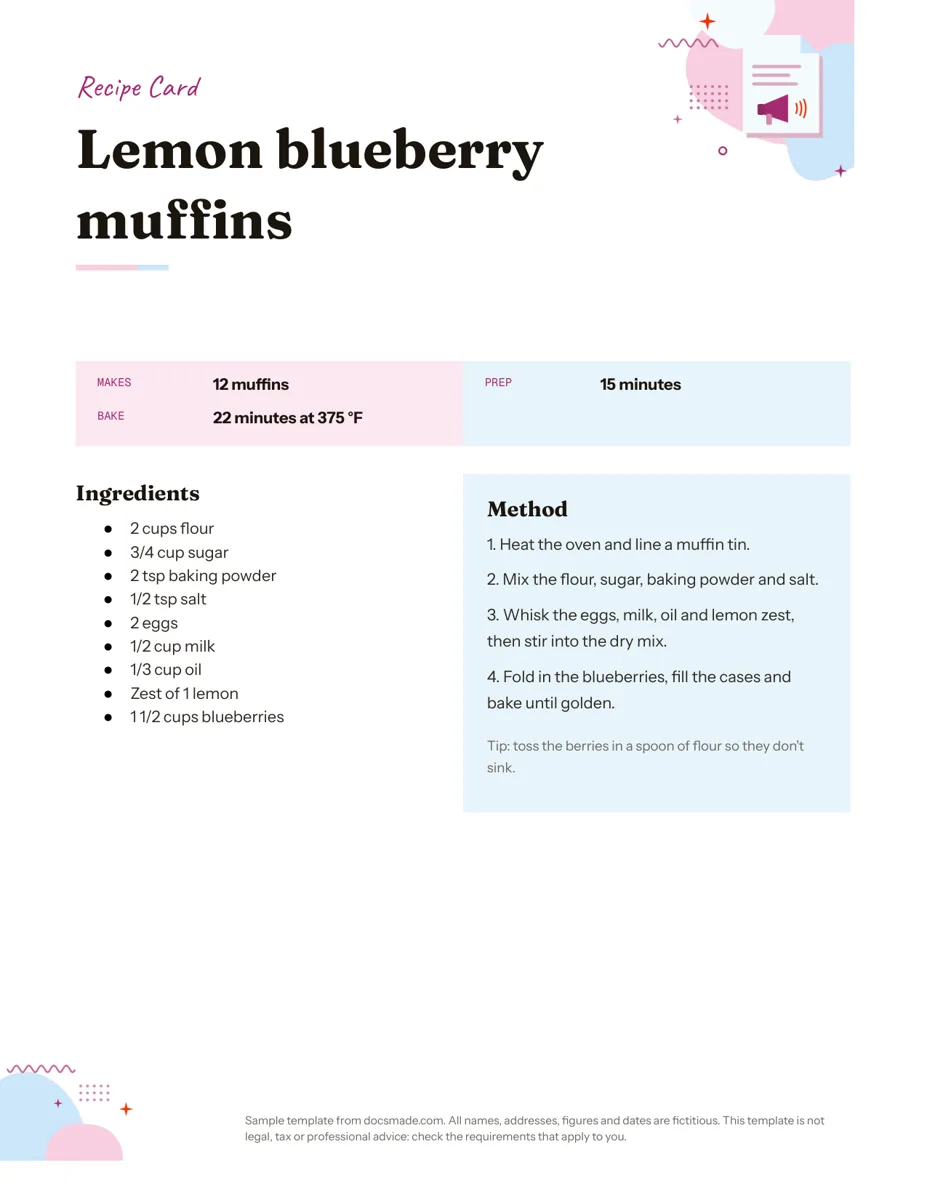 Marketing & print Google Docs Recipe Template: Printable Recipe Card Free recipe card template for Google Docs with ingredients and method side by side. Preview, copy and edit it, or download as .docx or PDF. View template →
 -
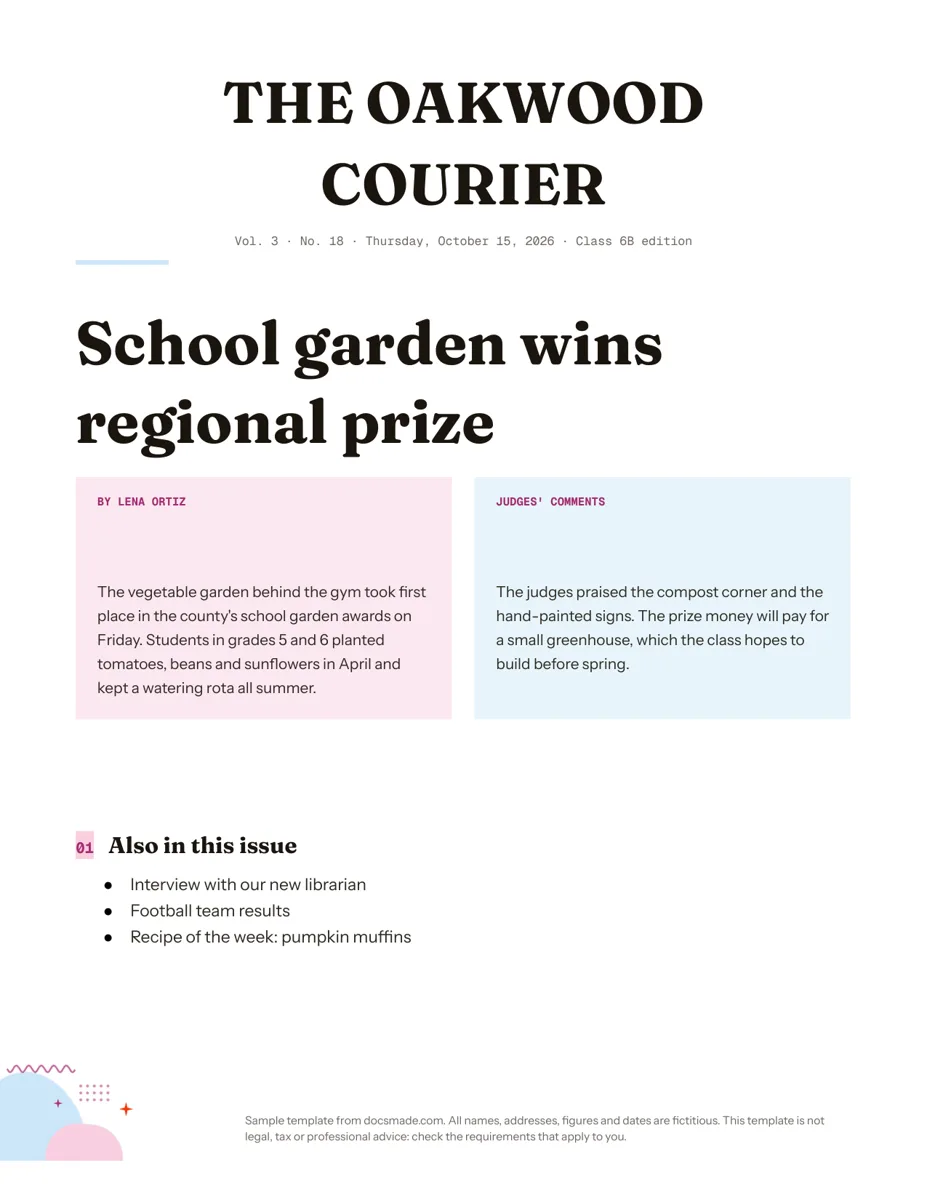 Marketing & print Google Docs Newspaper Template for Class and School Papers Free newspaper template for Google Docs: masthead, headline and two-column story. A real Doc to preview, copy, or download as .docx or PDF. View template →