
How to Copy a Google Doc or a Template to Your Drive
Copying a Google Doc gives you a separate, editable file that you own, while the original stays as it was. There are two everyday cases: copying a template someone shares with you, such as the ones on Docsmade, and duplicating a document that is already in your Drive. This guide covers both, then the steps that usually follow: downloading the copy as Word or PDF, switching the paper size between Letter and A4, and sharing it.
How to copy a Google Doc template to your Drive
Every template page on Docsmade has a Preview button, which opens the Doc read-only so you can scroll through it, and a Use this template button, which starts the copy.
- Click Use this template on the template page.
- Sign in to your Google account if you are asked. The copy is saved in the Drive of the account that is signed in, so if you use a personal and a work account in the same browser, check the account picture at the top right before you continue.
- Google shows a Copy document screen asking whether you want to make a copy of the file. Click Make a copy.
- Your copy opens in the editor, named "Copy of" followed by the template name. Rename it by clicking the title at the top left.
The copy keeps the fonts, colors, tables, header band and page size of the template. It is stored in the top level of My Drive; to file it somewhere else, open File > Move and pick a folder.
Force a copy of a Google Doc with a /copy link
The Use this template button is a copy link. A normal Doc address ends in /edit, followed by some extra characters. If you replace everything from /edit onwards with /copy and share that address, anyone who opens it lands on the Copy document screen instead of your file, and has to make their own copy to see it in the editor. People often call this a force copy link.
A copy link only works if the person opening it can at least view the file. If the Doc is restricted to named people, share it first as Viewer with those people, or set General access to Anyone with the link.
How to make a copy of a Google Doc you already have
To duplicate one of your own documents, for example to reuse last month's report as the starting point for this month's:
- Open the document.
- Go to File > Make a copy.
- Type a name for the copy and choose the folder where it should be saved.
- Optionally tick Share it with the same people to keep the current sharing settings, and Copy comments and suggestions to bring open comments across (you can also include resolved ones).
- Click Make a copy. The new Doc opens in a new tab.
From Google Drive you can do the same without opening the file: right-click the Doc and choose Make a copy. Drive creates "Copy of" the file in the same folder, without comments. In the Google Docs mobile app, open the document, tap the three-dot menu and look for Make a copy under the share and export options.
If you only see Make a copy greyed out, or not at all, the owner has turned off copying, downloading and printing for viewers and commenters. The right fix is to ask the owner for edit access or for a copy link.
Copy a Google Doc with comments, or to another account
Comments travel only with File > Make a copy and only when the comments option is ticked; a Drive right-click copy and a /copy link both start clean. To copy a Doc into a different Google account, share it from the first account with the second one, sign in to the second account, open the file and make the copy there. The copy then belongs to the second account, even if you later lose access to the first.
Download a Google Doc as Word or PDF
Every Docsmade template page links a .docx and a PDF file exported from the same Doc, so you can skip Google Drive entirely. For your own copy, after editing:
- File > Download > Microsoft Word (.docx) for a file that opens in Word, Pages or LibreOffice.
- File > Download > PDF Document (.pdf) for a fixed, print-ready file to email or upload.
- Other formats in the same menu include OpenDocument (.odt), Rich Text (.rtf) and plain text.
Word files may look slightly different if a Google font is not installed on your computer. Check headings and tables after opening the .docx, or send a PDF when the layout has to stay exactly as designed.
Change a Google Doc from Letter to A4
Docsmade templates are set to US Letter (8.5 by 11 inches), the standard in the United States and Canada. Most other countries use A4. To switch your copy:
- Open File > Page setup.
- On the Pages tab, choose A4 or Letter under Paper size. Orientation and margins are set in the same window.
- Click OK, then scroll through the document. A4 is slightly narrower and taller than Letter, so a table or the last lines of a page may shift.
Leave the document in Pages mode rather than Pageless when you plan to print it, so you can see where each page breaks.
Share your copy of a Google Doc
Click Share at the top right. Add people by email and give each one a role: Viewer can read, Commenter can add comments and suggestions, and Editor can change the text. Under General access, Restricted means only the people you added can open the link; Anyone with the link lets you paste it into an email or chat. To hand someone a fresh copy instead of your file, send them a /copy link as described above.
Copying a Google Doc: common questions
Does the owner see that I copied their Google Doc?
Google does not notify the owner when someone makes a copy. Your copy is a separate file, and the owner cannot see what you write in it unless you share it with them.
Why can't I copy a protected Google Doc?
The owner can stop viewers and commenters from downloading, printing and copying a file in the sharing settings. When that is on, Make a copy is unavailable. Ask the owner for access rather than trying to work around it.
Will my copy update when the template changes?
No. A copy is a snapshot of the Doc at the moment you made it. If a template is improved later, make a new copy from its page.
Can I copy a Google Doc without a Google account?
Not into Google Drive, because the copy needs an account to live in. You can still download the .docx or PDF version from the template page and edit or print it on your computer.
Ready to try it? Browse the business, career, marketing, education and organization templates, or start with the invoice template.
Browse templates
-
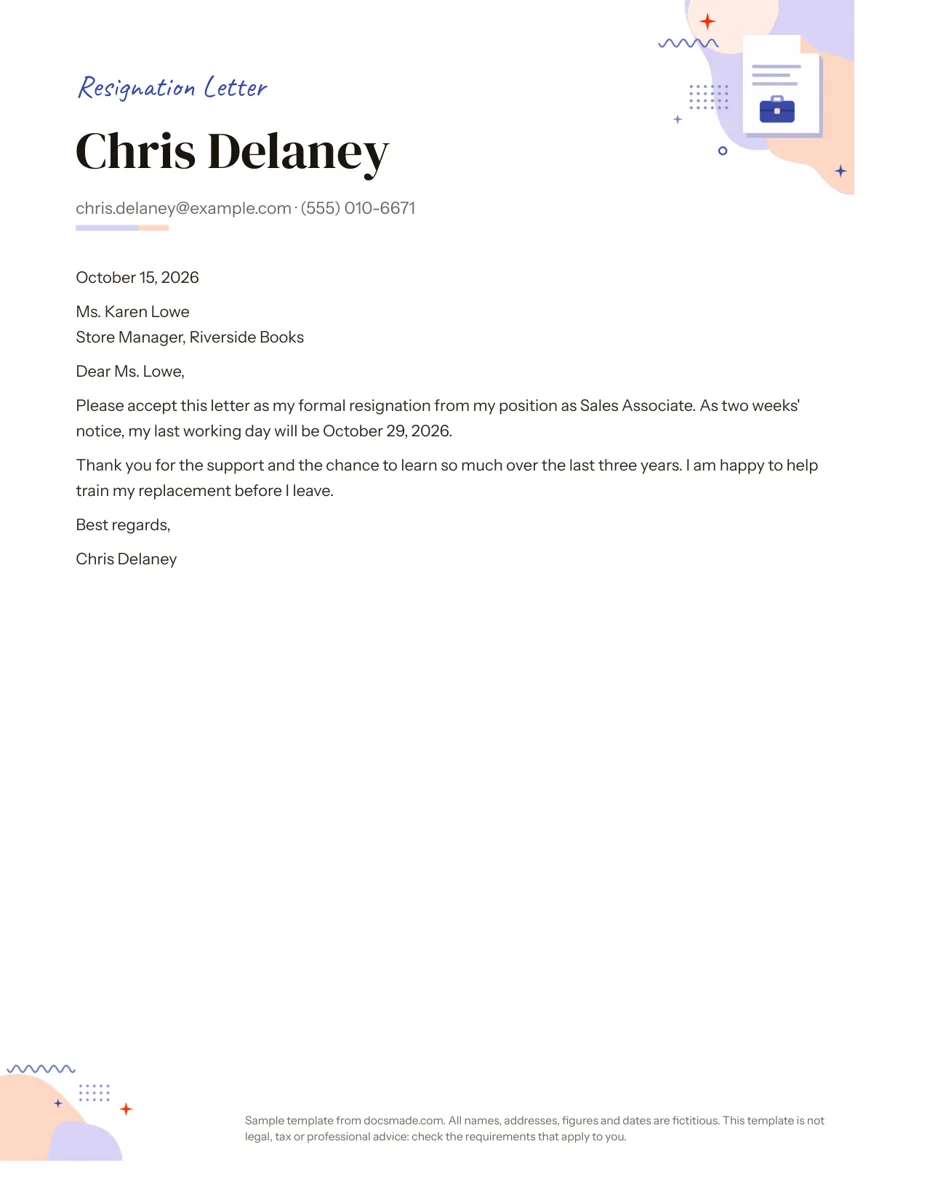 Career Google Docs Resignation Letter Template (Two Weeks Notice) Free two weeks notice letter template for Google Docs with a polite sample letter. Real Doc: preview it, make a copy, or download .docx and PDF. View template →
 -
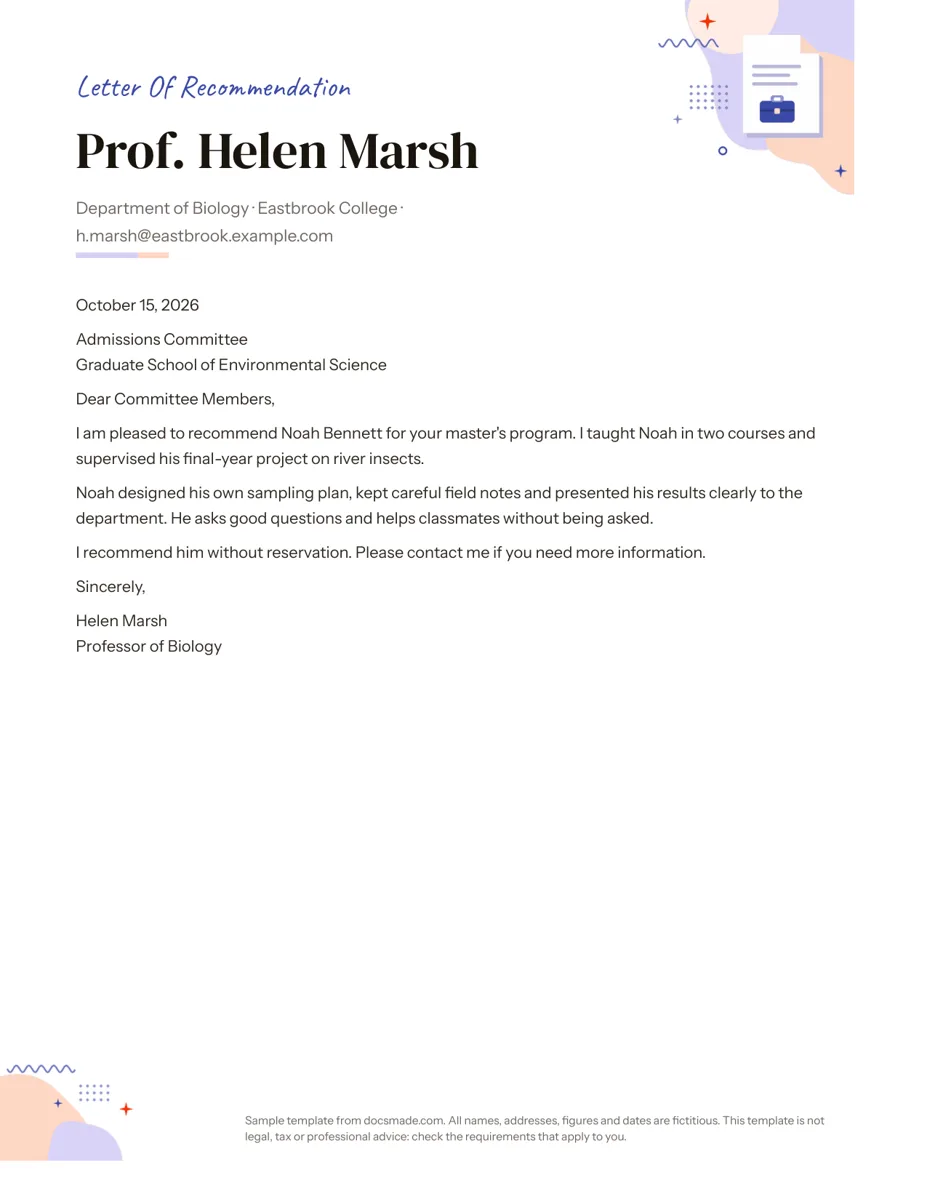 Career Google Docs Letter of Recommendation Template Free recommendation letter template for Google Docs with a complete sample for a graduate program. Real Doc: preview, copy or download .docx/PDF. View template →
 -
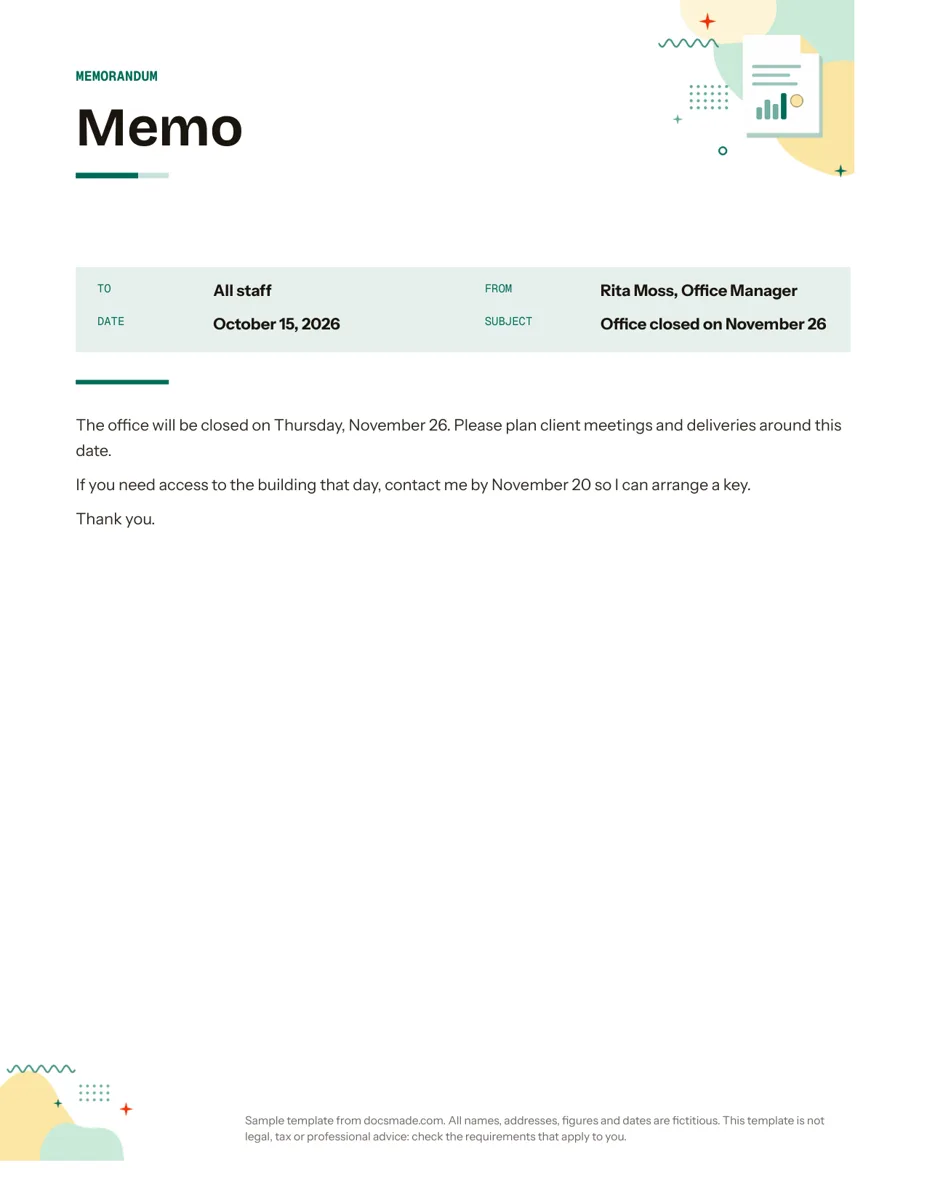 Business & finance Google Docs Memo Template for Office Announcements Free business memo template for Google Docs with To, From, Date and Subject lines. Preview it, make a copy, or download as .docx and PDF. View template →
 -
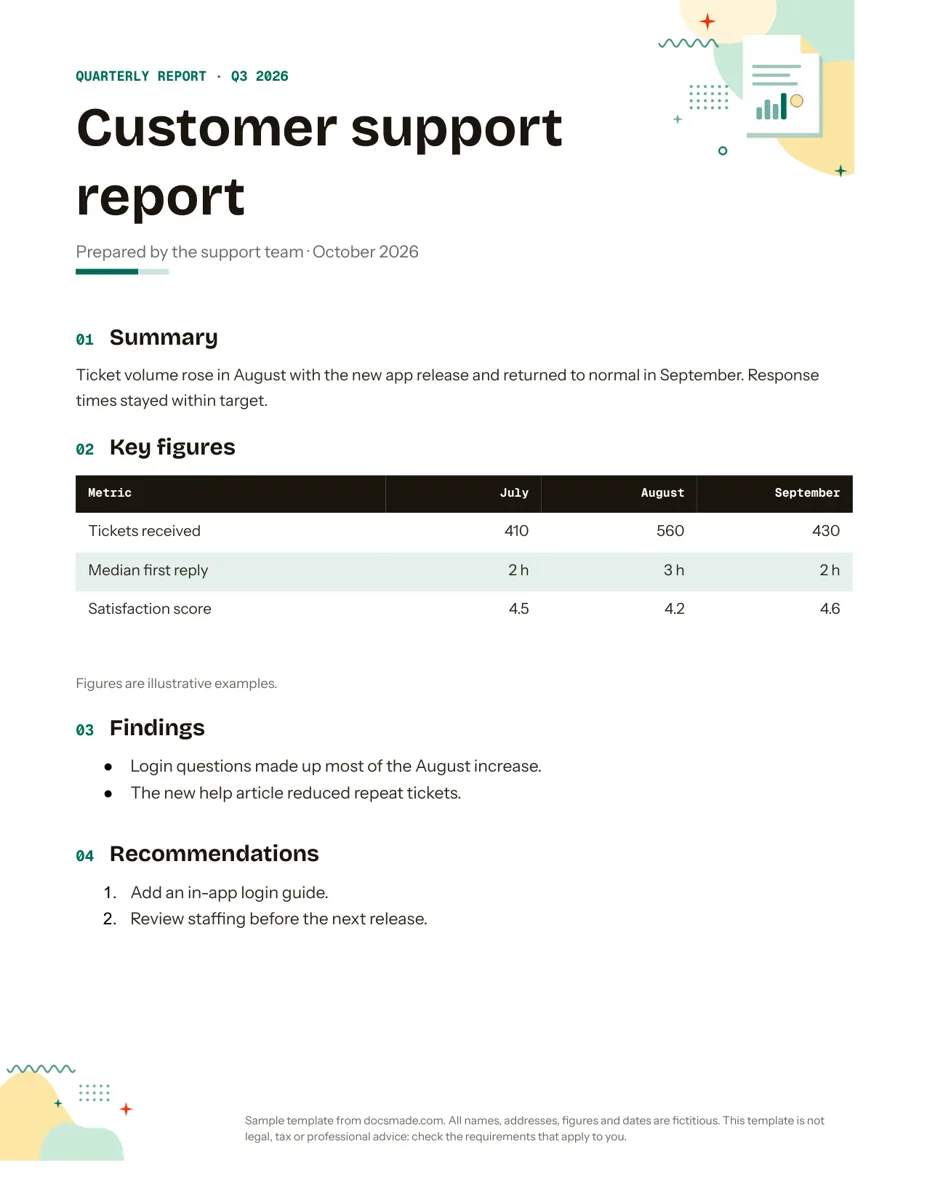 Business & finance Google Docs Report Template for Quarterly and Monthly Reports Free report template for Google Docs: summary, key figures table, findings and recommendations. Real Doc you can preview, copy or get as .docx/PDF. View template →