
Google Docs Newsletter Template for Community and School News
Prefer a file? Download .docx · Download PDF
How it works: “Use this template” opens Google’s copy screen. Sign in to your Google account and the document is copied to your own Drive, where you can edit every line. Need help copying the document?
What's inside the newsletter template
-
Dates for your calendar
- Table: Date, Event, Place
-
Neighbor spotlight
This Google Docs newsletter template is a one-page bulletin for neighborhoods, schools, clubs, churches and small teams that send out regular news. It is a real Google Doc, so you can preview it here, copy it into your Drive in one click and reuse it issue after issue. The sample is filled in with fictitious content, so you can see how much text fits before you write your own.
What the one-page newsletter template for Google Docs includes
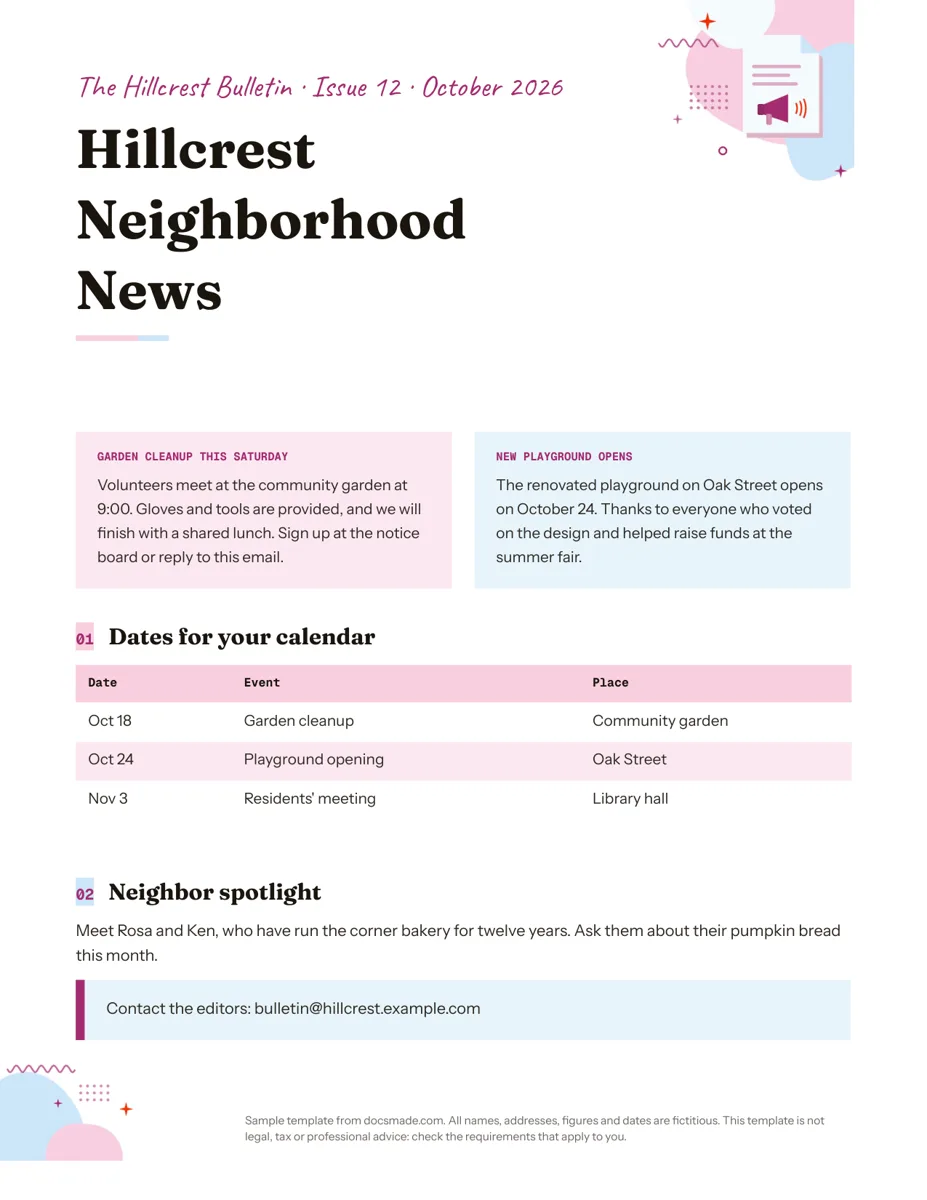
The example is issue 12 of "The Hillcrest Bulletin", a made-up neighborhood newsletter. Each block is easy to keep or remove:
- Issue line. A small line at the top with the newsletter name, issue number and month, so readers can tell editions apart.
- Masthead. "Hillcrest Neighborhood News" in a large display font, with a short colored rule underneath.
- Two lead stories side by side. Two colored boxes, one per story, each with a small heading and a paragraph. The sample covers a garden cleanup with a sign-up call and the opening of a renovated playground.
- "Dates for your calendar" table. Three columns (Date, Event, Place) with three upcoming events.
- "Neighbor spotlight". A short paragraph introducing a local business or person.
- Contact callout. A highlighted line with the editors' email address.
How to write a school or community newsletter people read
A newsletter earns attention by being predictable: same structure, same day, useful news. When you fill in your copy:
- Update the issue line first. Number every issue and add the month. It helps readers and it helps you when someone asks "which one had the meeting date?"
- Lead with what readers need to act on. Events, deadlines and changes go in the two top boxes. Thank-you notes and background can go lower.
- Keep each story to four or five lines. If a topic needs more, give the essentials here and link to the full details or attach a second page.
- Fill the dates table with exact details. Day, short date, event and place. Check each one against the official calendar before sending.
- Feature people, with their permission. A spotlight on a volunteer, teacher or local shop makes the newsletter feel personal. Ask before you name anyone or publish a photo, especially of children.
- Tell readers how to reply. An email address for news tips and corrections keeps the next issue easier to fill.
Editing the newsletter template in Google Docs
Press Use this template on this page, or open the preview and go to File > Make a copy. Our guide on how to copy a Google Doc covers it step by step. To keep a clean master, copy the template once, then make a fresh copy of your own version for each issue.
- Story boxes. The two lead stories sit in a table. Right-click to add a row for two more stories, or delete a column if you only need one.
- Dates table. Right-click any row and choose Insert row below to add events. Delete the rows you do not need.
- Colors and fonts. Change the box colors from Table properties (cell background color) and the text from the toolbar. Using your school or group colors makes each issue easy to recognize.
- Photos and logo. Right-click the illustration in the header and choose Replace image, or add new pictures with Insert > Image.
- More pages. Place the cursor at the end and use Insert > Break > Page break to start page two.
Printing or emailing your Google Docs newsletter
For paper copies, use File > Print at 100% scale. The template uses US Letter; change it to A4 in File > Page setup if needed.
For email, the most reliable option is a PDF: download it with File > Download > PDF document (or the PDF button on this page) and attach it. Pasting a Doc into an email body often loses table colors and column layout. You can also click Share, set General access to "Anyone with the link" as Viewer and send the link, so readers always see the latest version. The .docx download is there if a co-editor works in Microsoft Word. Invite co-editors as commenters so they can suggest changes without overwriting the layout.
Newsletter ideas: classroom, parent and company newsletters
- Classroom newsletter. Lead boxes for "This week we learned" and "Coming up", the dates table for tests, trips and early dismissals, the spotlight for a student of the week.
- Parent newsletter for a school or PTA. Fundraising news, volunteer requests and a reminder table for forms and deadlines.
- Company or team newsletter. Project updates in the boxes, a schedule of meetings and launches, and a "Meet the team" spotlight.
- Club, church or HOA bulletin. Event announcements, a calendar of services or meetings, and a member profile.
If your publication reads more like a paper with headlines and articles, try the newspaper template. For a single announcement, the flyer template is quicker, and the calendar template helps when the dates list gets long. Browse all marketing and print templates for more.
Free newsletter template for Google Docs: FAQ
Can I send a Google Docs newsletter by email?
Yes. Attach it as a PDF or share a view-only link. Copying the whole Doc into the email body works for plain text, but colored boxes and side-by-side stories usually do not survive.
How do I make a classroom newsletter in Google Docs?
Copy this template, rename the masthead with your class name, use the two boxes for this week's learning and upcoming events, and list important dates in the table. Save it as your master and duplicate it each week.
How do I add a second page to the newsletter?
Click at the end of the last line and choose Insert > Break > Page break. Copy the story box table onto the new page to keep the same style.
Is this an editable newsletter template?
Every part of it is editable in your own copy: text, tables, colors, images and page size. Nothing is locked.
Does the newsletter template cost anything?
No. Copying it, editing it and downloading it as .docx or PDF are free.
More templates
-
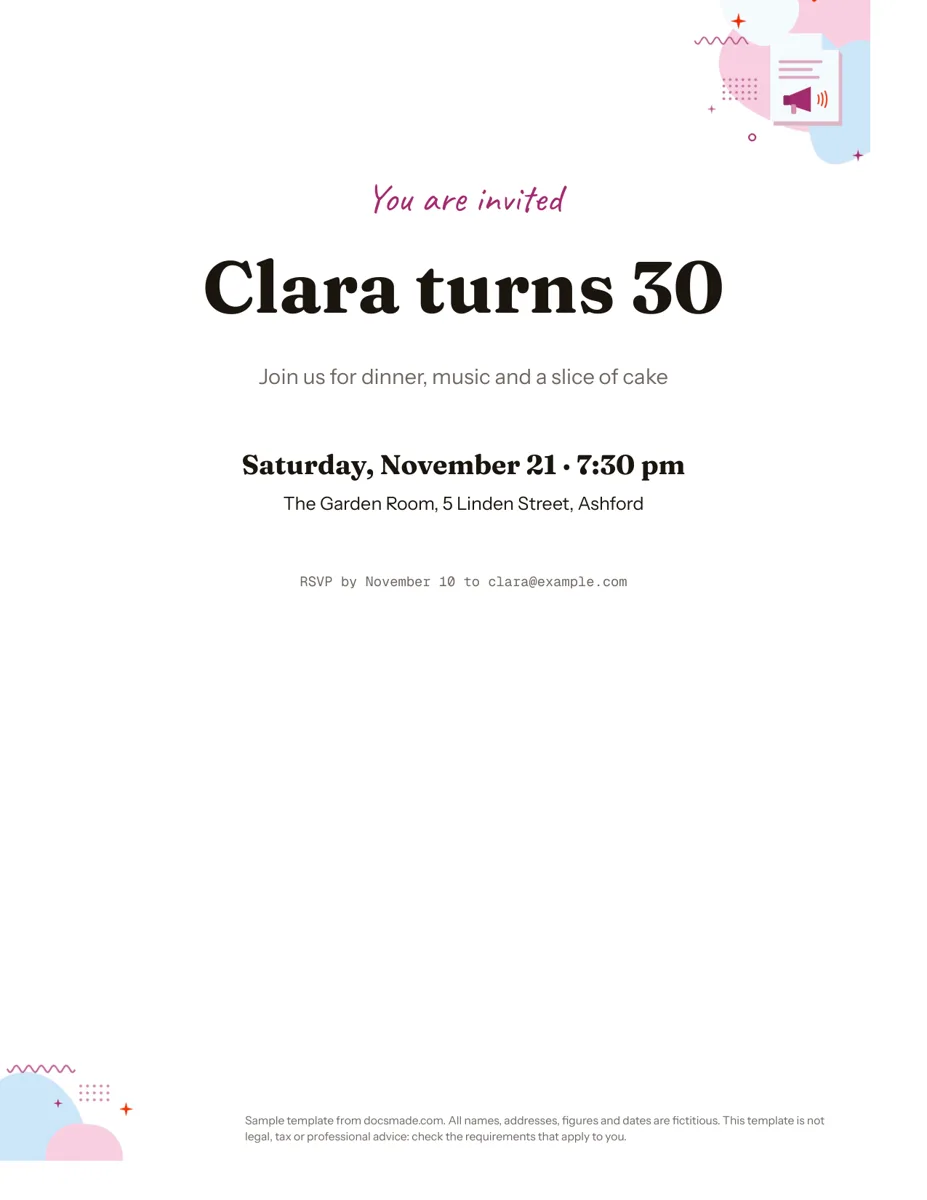 Marketing & print Google Docs Invitation Template: One-Page Party Invite Free invitation template for Google Docs: a one-page party invite you can preview, copy and edit, or download as .docx or PDF. Ready to print. View template →
 -
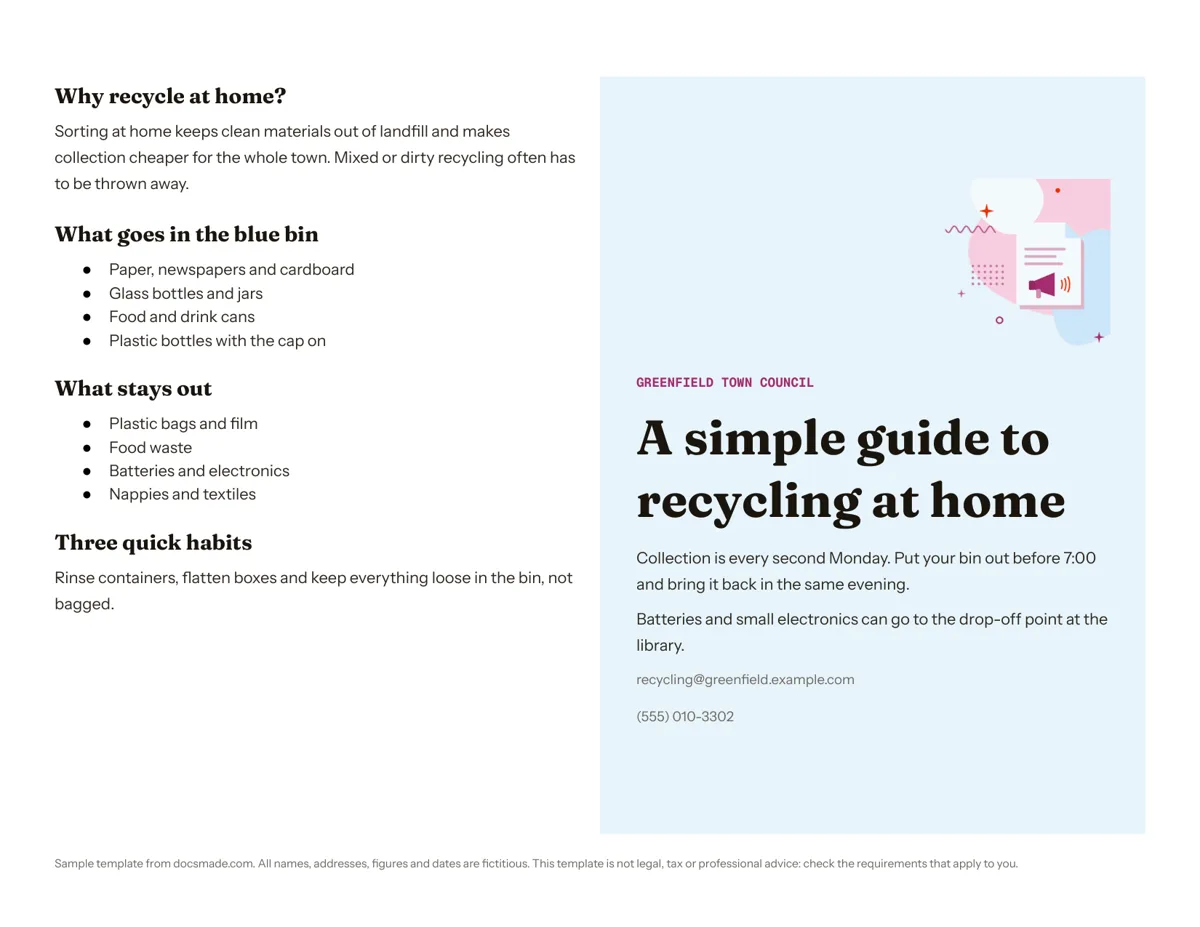 Marketing & print Google Docs Pamphlet Template for Informational Leaflets Free pamphlet template for Google Docs: a folded, two-panel info leaflet as a real Doc. Preview it, make a copy, or download .docx and PDF. View template →
 -
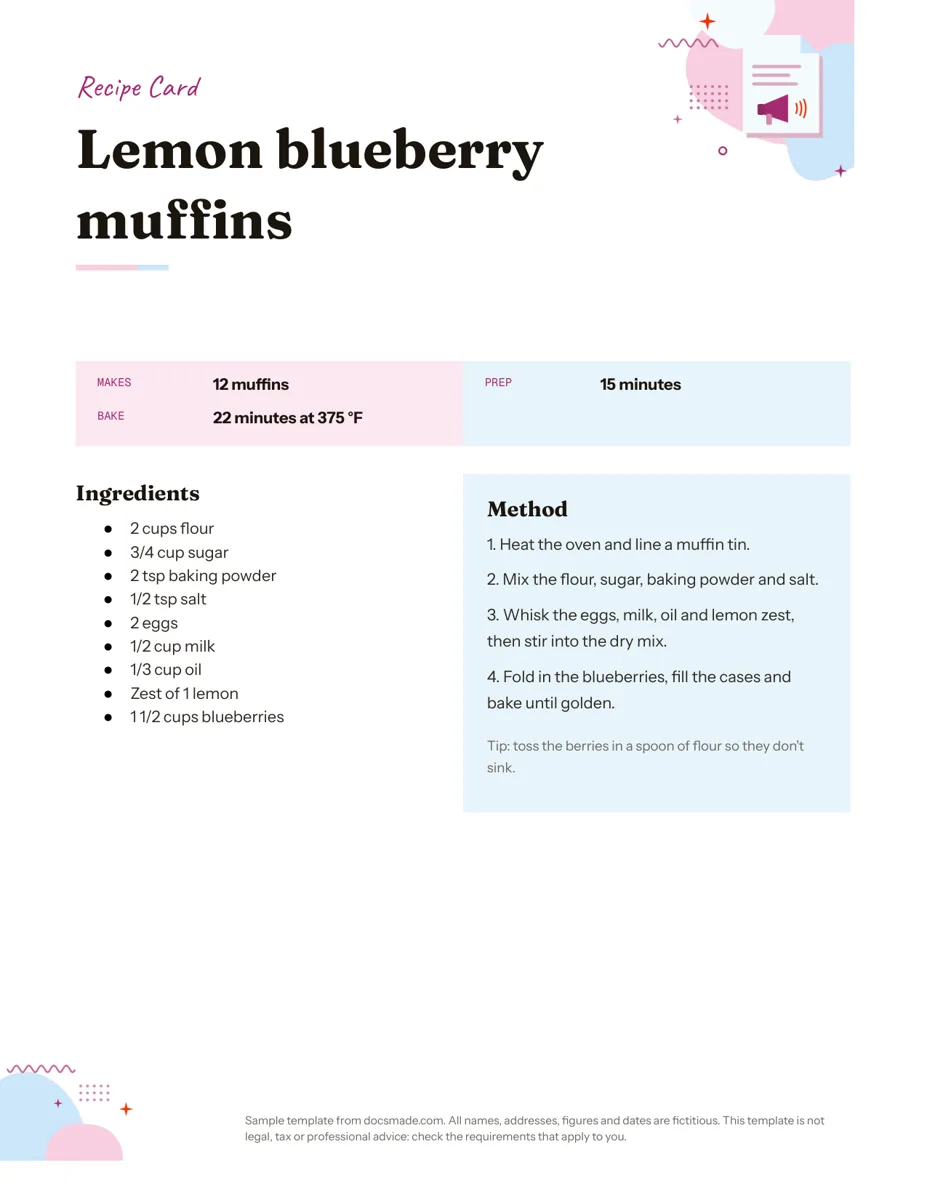 Marketing & print Google Docs Recipe Template: Printable Recipe Card Free recipe card template for Google Docs with ingredients and method side by side. Preview, copy and edit it, or download as .docx or PDF. View template →
 -
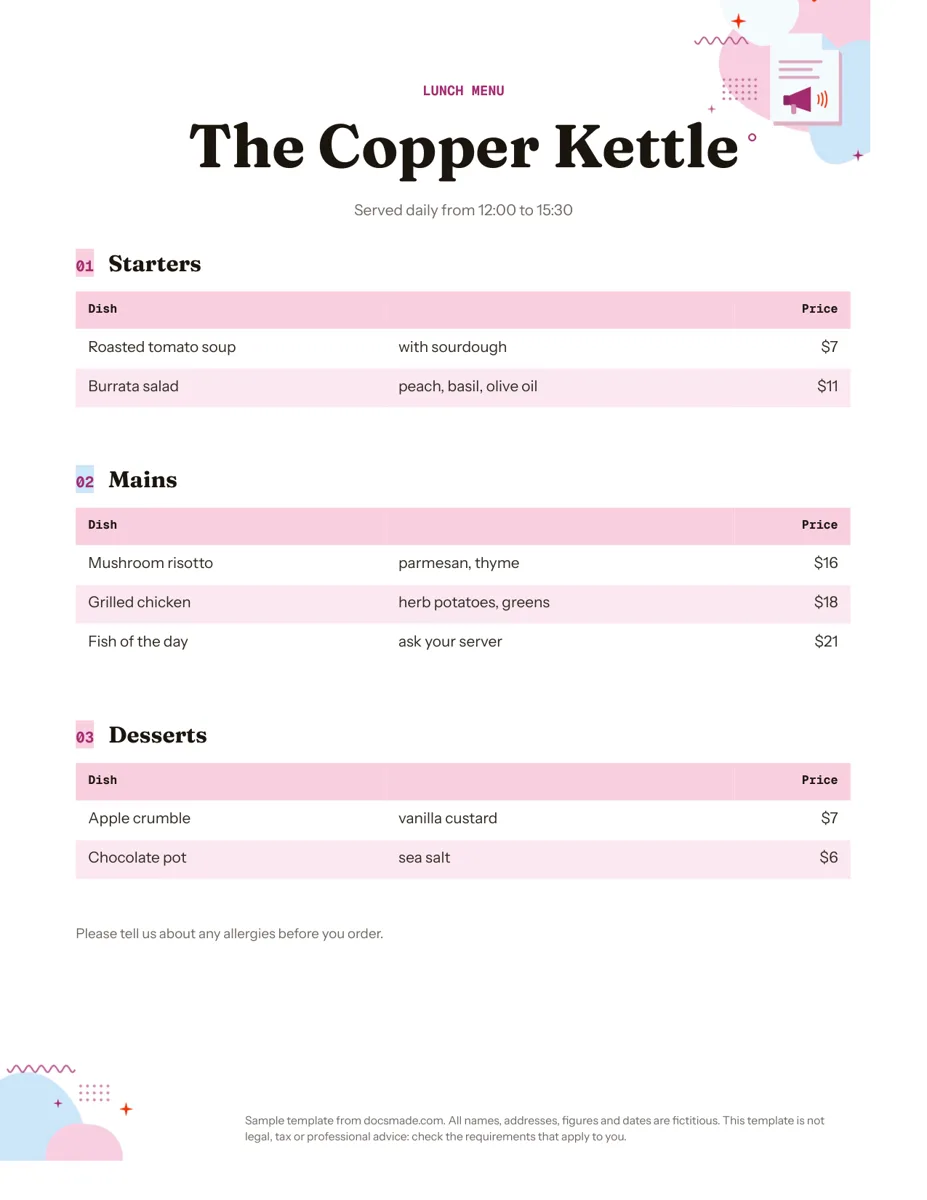 Marketing & print Google Docs Menu Template for Restaurants and Cafes Free restaurant menu template for Google Docs: starters, mains and desserts with prices. Preview it, make a copy, or download .docx or PDF. View template →