
Google Docs Calendar Template: Printable Monthly Planner
Prefer a file? Download .docx · Download PDF
How it works: “Use this template” opens Google’s copy screen. Sign in to your Google account and the document is copied to your own Drive, where you can edit every line. Need help copying the document?
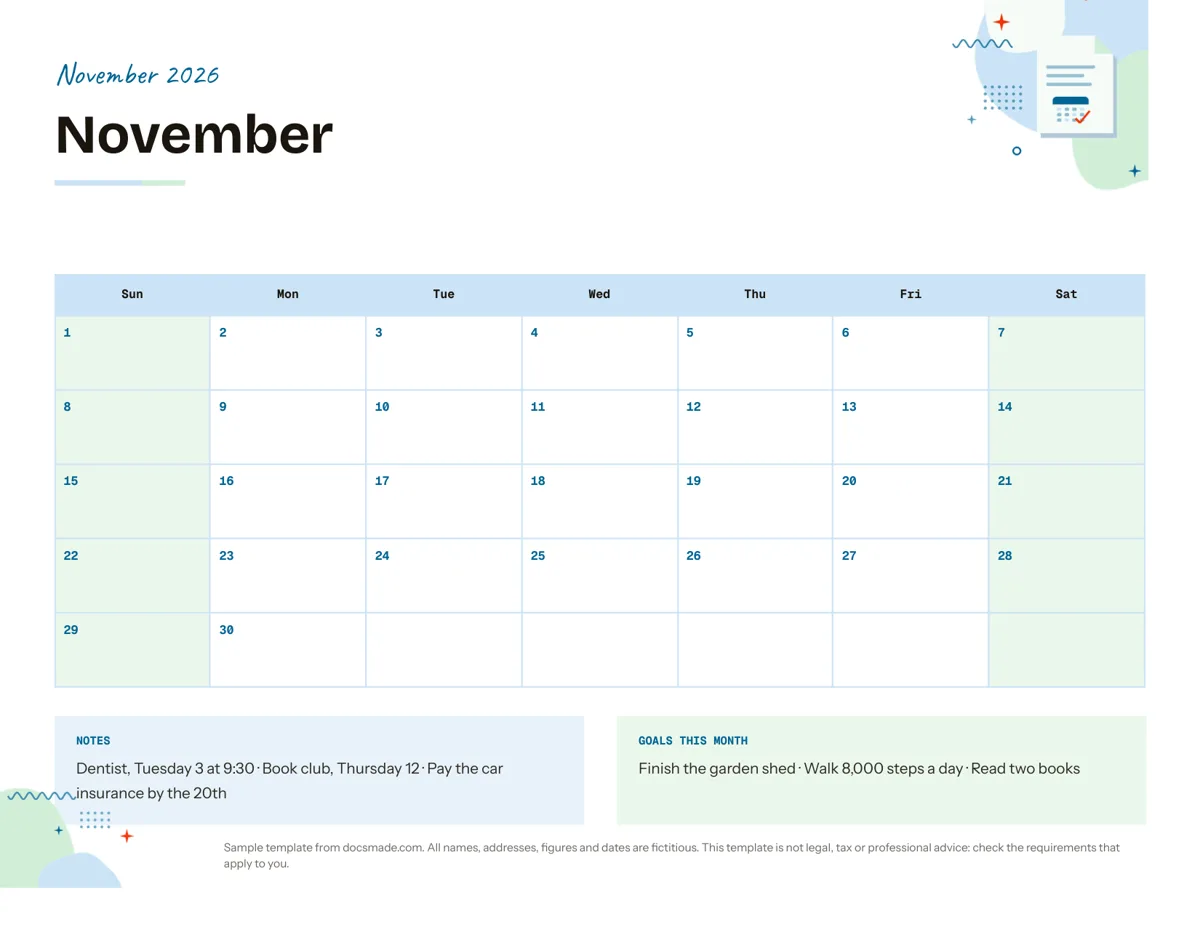
This Google Docs calendar template is a one-page monthly planner in landscape format: a large date grid for appointments and deadlines, plus two boxes for notes and goals. It is a real Google Doc, so you can preview it on this page, copy it to your Drive in one click and type straight into the squares, or download it as a Word file or PDF to print.
What's in this monthly calendar template for Google Docs
The sample is set up for November 2026 and filled with a few fictional entries so you can see how a finished page looks.
- Month header. A colored band with the month and year, and the month name in large type below it.
- Date grid. A seven-column table that starts on Sunday (Sun to Sat) with five week rows. Each day cell has its number at the top and room underneath for a couple of short entries.
- Notes box. A side-by-side panel for reminders that do not belong to one day, shown with examples like a dentist appointment, a book club meeting and an insurance payment due by the 20th.
- Goals this month. A second box for a short list of monthly targets, such as finishing a project at home or reading two books.
The page uses US Letter in landscape orientation, which gives each day square more width than a portrait layout and fits on a single printed sheet.
How to fill in a fillable calendar in Google Docs
A monthly calendar works best when it shows only what you need to see at a glance. A few habits keep it readable:
- Fixed commitments first. Enter appointments, school days off, bill due dates and birthdays before anything else. These are the items that cannot move.
- Short entries. Write "9:30 dentist" rather than a full sentence. If an event needs details, put them in the Notes box or in a linked document.
- One color per person or area. In a shared family or team calendar, highlight each person's entries with a different text or highlight color so you can scan the month quickly.
- Deadlines on the due date, reminders a few days earlier. If a form is due on the 20th, add a "start form" note a week before.
- Goals you can check. "Walk 8,000 steps a day" is easier to track than "get fitter". Keep the Goals box to three or four lines.
Google Docs does not fill in dates for you: the grid is a table, not a live calendar, and it does not sync with Google Calendar. That is what makes it easy to print and annotate, but it also means you set up each month yourself, as described below.
How to edit the calendar template and change the month
- Click Use this template, or open the preview and choose File > Make a copy. If your work or school account blocks copies, our guide to copying a Google Doc explains the workarounds.
- Change the band and month name to the month you need.
- Find the weekday on which the 1st falls and retype the day numbers row by row. Leave cells before the 1st and after the last day blank.
- Some months span six weeks. Right-click the last row and choose Insert row below; delete a row the same way when a month only needs four or five.
- For more writing space, right-click the table, open Table properties and raise the minimum row height.
- To start the week on Monday, retype the header row and shift the numbers one cell to the left.
- Recolor the header cell with the fill color button, and change fonts with the font menu or Format > Text.
- Prefer A4 or portrait? Go to File > Page setup, pick the paper size and orientation, then check that the grid still fits on one page.
To build a full year, copy the whole page, add Insert > Break > Page break at the end, paste, and repeat the steps above for each new month. You can also type @ followed by a date in the Notes box to insert a date smart chip.
Print or download your printable calendar template
For a paper copy, use File > Print and keep the scale at 100% so the grid fills the landscape sheet. If you want to print from another device, choose File > Download > PDF document (.pdf); the PDF keeps the layout exactly. The Microsoft Word (.docx) option is there if you plan to edit offline, although the table may shift slightly if Word substitutes the fonts. To keep a shared family or office calendar, click Share, add people by email and give them Editor access, so everyone writes on the same copy. Use Insert > Comment to ask about an entry without changing it.
Ways to use a blank calendar template in Google Docs
- Family planner: one month per page on the fridge, with each person's activities in a different color and the meal plan in Notes.
- Classroom calendar: mark test dates, school holidays and assignment due dates, then share it with students as view-only.
- Content calendar: write the topic of each post or newsletter in its publishing date and keep the goals box for the month's themes.
- Weekly view: delete four of the five week rows and enlarge the remaining one for a single week with more room per day.
If you plan longer projects, a project timeline template shows phases and owners better than a month grid, and a printable checklist covers the tasks behind each date. For events where people pick slots, use the sign-up sheet. All planning documents are collected in the organization templates section.
Google Docs calendar template FAQ
Is there a free calendar template in Google Docs?
Yes, this one is free to copy and use for personal or work planning. It opens as a normal Google Doc in your Drive, with no add-ons or sign-ups beyond your Google account.
Can I make the calendar template editable for other people?
Yes. Click Share, add their email addresses and choose Editor. Everyone with edit access can type into the date cells at the same time, and File > Version history shows who changed what.
How do I get a 2027 version of this calendar?
Make a copy and change the month name and day numbers following the steps above. Repeat on new pages for each month of the year; twelve pages in one document keep the whole year in a single file.
Should I use Google Docs or Google Sheets for a monthly calendar?
Google Docs is better for a printable, nicely formatted page that you fill by hand or with short notes. Google Sheets suits calendars that need formulas, automatic dates or many rows of data per day.
Does this calendar sync with Google Calendar?
No. The template is a document with a table, so entries stay in the Doc. Use it as a printed or at-a-glance planner alongside Google Calendar, not as a replacement for reminders.
More templates
-
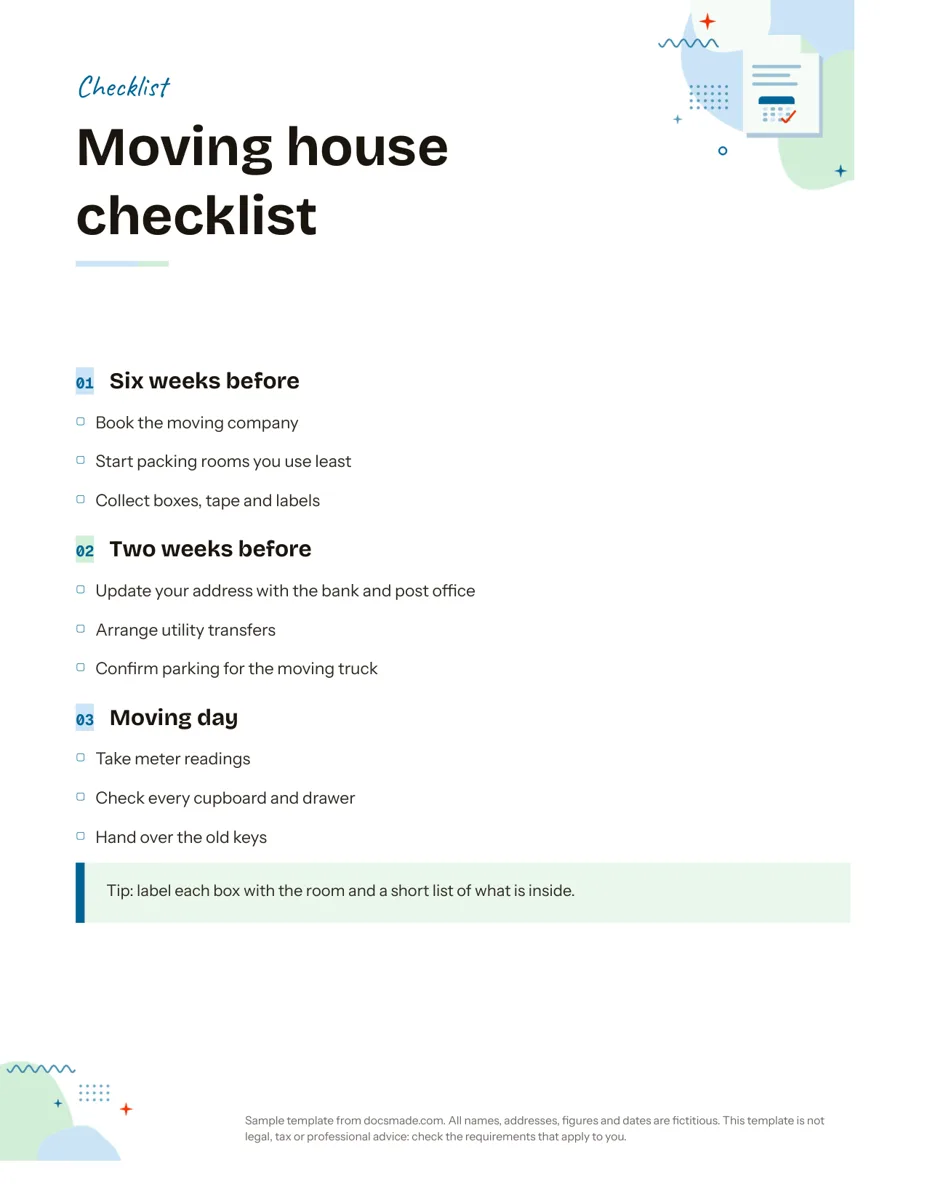 Organization Google Docs Checklist Template, Printable and Editable Free printable checklist template for Google Docs, grouped by stage with tick boxes and a tip box. Preview it, copy it, or download .docx and PDF. View template →
 -
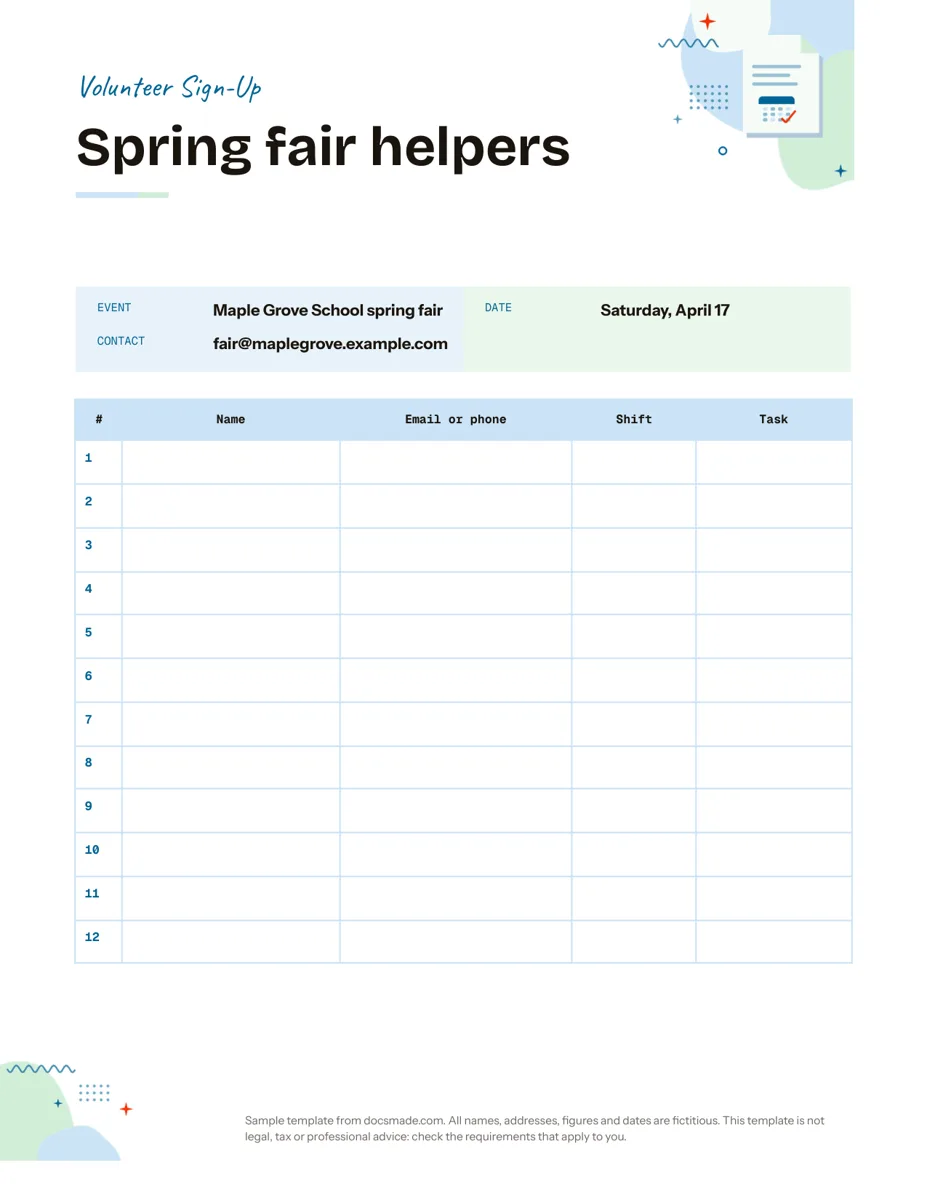 Organization Google Docs Sign Up Sheet Template for Volunteers and Events Free volunteer sign up sheet template for Google Docs with name, contact, shift and task columns. Preview it, copy it, or print the PDF. View template →
 -
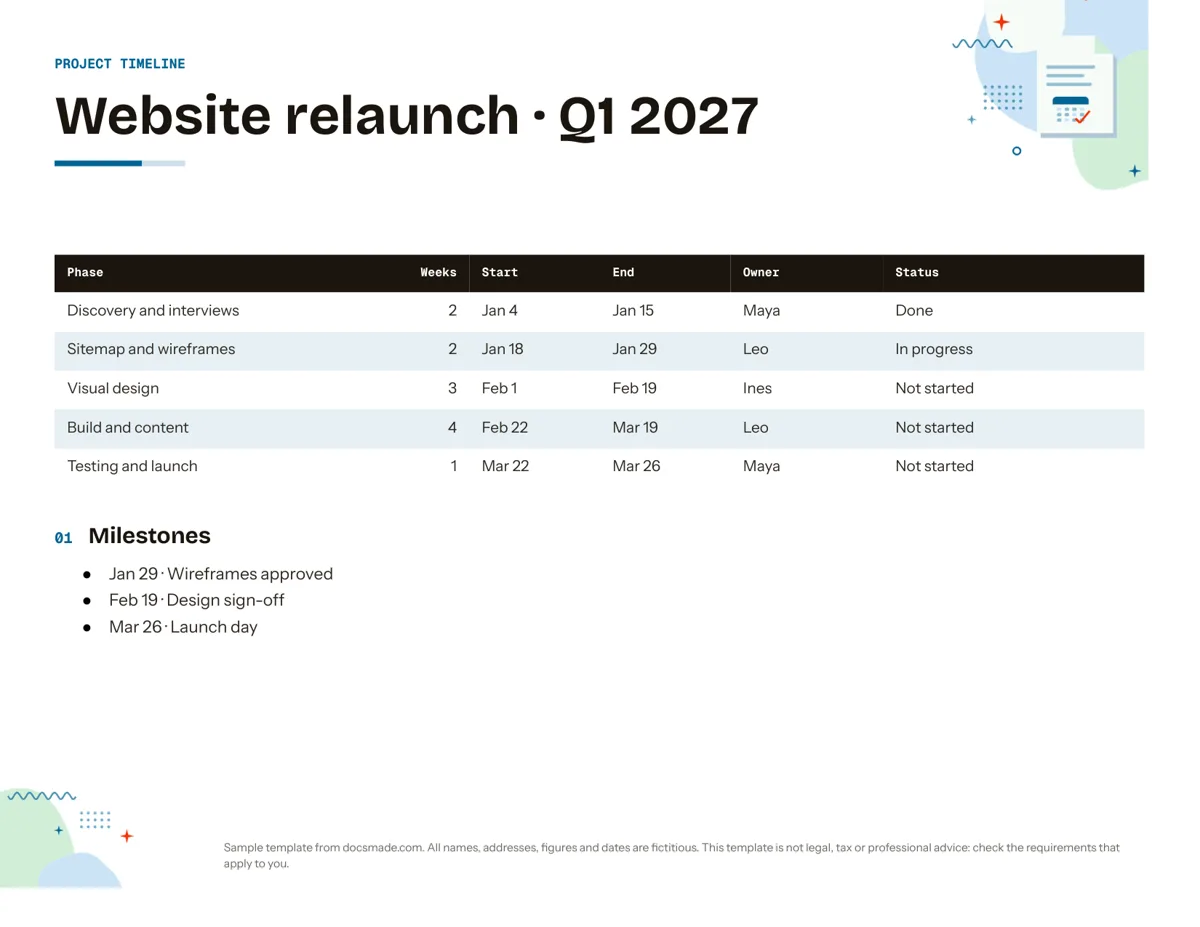 Organization Google Docs Timeline Template for Project Planning Free project timeline template for Google Docs: phases, dates, owners, status and milestones. Preview it, make a copy, or download .docx and PDF. View template →
 -
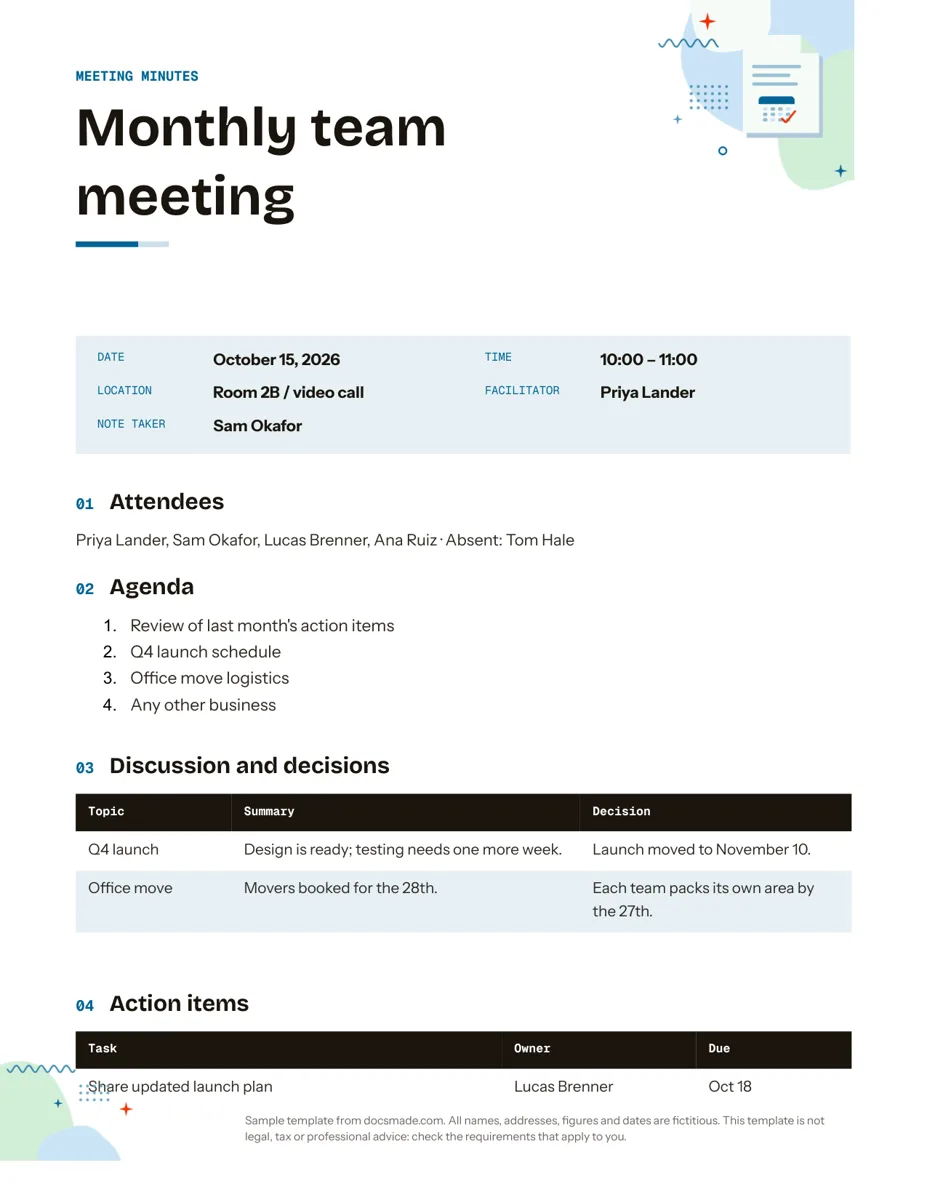 Organization Google Docs Meeting Minutes Template with Action Items Free meeting minutes template for Google Docs with agenda, decisions and an action items table. Preview it, make a copy, or get .docx and PDF. View template →