
Google Docs Receipt Template for Payments
Prefer a file? Download .docx · Download PDF
How it works: “Use this template” opens Google’s copy screen. Sign in to your Google account and the document is copied to your own Drive, where you can edit every line. Need help copying the document?
What's inside the receipt template
-
Details
- Receipt no. · Date received · Payment method
-
Table
- Table: Item, Qty, Price, Amount
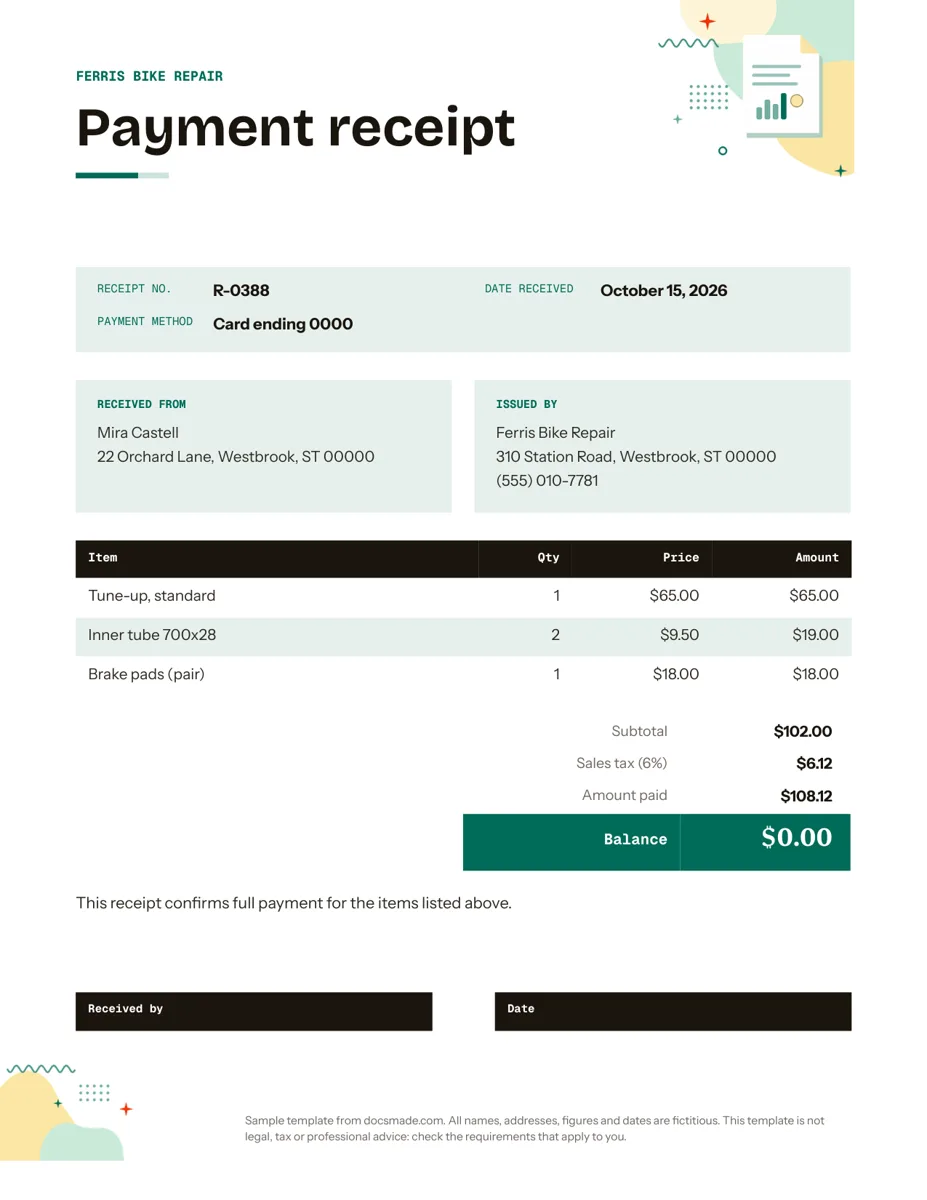
This receipt template is a real Google Doc that confirms a customer has paid you. Small shops, repair services, tutors and anyone who takes payment in person can preview it here, copy it into Google Drive and hand over a neat, itemized receipt as a printout or a PDF.
What this itemized receipt template for Google Docs includes
The sample is filled in for a fictitious bike repair shop, Ferris Bike Repair, so you can see a complete receipt before you add your own details. Everything fits on one Letter page.
- Business name band. A header strip with your shop or trading name, with room for a logo.
- Payment receipt title so nobody mistakes it for a bill or a quote.
- Receipt details. Receipt number (R-0388 in the sample), the date the payment was received and the payment method, written as "Card ending 0000" so you never print a full card number.
- Received from and Issued by. The customer's name and address next to your business address and phone.
- Item table. Item, Qty, Price and Amount columns. The example lists a standard tune-up, two inner tubes and a pair of brake pads.
- Totals. Subtotal, sales tax with the rate shown, Amount paid and a Balance line that reads $0.00 when the bill is settled.
- Confirmation sentence stating that the receipt confirms full payment for the items listed.
- Received by and Date lines for a signature or initials.
How to fill in a simple receipt template the right way
A receipt is short, but the customer may need it for a return, a warranty claim or an expense report, so each field should hold up on its own.
- Number every receipt. Use a running sequence and do not skip or reuse numbers. If you issue a receipt for a payment against an invoice, add the invoice number to the first item line.
- Record the date the money arrived, not the date of the service. They are often the same day, but not always.
- Write the payment method precisely. Cash, check (with the check number), card (last four digits only) or bank transfer. Never write out a full card or account number.
- Itemize. One line per product or service. "Tune-up, standard" tells the customer far more than "Repairs".
- Show tax separately. List the subtotal, the tax line and the rate, then the total paid. Google Docs tables do not calculate, so check every line and the final figure with a calculator.
- Use the Balance line for partial payments. If a customer pays a deposit, enter what they paid in Amount paid and what remains in Balance, and change the confirmation sentence so it no longer says full payment.
What a valid receipt must show, and how long you keep copies, depends on local tax rules. Check the requirements for your business; this template is not legal or tax advice.
How to customize the receipt in Google Docs
Choose Use this template on this page, or open the preview and select File > Make a copy. The copy is yours to edit. If the copy step is new to you, read how to copy a Google Doc.
- Add your branding. Type your business name in the header band. Change the font and color from the toolbar, or adjust the heading style for the whole Doc with Format > Paragraph styles. Insert a logo with Insert > Image.
- Adjust the item table. Right-click a row to insert or delete lines. Rename "Price" to "Rate" if you sell services by the hour.
- Edit the totals. Rename "Sales tax" if your area uses a different term, or remove the line if you do not collect tax.
- Change the page size. The template is set to US Letter. For A4 paper, go to File > Page setup.
Keep one copy with your business details filled in and the items blank. Duplicate it for each sale, which keeps numbering and layout consistent.
Print, save as PDF and email a payment receipt
For a counter sale, print the receipt with File > Print at 100% scale and sign the Received by line. To send it digitally, choose File > Download > PDF Document (.pdf), or use File > Email > Email this file to email a PDF straight from Docs. A PDF is a fixed record, which is what customers and accountants expect.
If you prefer Microsoft Word, download the .docx version with File > Download > Microsoft Word (.docx) or with the buttons on this page. Store your copies in one Drive folder, named by receipt number, so you can find any payment quickly.
Sales, rent and donation receipt uses
- Sales receipts. Retail and repair sales, as in the sample: itemized parts and labor with sales tax.
- Rent receipts. Landlords can rename the items to "Rent for November" and add the property address. Some places have specific rules for rent paid in cash, so check local requirements.
- Donation receipts. Nonprofits can adapt the layout to acknowledge a gift. Tax rules for donation acknowledgments are specific, so confirm the wording you need before using it for that purpose.
- Payment against an invoice. After a client pays an invoice, send a receipt that references the invoice number and shows a zero balance.
If you price jobs in advance, our estimate template uses the same table layout, so the whole paper trail matches. See all business and finance templates for Google Docs.
Receipt template for Google Docs: common questions
Is there a free receipt template in Google Docs?
Yes. This one is free to preview, copy to your Drive and download as .docx or PDF, and you can use it for your business. There is no account to create on this site.
What is the difference between a receipt and an invoice?
An invoice requests payment and states a due date. A receipt confirms that payment has already been made, with the amount and method. One usually follows the other.
Can I write a receipt for a partial payment?
Yes. Enter the amount received in Amount paid, the remaining amount in Balance, and edit the confirmation sentence so it states that a balance is still due.
Does the receipt need a signature?
It depends on your business and local rules. A signature or initials on the Received by line is common for cash payments because it shows who accepted the money.
Can I make a receipt in Google Docs on my phone?
Yes. Open your copy in the Google Docs app, edit the fields and share or export it from the app menu. Table editing is easier on a computer, so set up your master copy there first.
More templates
-
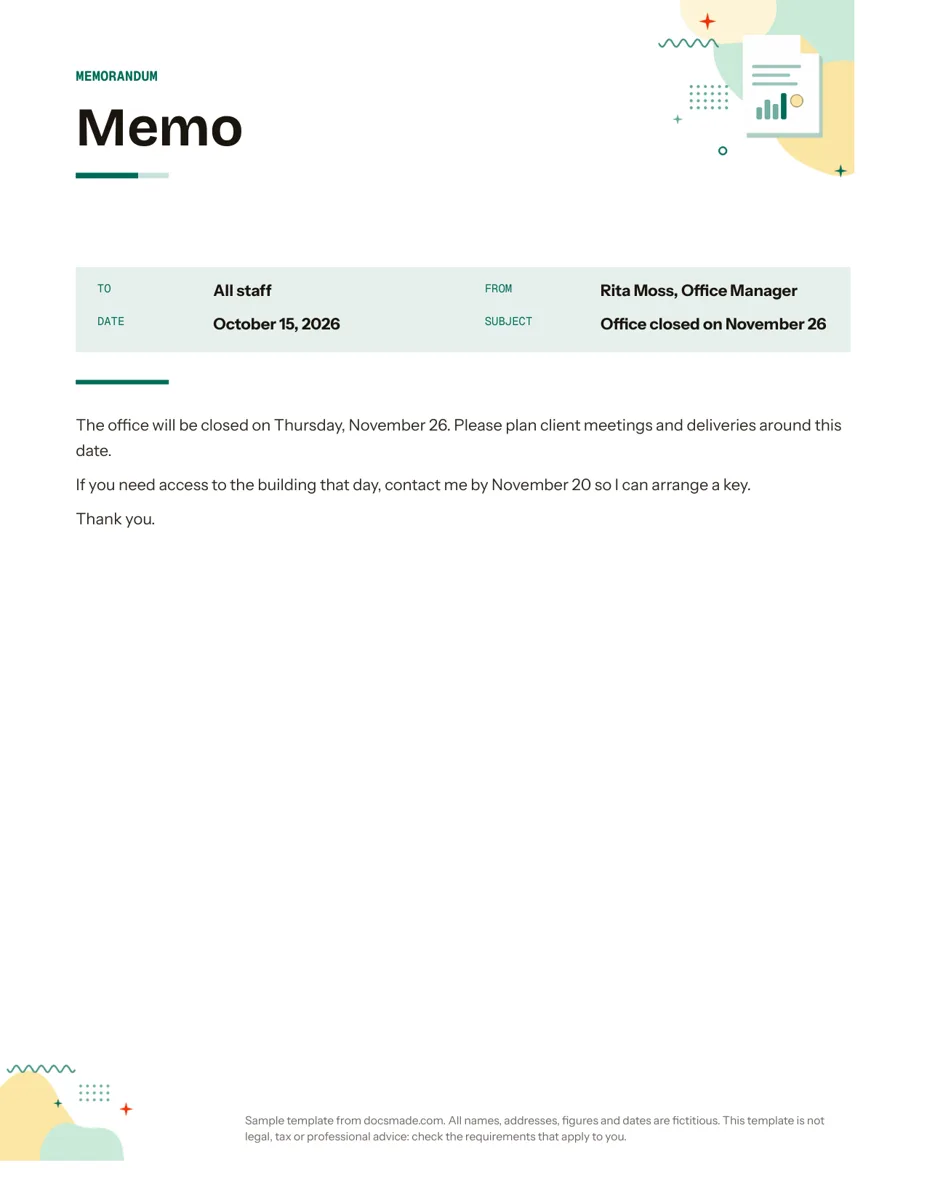 Business & finance Google Docs Memo Template for Office Announcements Free business memo template for Google Docs with To, From, Date and Subject lines. Preview it, make a copy, or download as .docx and PDF. View template →
 -
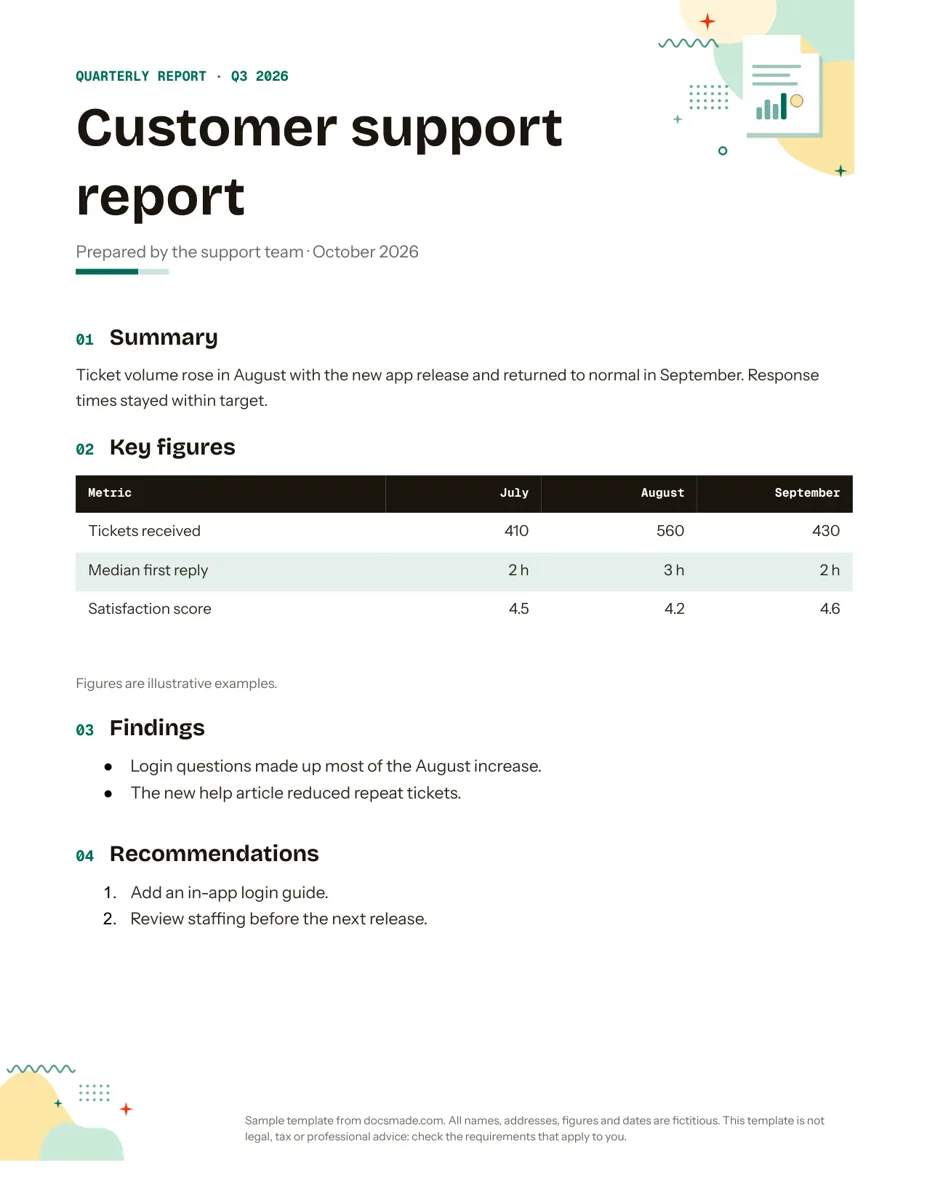 Business & finance Google Docs Report Template for Quarterly and Monthly Reports Free report template for Google Docs: summary, key figures table, findings and recommendations. Real Doc you can preview, copy or get as .docx/PDF. View template →
 -
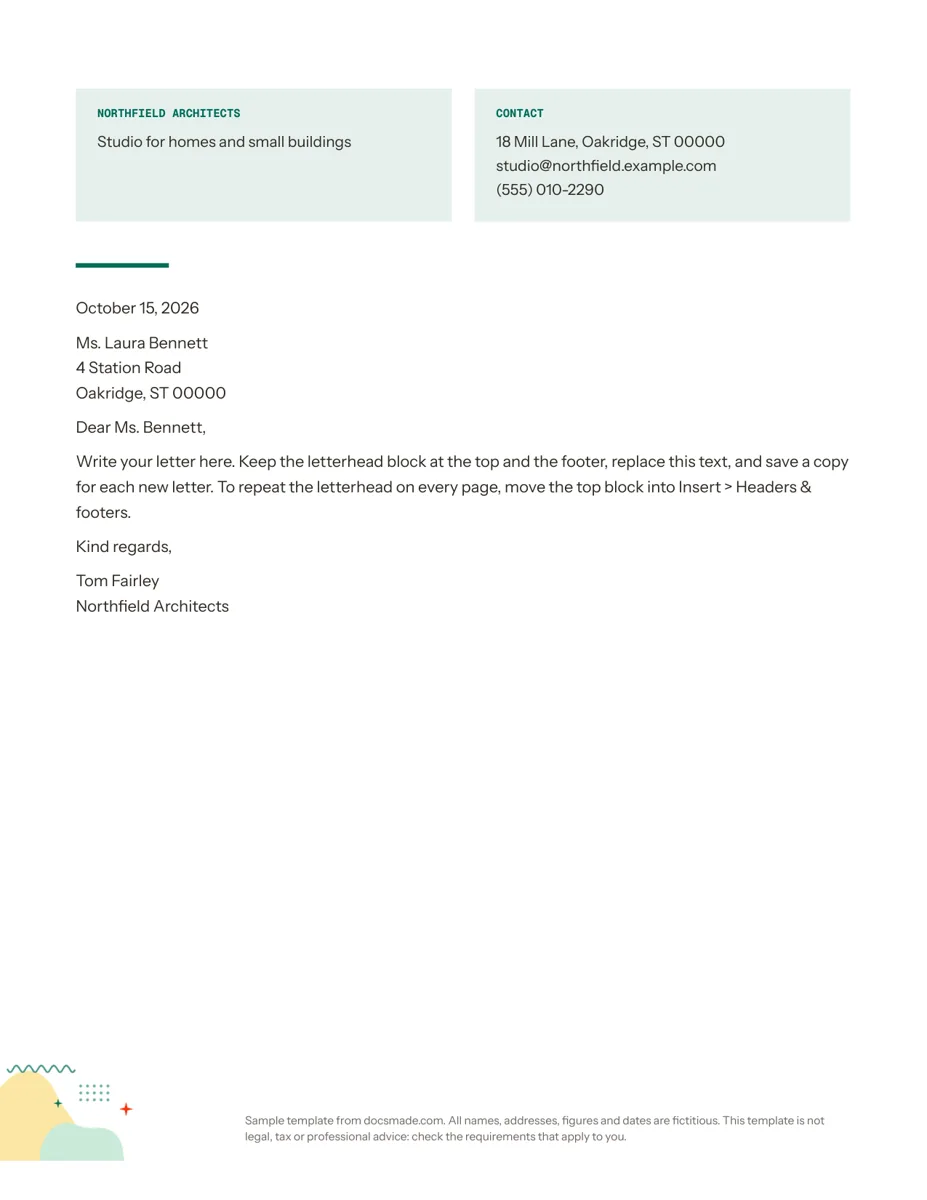 Business & finance Google Docs Letterhead Template for Business Letters Free business letterhead template for Google Docs with company and contact block. Real Doc: preview it, make a copy, or download .docx and PDF. View template →
 -
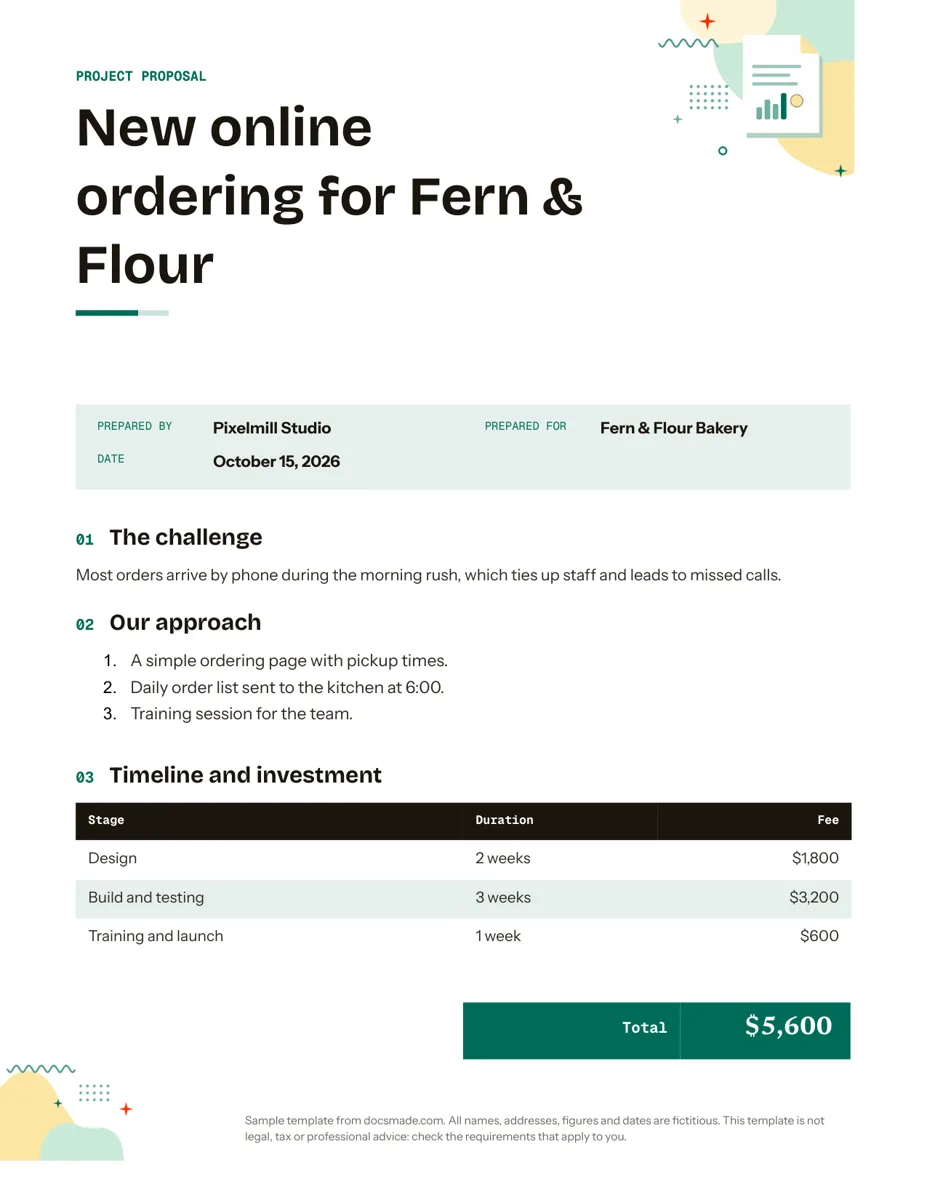 Business & finance Google Docs Proposal Template for Client Projects Free project proposal template for Google Docs: challenge, approach, timeline, fees and next steps. Preview, make a copy, or get .docx and PDF. View template →