
Google Docs Invoice Template (Free, Ready to Copy)
Prefer a file? Download .docx · Download PDF
How it works: “Use this template” opens Google’s copy screen. Sign in to your Google account and the document is copied to your own Drive, where you can edit every line. Need help copying the document?
What's inside the invoice template
-
Details
- Invoice no. · Issue date · Due date
-
Table
- Table: Description, Qty, Unit price, Amount
-
Payment details
-
Terms
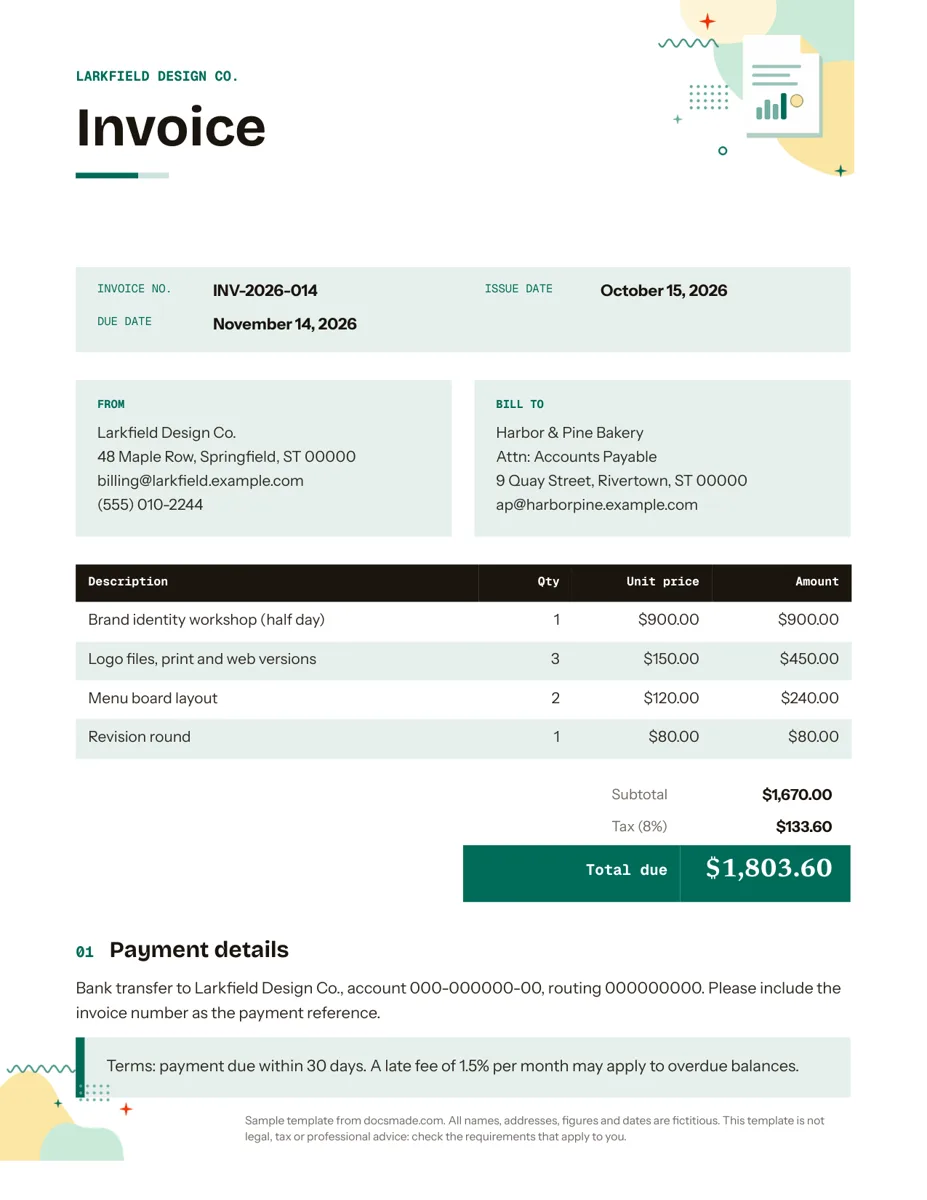
This invoice template is a real Google Doc you can preview right here, copy into your own Drive in one click and send to a client the same day. It suits freelancers, contractors and small businesses that bill a handful of clients a month and want a tidy, branded document without signing up for invoicing software.
What the free invoice template for Google Docs includes
The Doc fits on one Letter-size page and follows the order a client reads an invoice in: who sent it, what it is for, how much is owed and how to pay.
- Header band with your business name. The sample uses a fictitious design studio, Larkfield Design Co. Replace it with your trading name or drop your logo in its place.
- Invoice details. Invoice number (INV-2026-014 in the example), issue date and due date, laid out as label and value so they are easy to scan.
- From and Bill to columns. Your address, billing email and phone on the left; the client's name, an "Attn: Accounts Payable" line and their address on the right.
- Line item table. Four columns: Description, Qty, Unit price and Amount, with numbers aligned right so the figures line up.
- Totals block. Subtotal, a tax line with the rate in brackets, and the final Total due.
- Payment details. A short paragraph for bank transfer details and a reminder to quote the invoice number as the payment reference.
- Terms callout. A highlighted box for the payment window and any late fee you have agreed with the client.
All names, figures and account numbers in the sample are made up, so nothing has to be scrubbed before you use it.
How to fill out a simple invoice template correctly
An invoice is a record both you and the client will come back to, so accuracy matters more than design. Work through the page in this order:
- Give every invoice its own number. Use a sequence you will not repeat, such as a year prefix plus a counter (INV-2026-015, INV-2026-016). Never reuse a number, even for a corrected invoice; issue a new one and note which invoice it replaces.
- Set the issue and due dates. The due date should match the terms you state at the bottom. If the terms say 30 days, count 30 days from the issue date.
- Use the client's legal or billing name. Larger clients often route invoices through an accounts payable team, so add a contact name or a purchase order number if they gave you one.
- Write line items a stranger could understand. "Logo files, print and web versions" is clearer than "Design work". If you bill by the hour, put the hours in Qty and your hourly rate in Unit price.
- Check the math by hand. Tables in Google Docs do not calculate. Multiply each Qty by its Unit price, add the Amount column, then apply the tax rate to the subtotal. A quick check with a calculator or a scratch Google Sheet avoids the most common invoice error: a total that does not match the lines above it.
- Spell out how to pay. List each method you accept and what the client should write as a reference.
Tax rules, required invoice fields and late fee limits vary by state and country. Check the requirements that apply to your business; this template is not legal or tax advice.
How to customize the invoice in Google Docs
Click Use this template on this page (or open the preview and choose File > Make a copy) and the Doc lands in your Google Drive, fully editable. If you have never copied a shared Doc before, the step-by-step guide to copying a Google Doc covers it.
- Brand it. Select the header text and change the font and color from the toolbar, or use Format > Paragraph styles to update every heading at once. To add a logo, place the cursor in the header band and use Insert > Image.
- Add or remove rows. Right-click inside the line item table and choose Insert row below or Delete row. Column widths are set so long descriptions wrap without pushing the numbers out of line.
- Change the tax line. Edit the label and rate, or delete the row if you do not charge sales tax.
- Switch paper size. The Doc is set to US Letter. For A4, go to File > Page setup and pick A4; check that the table still fits on one page.
Once your details are in, keep that copy as a master and duplicate it for each new invoice so your branding and terms stay consistent.
Download the invoice template as PDF or Word and send it
Most clients expect a PDF. In your copy, choose File > Download > PDF Document (.pdf) and attach the file to your email. If a client's system needs an editable file, use File > Download > Microsoft Word (.docx); the buttons on this page also give you the blank template in both formats.
You can email straight from Docs with File > Email > Email this file, which attaches a PDF for you. Sharing a view-only link works too, but a PDF is a fixed record of what you billed, while a live link can change. If a colleague reviews invoices before they go out, share the Doc with comment access and let them leave notes with Insert > Comment.
For printing, use File > Print and keep scaling at 100% so the totals block is not cut off.
Freelance, contractor and hourly invoice ideas
The same layout adapts to different ways of billing:
- Freelance projects. List deliverables as separate lines (workshop, files, revision round) so the client sees what each part cost, as in the sample.
- Contractor and trade work. Split labor and materials into their own lines. If you quoted the job first, reference the estimate number in the description. Our estimate template uses the same table so the two documents match.
- Hourly services. Rename Qty to "Hours" and Unit price to "Rate", and add the dates worked to each description.
- Deposits and final balances. Invoice the deposit with its own number, then show it as a negative line on the final invoice.
When the client pays, send a payment receipt as confirmation. Browse more business documents for Google Docs, including a letterhead that matches your invoices.
Google Docs invoice template questions
Is this invoice template for Google Docs really free?
Yes. You can preview it, copy it to your Drive and download it as .docx or PDF at no cost, and use it for your own business invoices. There is no sign-up on this site.
Does the Google Docs invoice calculate totals automatically?
No. Google Docs tables hold text, not formulas, so you type each amount and the totals yourself. If you need automatic sums, do the math in a Google Sheet and paste the results, or check each line with a calculator before you send.
Can I use this as an invoice template in Word?
Yes. Download the .docx version and open it in Microsoft Word. Fonts may shift slightly if Word does not have the same typeface, so check the table widths before you save your own version.
How do I number invoices in Google Docs?
Docs will not number them for you. Keep a simple running list, in a sheet or at the bottom of your master copy, and take the next number each time you duplicate the template.
What is the difference between an invoice and a receipt?
An invoice asks for payment and shows what is owed and when. A receipt confirms that payment was received. Many businesses send both: the invoice first, then a receipt once the money arrives.
More templates
-
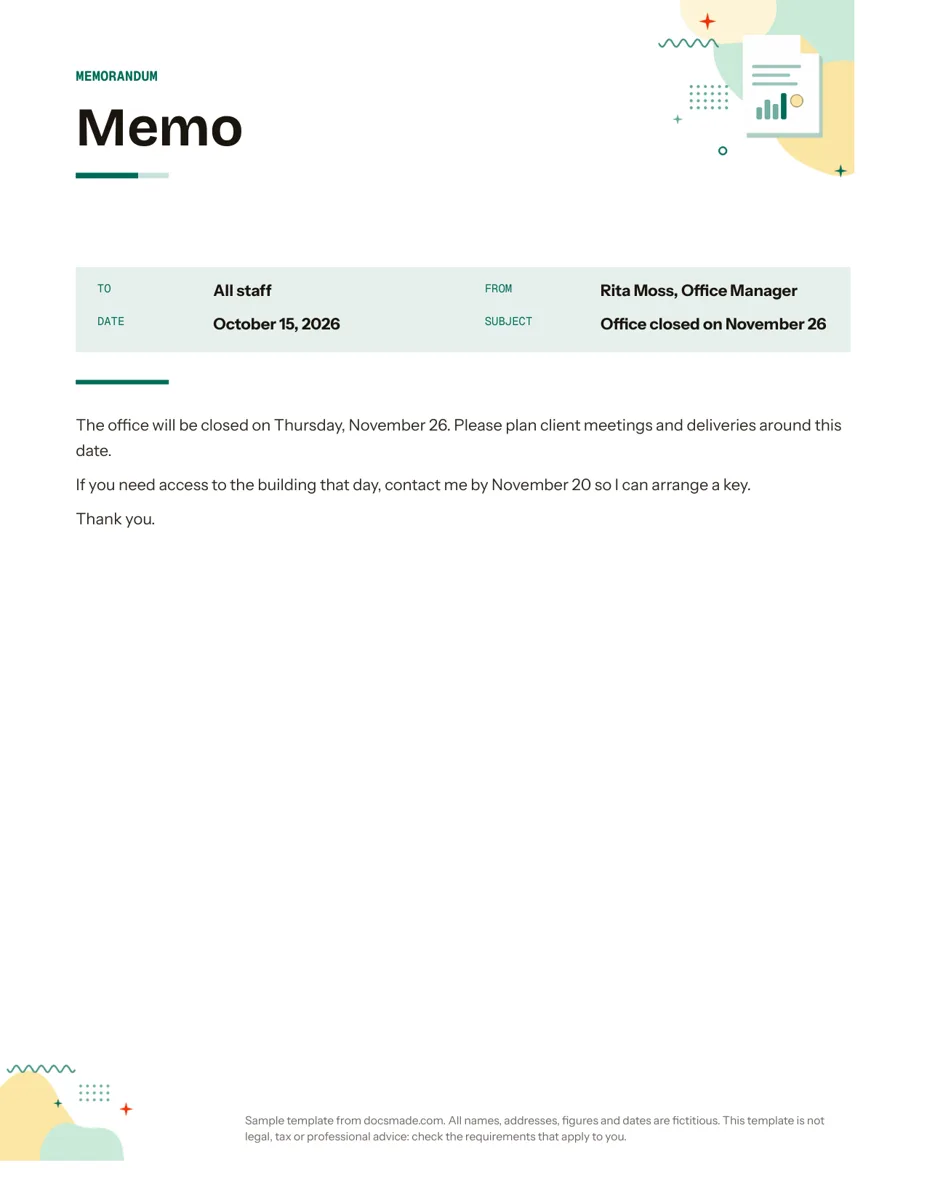 Business & finance Google Docs Memo Template for Office Announcements Free business memo template for Google Docs with To, From, Date and Subject lines. Preview it, make a copy, or download as .docx and PDF. View template →
 -
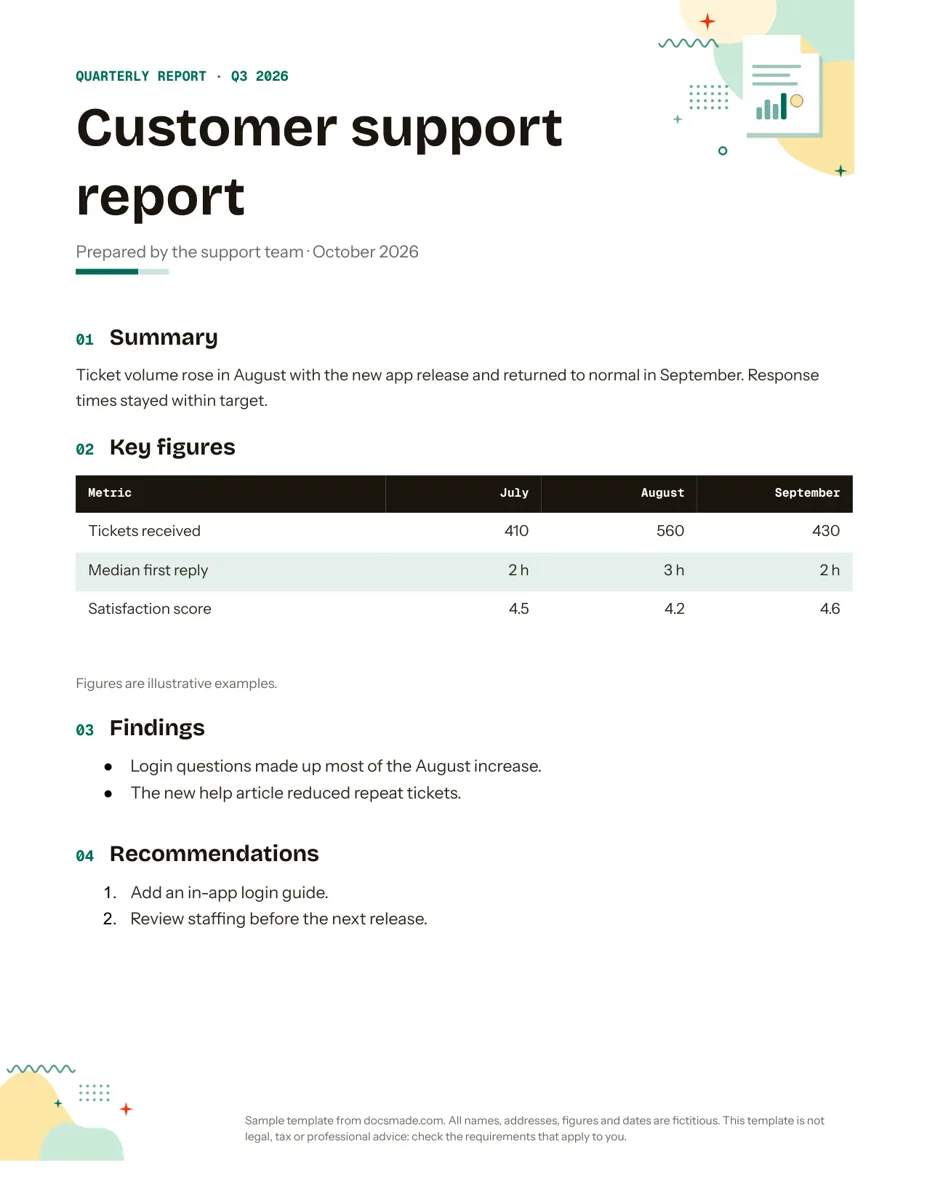 Business & finance Google Docs Report Template for Quarterly and Monthly Reports Free report template for Google Docs: summary, key figures table, findings and recommendations. Real Doc you can preview, copy or get as .docx/PDF. View template →
 -
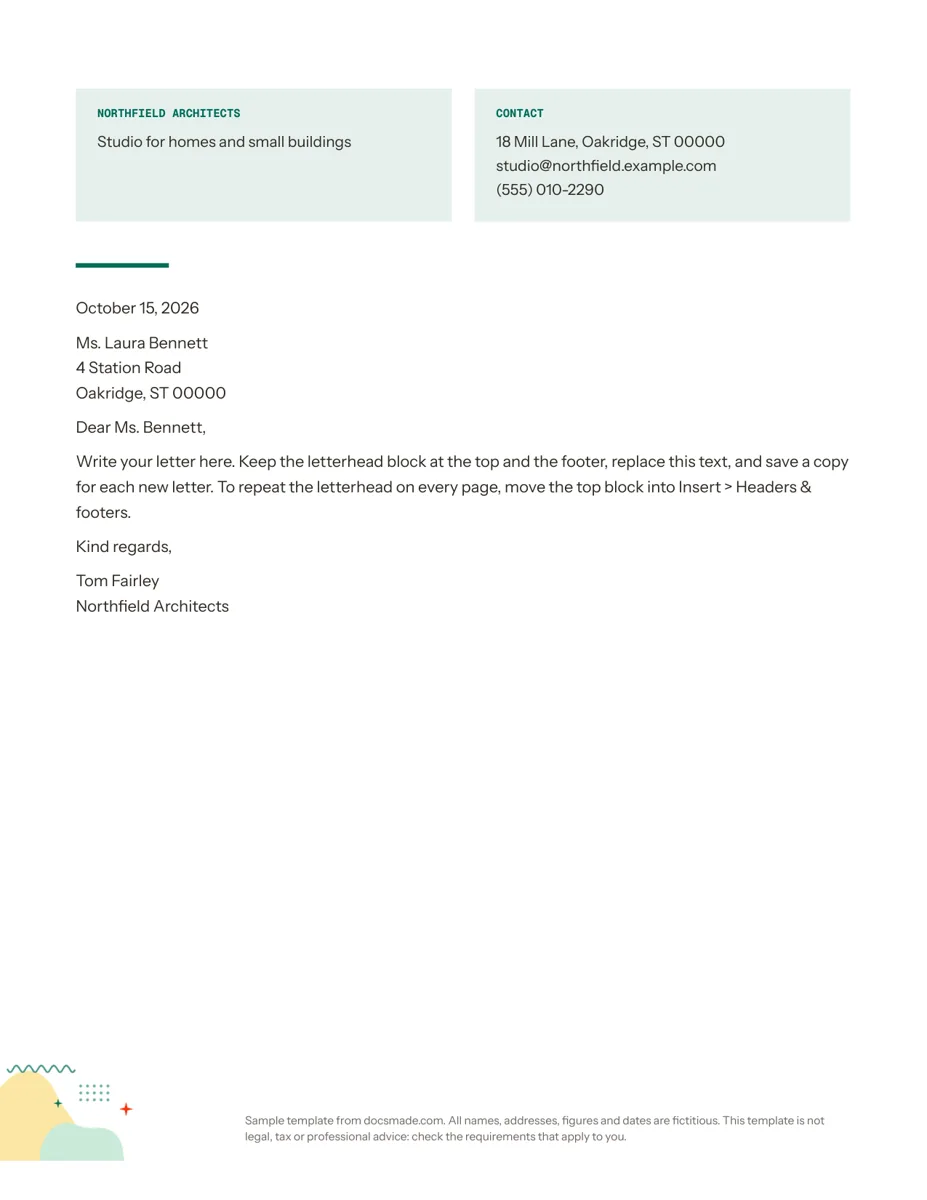 Business & finance Google Docs Letterhead Template for Business Letters Free business letterhead template for Google Docs with company and contact block. Real Doc: preview it, make a copy, or download .docx and PDF. View template →
 -
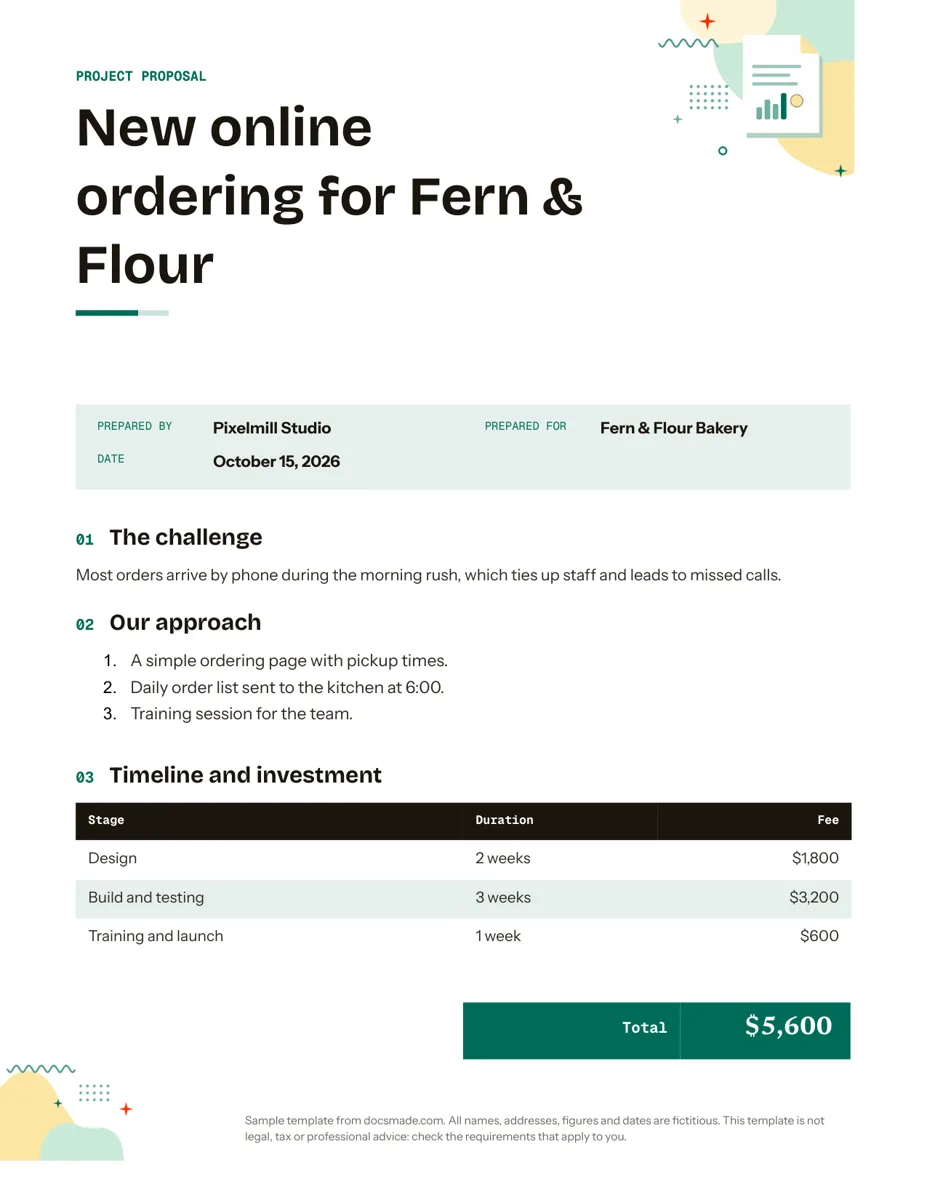 Business & finance Google Docs Proposal Template for Client Projects Free project proposal template for Google Docs: challenge, approach, timeline, fees and next steps. Preview, make a copy, or get .docx and PDF. View template →