
Google Docs Checklist Template, Printable and Editable
Prefer a file? Download .docx · Download PDF
How it works: “Use this template” opens Google’s copy screen. Sign in to your Google account and the document is copied to your own Drive, where you can edit every line. Need help copying the document?
What's inside the checklist template
-
Six weeks before
- Book the moving company
- Start packing rooms you use least
- Collect boxes, tape and labels
-
Two weeks before
- Update your address with the bank and post office
- Arrange utility transfers
- Confirm parking for the moving truck
-
Moving day
- Take meter readings
- Check every cupboard and drawer
- Hand over the old keys
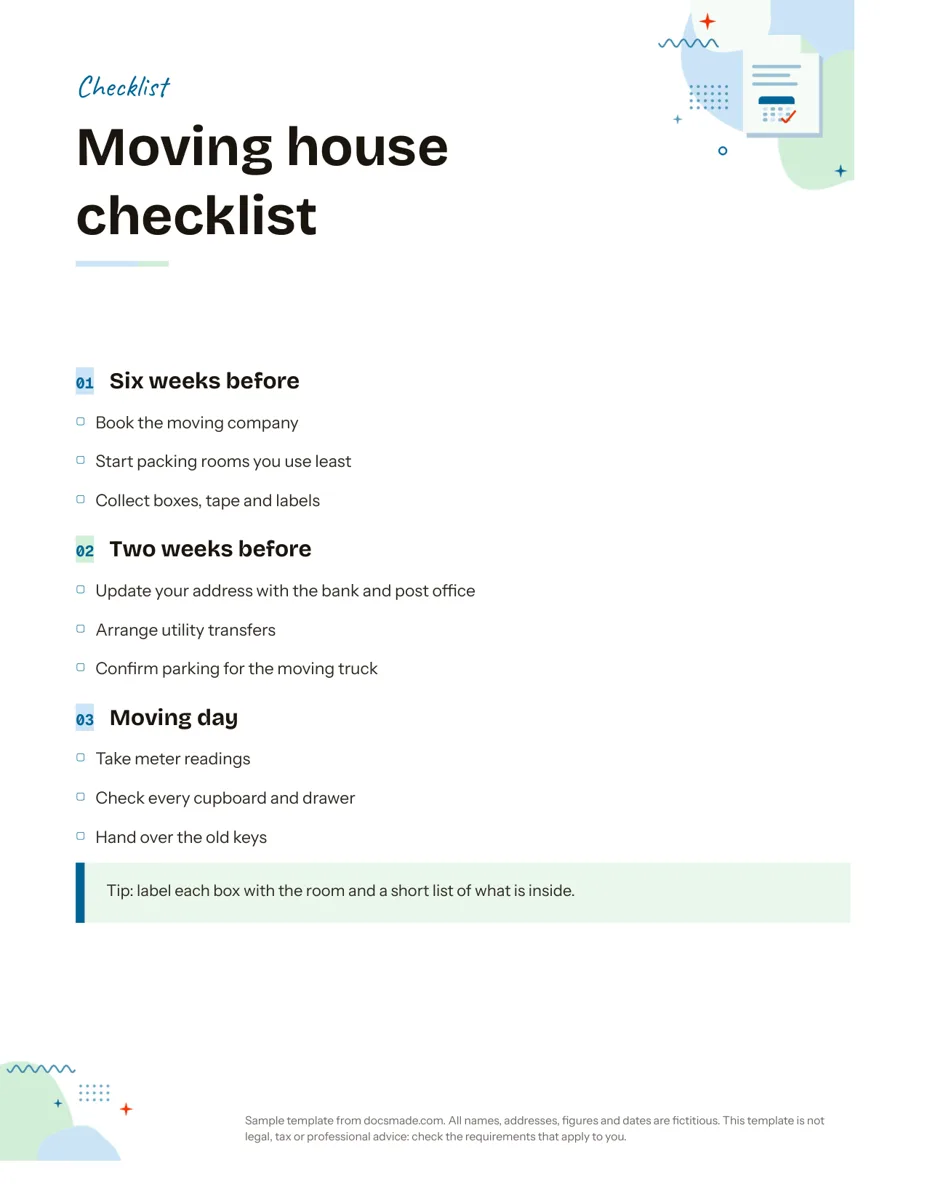
This Google Docs checklist template organizes tasks into stages, each with its own short list of tick boxes, so you always know what to do next. The example is a moving house checklist, but the layout works for any job that happens in steps. It is a real Google Doc: preview it here, make a copy in one click and edit it in your browser, or download it as .docx or PDF to print.
What's in this printable checklist template
- Header. A colored band with the word "Checklist" and a large title for your list ("Moving house checklist" in the sample).
- Three stages with their own headings. "Six weeks before", "Two weeks before" and "Moving day". Grouping by time means you only look at the tasks that matter right now.
- Tick boxes. Each stage has three tasks with an empty square in the category color, sized to tick with a pen. Examples: book the moving company, arrange utility transfers, confirm parking for the truck, take meter readings, hand over the old keys.
- Tip box. A shaded callout at the end for advice that applies to the whole list, here a reminder to label each box with the room and a short list of what is inside.
The page is US Letter in portrait, with plenty of white space so you can add a few tasks under each stage without running onto a second page.
How to write a checklist that gets finished
A checklist works when every line is a clear action you can mark done. Some rules that make a difference:
- Start each item with a verb. "Book the moving company" tells you what to do; "moving company" does not.
- One action per line. If a task has two parts done on different days, split it into two items.
- Group by stage, place or person. The template groups by time before the move. For a cleaning list, group by room; for an event, group by team.
- Order items as you will do them. Within each stage, put the tasks that block others first, such as booking movers before collecting boxes.
- Keep stages short. Three to seven items per heading are easy to scan. A longer list usually hides a stage you have not named yet.
- Use the tip box for rules, not tasks. Advice like "label every box" applies all the time, so it should not be a line you tick once.
How to edit the checklist template in Google Docs
- Click Use this template, or open the preview and choose File > Make a copy. If copying is blocked on your account, see our guide to copying a Google Doc.
- Change the title and the stage headings. Keep the headings in the existing style so they line up, or apply it with Format > Paragraph styles.
- Rewrite the items. To add a task, place the cursor at the end of a line, press Enter and copy the square from the line above.
- Want boxes you can click on screen? Delete the printed squares, select the items and click the Checklist button in the toolbar (or use Format > Bullets & numbering > Checklist). Ticking an item then crosses it out.
- Edit or delete the tip box. Click inside it to change the text; to remove it, right-click and choose Delete table.
- Change the accent color through the text color menu, and the paper size with File > Page setup (Letter or A4).
Print or share your checklist in Google Docs
For a paper list on the fridge or clipboard, use File > Print, or download it with File > Download > PDF document (.pdf) to print from another device. The printed squares are designed for a pen. If someone needs it in Word, pick Microsoft Word (.docx). To work through a checklist together, click Share and give your partner or team Editor access; you can assign a line to someone by adding a comment with Insert > Comment and typing + followed by their email, which sends them the task.
Checklist template ideas for home, work and events
- Moving checklist: the sample as it stands. Add stages for "Four weeks before" or "First week in the new home" as needed.
- Daily or weekly checklist: rename the stages Morning, Afternoon and Evening, or use the days of the week, and print one copy per week.
- Event checklist: stages for invitations, supplies and the day itself. Use a sign-up sheet to find helpers and a timeline template to fix the big dates.
- Onboarding or office checklist: stages for before the start date, first day and first week, with one owner per item.
- Travel packing list: group by bag or by category such as documents, clothes and electronics.
For tasks tied to specific days, write them on a monthly calendar instead. You will find more planning documents in the organization templates section.
Google Docs checklist template FAQ
Is this Google Docs checklist template free?
Yes. Copy it to your Drive and use it for personal or work lists at no cost. You need a Google account to make the copy, or you can download the PDF and print it without one.
Can I make the boxes clickable in Google Docs?
Yes. Google Docs has a built-in checklist format: select your items and click the Checklist button in the toolbar. The template ships with printed squares because they look cleaner on paper.
How do I make a daily checklist template in Google Docs?
Rename the three stages to parts of the day, keep the tasks short and use the clickable checklist format. Make a copy of the Doc each week, or uncheck the items and reuse the same one.
Can I open the checklist in Word?
Yes. Use the .docx download on this page or File > Download > Microsoft Word (.docx) from your copy. Headings and squares carry over; Word may swap the font if it is not installed.
What is the difference between a checklist and a to-do list?
A to-do list collects tasks as they come up. A checklist is a planned sequence you can reuse, grouped into stages, which is why this template works well for repeat jobs like moving, cleaning or opening an office.
More templates
-
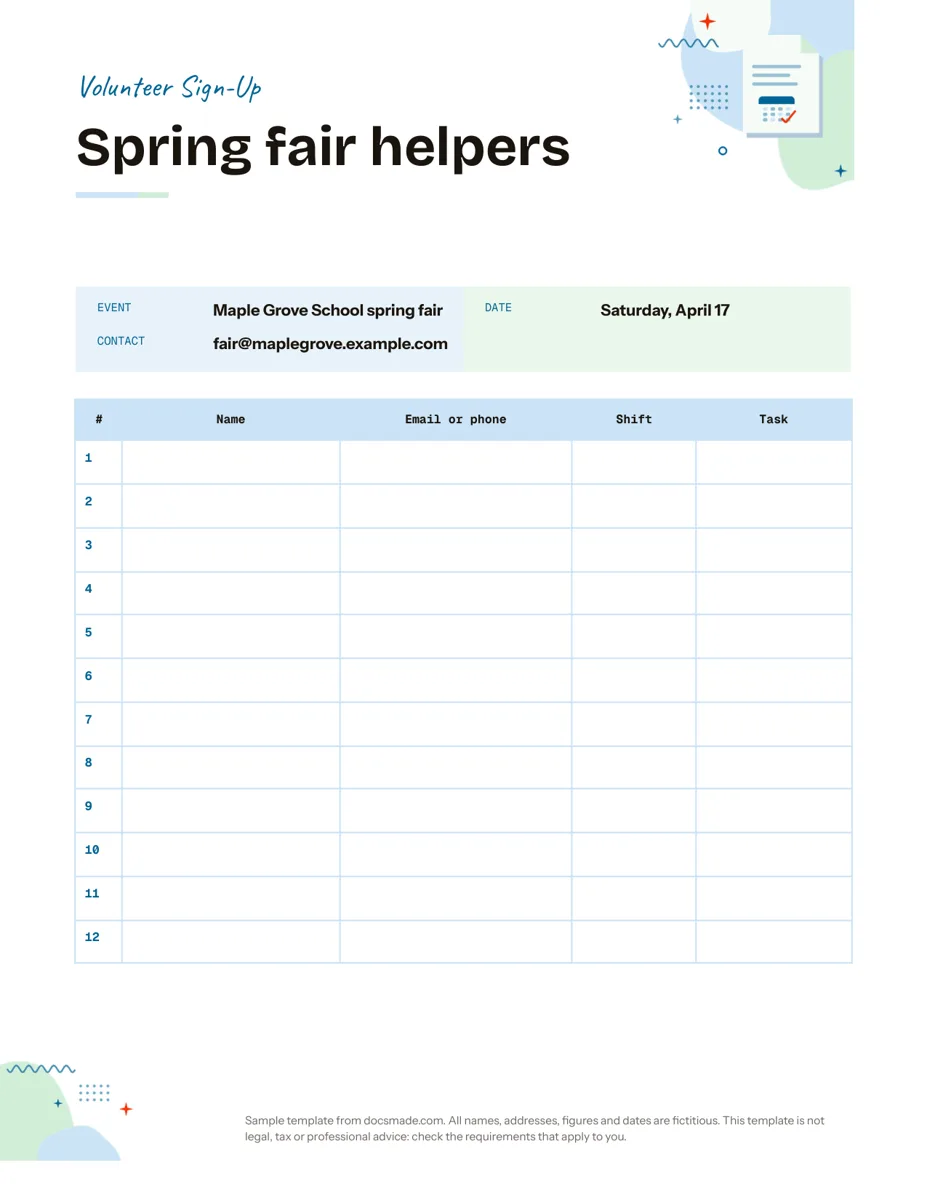 Organization Google Docs Sign Up Sheet Template for Volunteers and Events Free volunteer sign up sheet template for Google Docs with name, contact, shift and task columns. Preview it, copy it, or print the PDF. View template →
 -
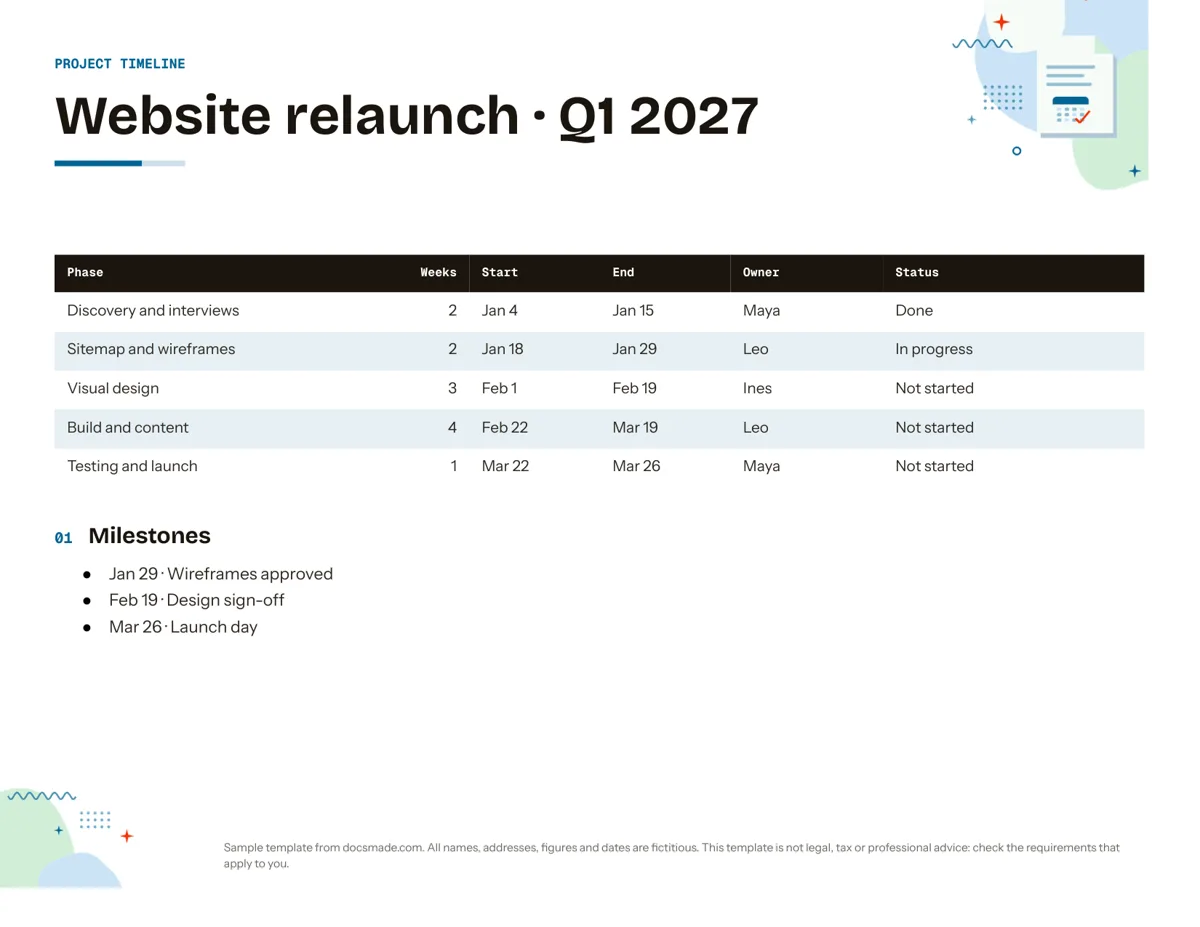 Organization Google Docs Timeline Template for Project Planning Free project timeline template for Google Docs: phases, dates, owners, status and milestones. Preview it, make a copy, or download .docx and PDF. View template →
 -
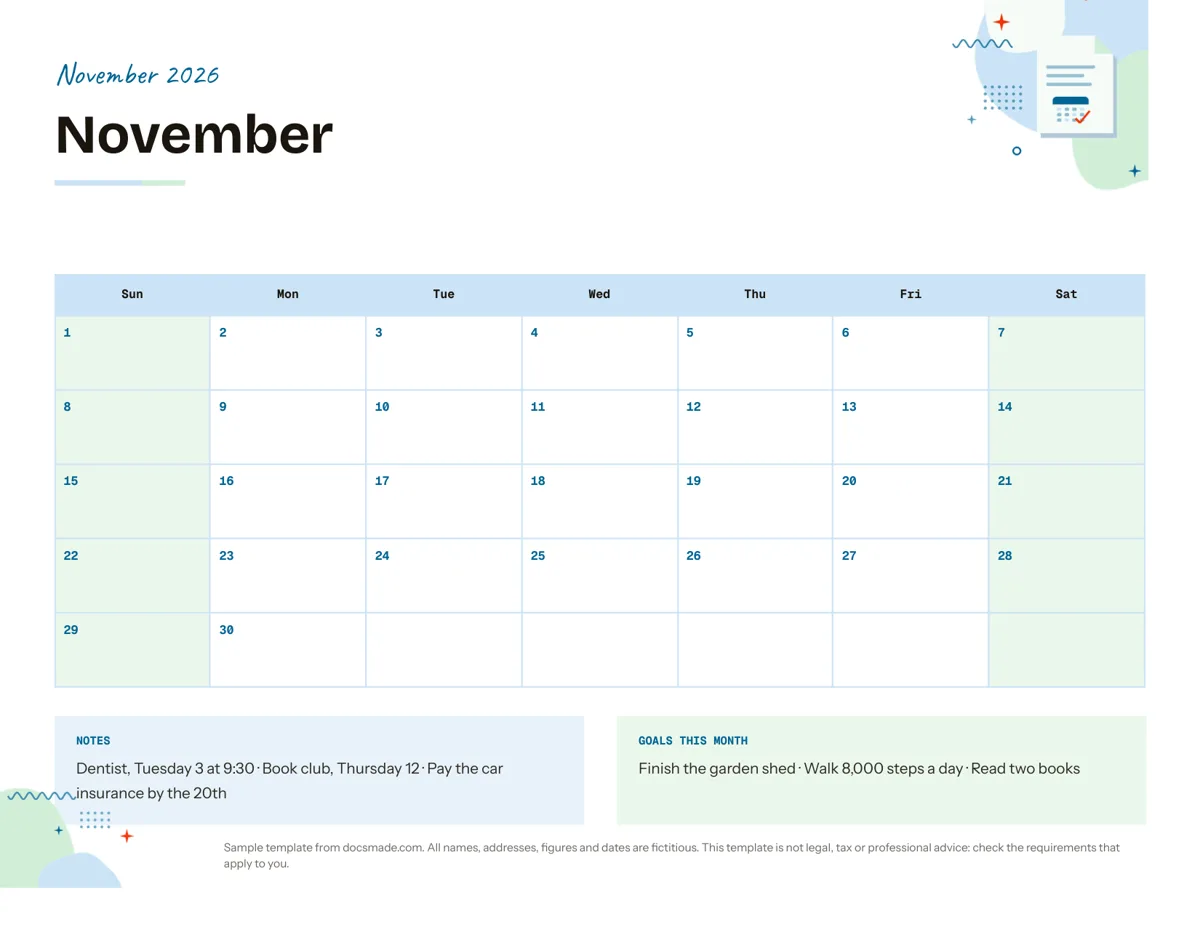 Organization Google Docs Calendar Template: Printable Monthly Planner Free monthly calendar template for Google Docs: a landscape grid with notes and monthly goals. Preview it, make a copy, or get .docx and PDF. View template →
 -
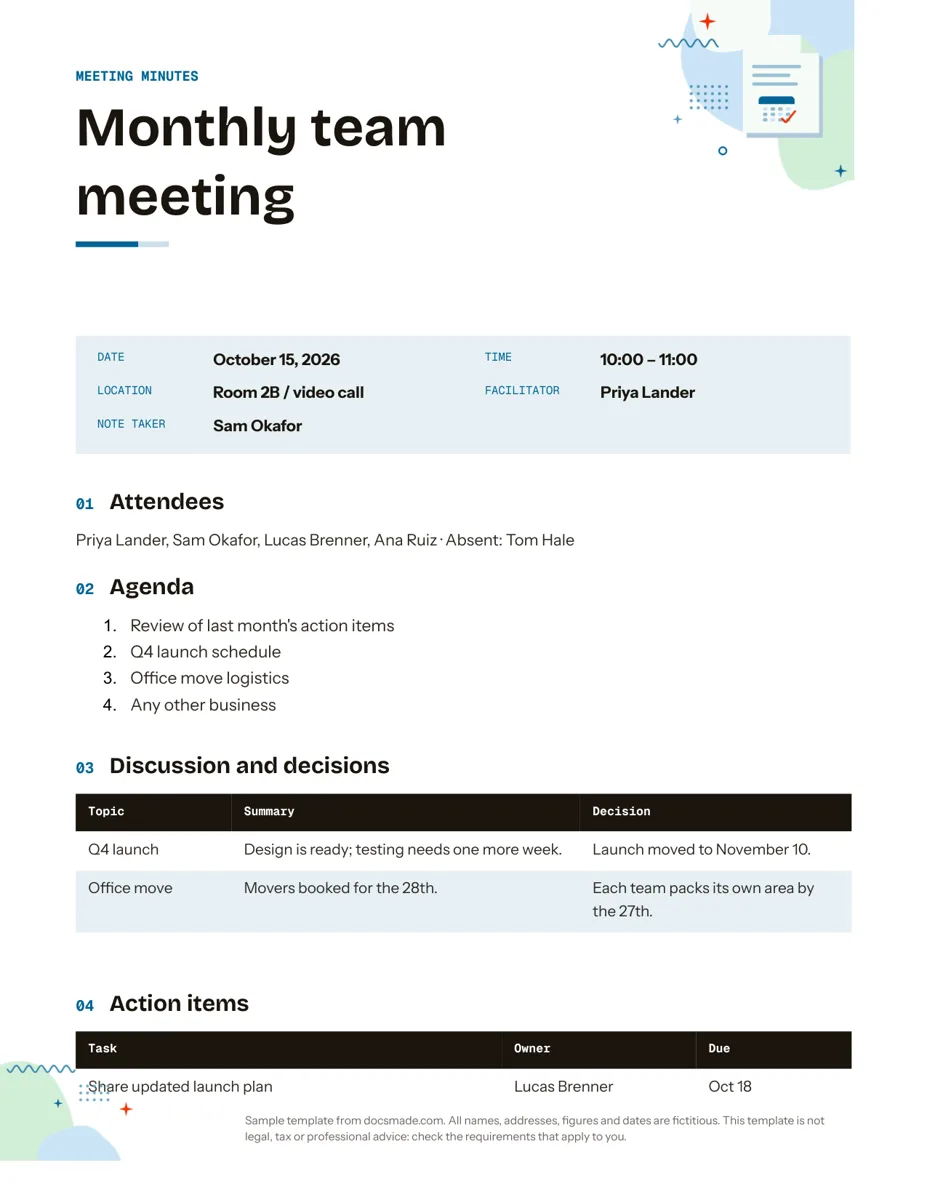 Organization Google Docs Meeting Minutes Template with Action Items Free meeting minutes template for Google Docs with agenda, decisions and an action items table. Preview it, make a copy, or get .docx and PDF. View template →