
Google Docs Flashcard Template: Printable Cut-and-Fold Cards
Prefer a file? Download .docx · Download PDF
How it works: “Use this template” opens Google’s copy screen. Sign in to your Google account and the document is copied to your own Drive, where you can edit every line. Need help copying the document?
This flashcard template is a real Google Doc that prints a sheet of study cards on US Letter paper. Each card has the term on one half and the answer on the other, so you cut along the lines, fold, and get a double-sided card without fiddling with duplex printing. Preview it here, copy it into your Google Drive, and type your own terms into the grid.
What's in this Google Docs flashcard template
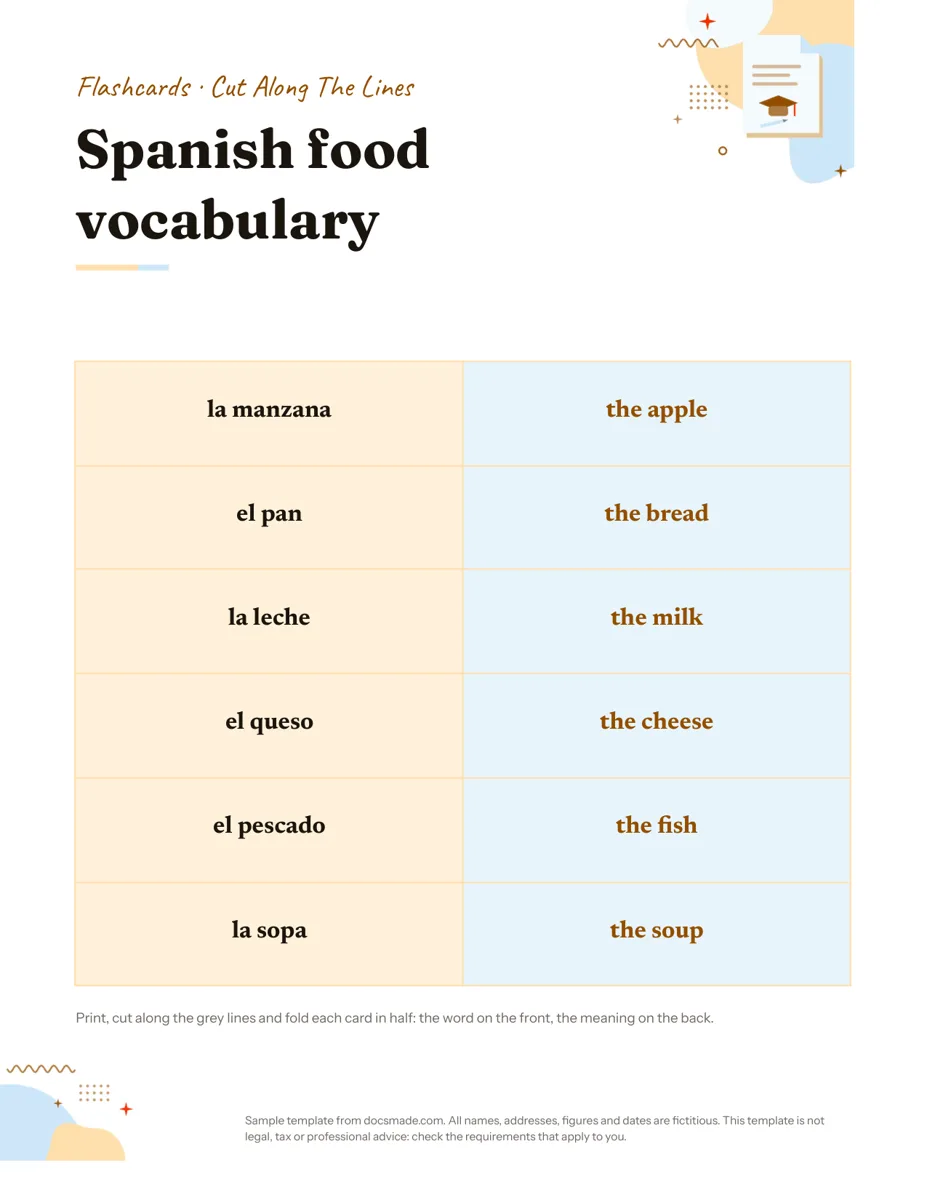
The sample deck is "Spanish food vocabulary", six words a beginner might learn in a first unit. Everything sits in one simple table, which is what makes it easy to edit.
- Instruction band: a colored strip at the top that reads "FLASHCARDS · CUT ALONG THE LINES", so anyone who picks up the printout knows what to do.
- Deck title: the topic in large type ("Spanish food vocabulary"). Use it for the unit, chapter or exam name.
- Card grid: a two-column table with six rows. The left cell of each row holds the prompt (la manzana, el pan, la leche, el queso, el pescado, la sopa) and the right cell holds the answer (the apple, the bread, the milk, the cheese, the fish, the soup). The answer side has a light tint so the two halves are easy to tell apart.
- Cut lines: thin gray borders around every cell show where to cut.
- How-to note: a line at the bottom explains the method: print, cut along the gray lines and fold each card in half, word on the front and meaning on the back.
Text in the cards is set large and bold and centered, so it is readable at arm's length, which matters if you hold cards up in front of a class.
How to make flashcards on Google Docs that help you remember
The template takes care of layout. What goes on the cards decides whether they work. A few rules that apply to any subject:
- One fact per card. A card that asks for three things gets marked "half right" and teaches nothing. Split it into three cards.
- Make the front a real question. "Mitochondria" is weaker than "Which organelle produces most of the cell's energy?" because the second forces you to recall rather than recognize.
- Keep the back short. A word, a number, a formula or a single sentence. If the answer needs a paragraph, the card is really a set of smaller cards.
- Write both directions for vocabulary. Make one sheet from Spanish to English and a second from English to Spanish. Recall in both directions is a different skill.
- Use your own words. Copying definitions from a textbook is quick, but rewriting them in plain language is part of learning them.
When you study, sort the cards into a "know it" pile and a "not yet" pile and spend your next session on the second pile. Paper cards make this easy, which is a good reason to print rather than scroll.
Customize the flashcard template in Google Docs
Click Use this template, or open the preview and choose File > Make a copy. The copy appears in your Google Drive and is fully editable. Our guide on how to copy a Google Doc explains the process if you get stuck.
- Replace the words: click a cell and type. Press Tab to jump from the front cell to the back cell and on to the next card.
- Add more cards: click in the last row, right-click and choose Insert row below. The new row keeps the same borders. When the page fills, the table continues on the next page.
- Change the card size: right-click the table, choose Table properties, and set a Minimum row height under Rows. A taller row gives you a bigger card; fewer rows fit per page.
- Add pictures: click inside a cell and use Insert > Image. For young learners, a picture on the front and the word on the back works well.
- Fonts and colors: select the cards and change the font from the toolbar. Recolor the tinted answer side with Format > Table > Table properties.
- Paper: switch between Letter and A4 in File > Page setup.
Print, download or share your printable flashcards
Print with File > Print. Card stock or heavier paper makes cards that last longer and that you can't read through from the back. Cut out each row along its outer gray lines, then fold it along the middle line so the term and the answer end up back to back. A glue stick inside the fold keeps the card flat.
To print elsewhere, download File > Download > PDF document (.pdf). To edit the deck in Word, download Microsoft Word (.docx) from the same menu. To study with friends, click Share and give them edit access so each person adds a few cards to the same deck before anyone prints.
Flashcard template ideas for students and teachers
- Language vocabulary: the sample layout as it is, one sheet per unit.
- Math facts and formulas: the problem or formula name on the front, the answer or full formula on the back.
- Science terms and dates: keyword on the front, a one-line definition on the back; for history, the event on the front and the year on the back.
- Exam review for a whole class: a teacher shares one document, each student adds cards on an assigned topic, and the full deck is printed for everyone.
Teachers can plan the review lesson with the lesson plan template, run a quick end-of-unit questionnaire, and keep track of study sessions on a checklist template. Browse more classroom documents in education templates.
Google Docs flashcards template FAQ
Is this flashcard template for Google Docs free?
Yes. You can preview it, copy it into your Google Drive, and download it as .docx or PDF at no cost. You need a Google account to make the editable copy.
How do I print double-sided flashcards from Google Docs?
This template avoids the problem: the front and back of each card are printed side by side and you fold the card in half. If you prefer separate fronts and backs, you would need to mirror the back page so the cards line up, which is fiddly with home printers.
Can I make 3x5 flashcards in Google Docs?
Yes, with a few changes. Set the row height in Table properties and adjust the column widths so each half of the card matches the size you want, then print one test sheet to check before cutting a full deck.
How many flashcards fit on one page?
The sample has six cards per Letter page. You can fit more by reducing the row height and the font size, but cards that are too small are harder to read and handle.
Can I add images to Google Docs flashcards?
Yes. Click a cell and use Insert > Image, then resize the picture so it fits inside the card. Keep images on the front side if you want to practice naming things.
More templates
-
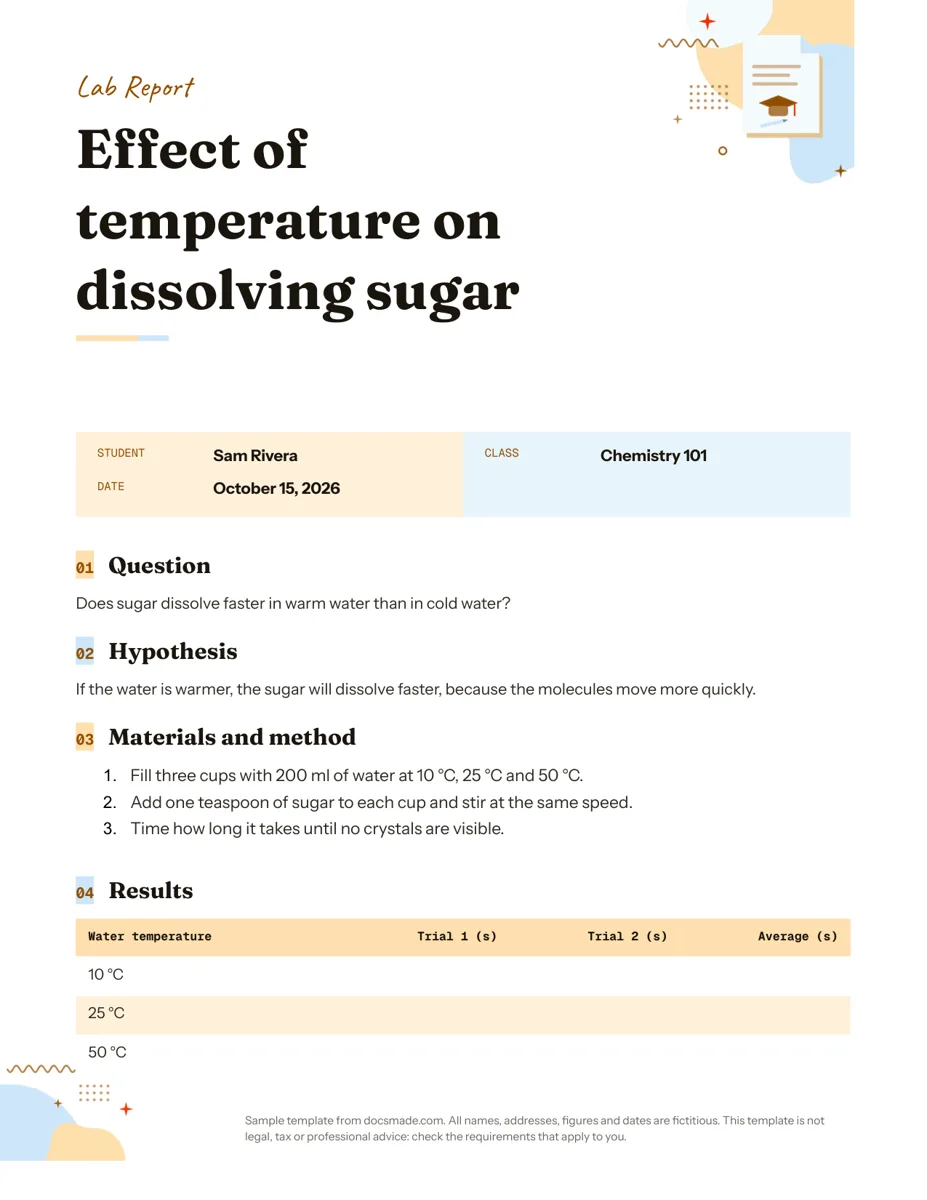 Education Google Docs Lab Report Template for Science Classes Free lab report template for Google Docs: question, hypothesis, method, results table and conclusion. Preview it, copy it, or get .docx and PDF. View template →
 -
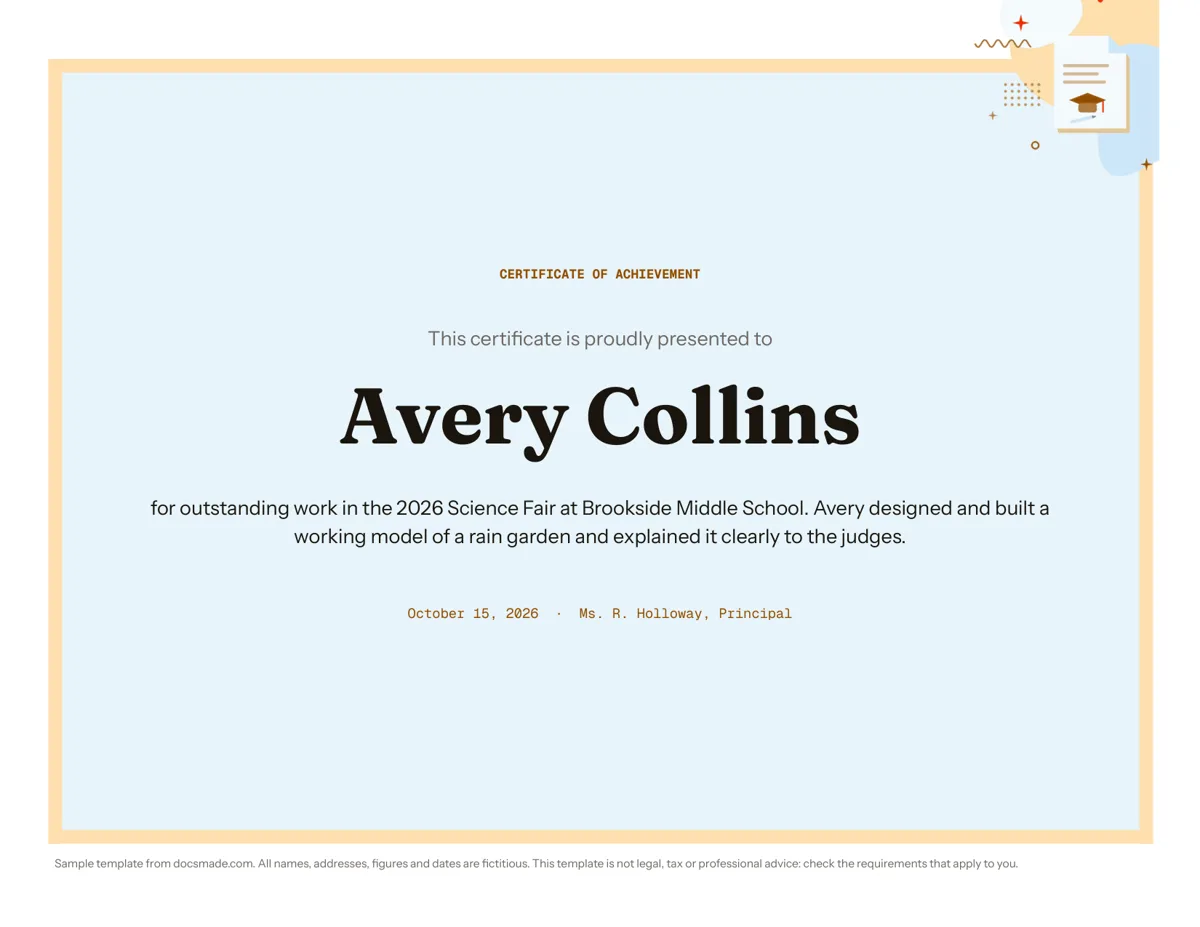 Education Certificate Template for Google Docs: Certificate of Achievement Free award certificate template for Google Docs: a framed landscape certificate of achievement. Preview, copy and edit, or download .docx or PDF. View template →
 -
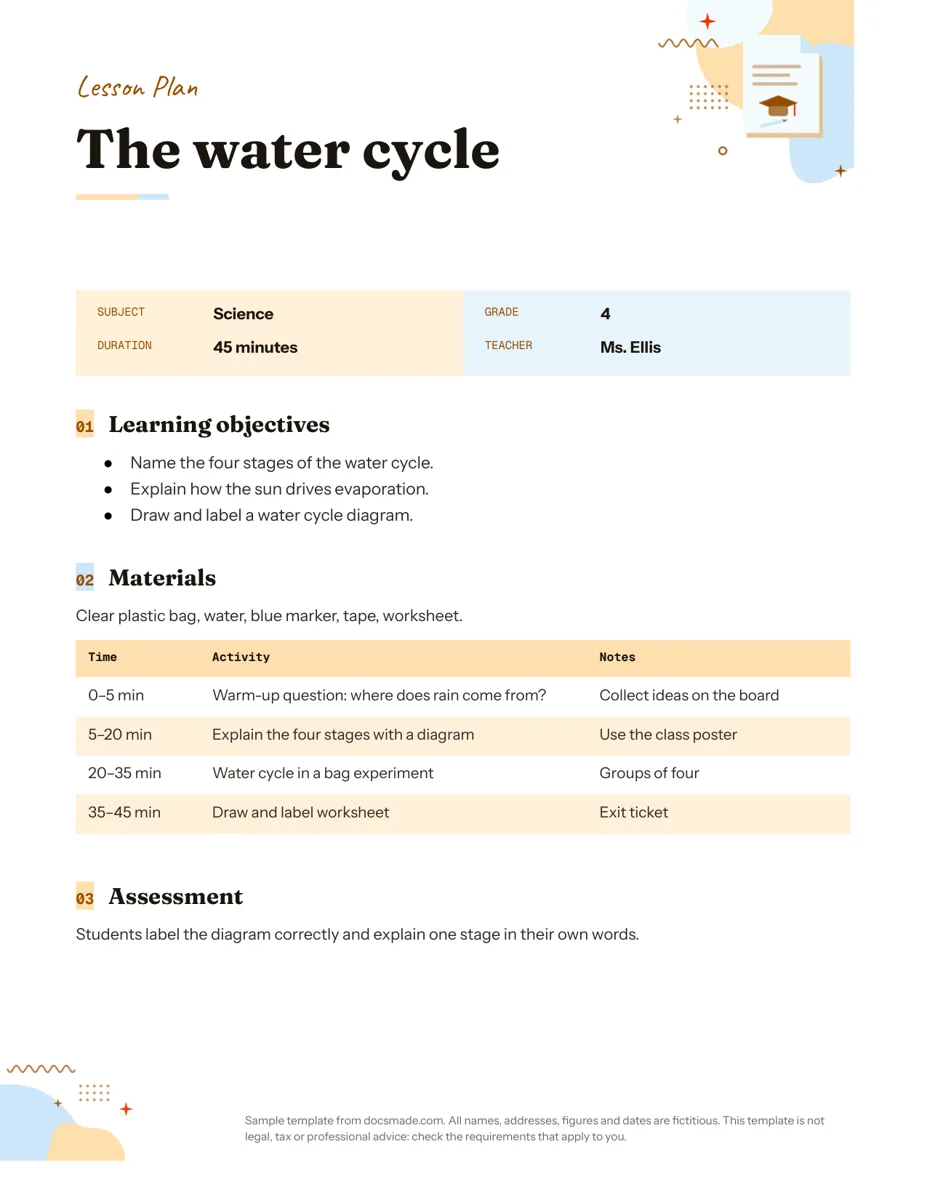 Education Google Docs Lesson Plan Template for a Single Lesson Simple lesson plan template for Google Docs: objectives, materials, timed activities and assessment. Preview, copy, or download as .docx or PDF. View template →
 -
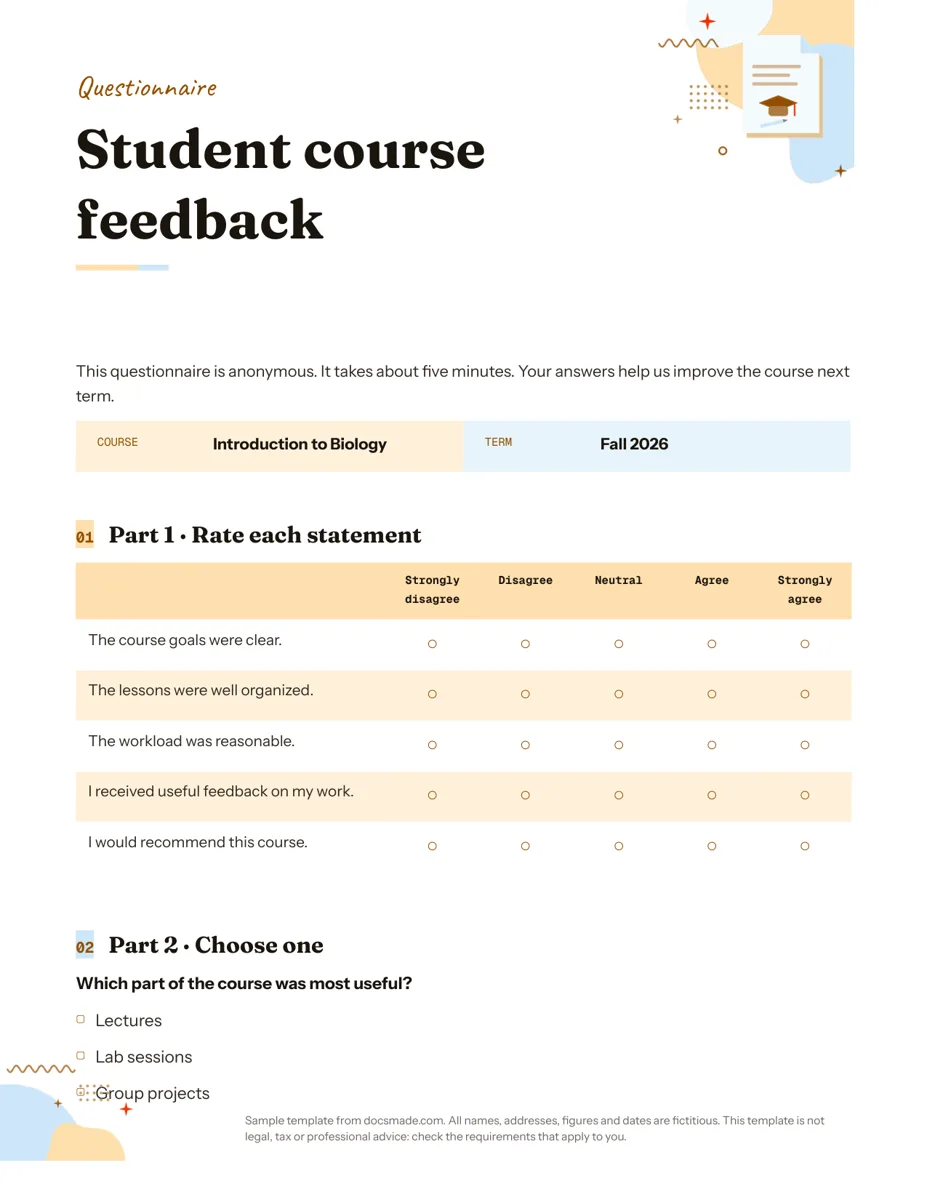 Education Google Docs Questionnaire Template for Printable Feedback Printable survey template for Google Docs with rating scale, multiple choice and open questions. Preview, copy, or download as .docx or PDF. View template →