
Google Docs Lesson Plan Template for a Single Lesson
Prefer a file? Download .docx · Download PDF
How it works: “Use this template” opens Google’s copy screen. Sign in to your Google account and the document is copied to your own Drive, where you can edit every line. Need help copying the document?
What's inside the lesson plan template
-
Details
- Subject · Grade · Duration · Teacher
-
Learning objectives
- Name the four stages of the water cycle.
- Explain how the sun drives evaporation.
- Draw and label a water cycle diagram.
-
Materials
- Table: Time, Activity, Notes
-
Assessment
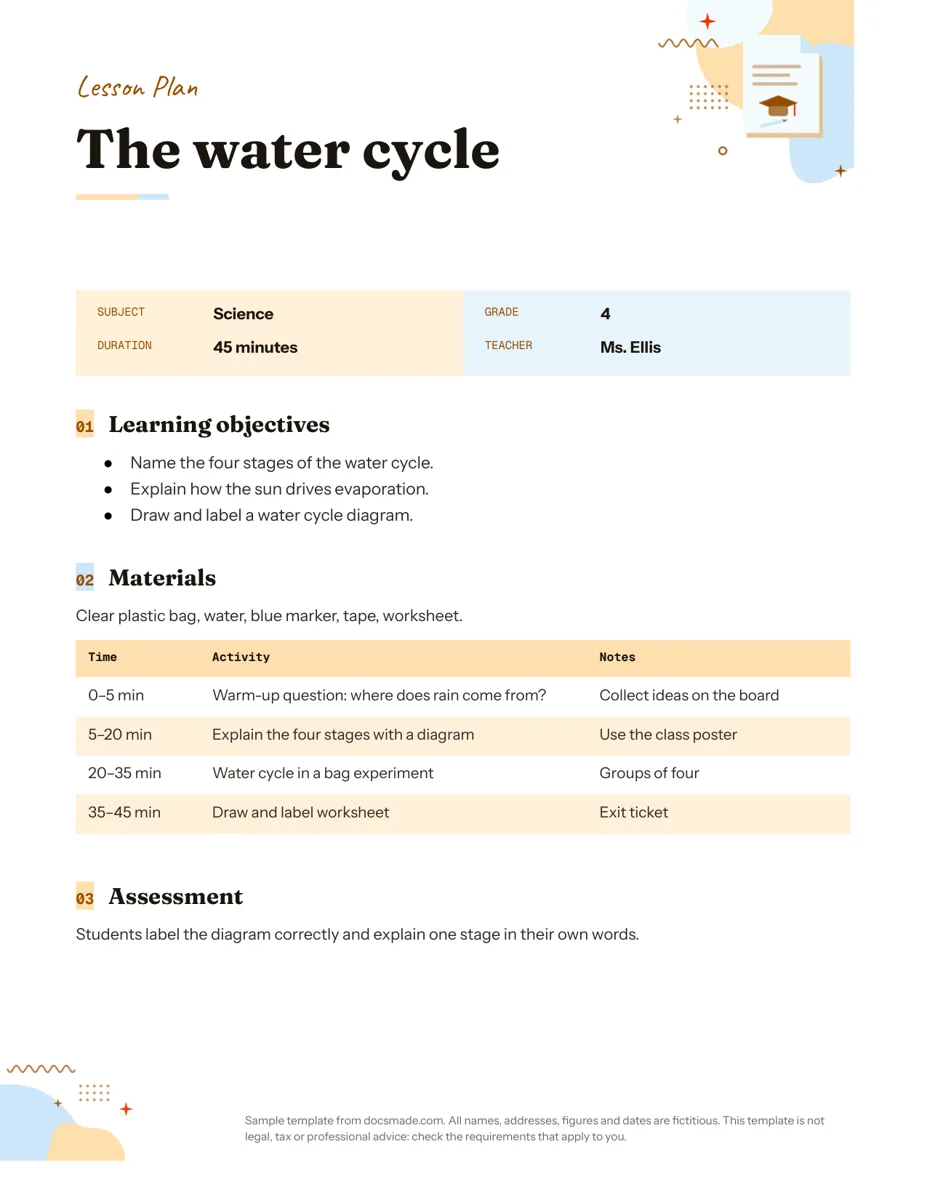
This lesson plan template is a real Google Doc for planning one lesson from start to finish. It covers the lesson details, learning objectives, materials, a minute-by-minute activity table and how you will check understanding. Preview it on this page, make your own copy in Google Drive, and reuse it every time you plan a new class.
What's in this simple lesson plan template for Google Docs
The sample is a 45-minute Grade 4 science lesson on the water cycle. It is fictional, but complete enough to show how each section works in practice.
- Header band and lesson title: "LESSON PLAN" in a colored strip, then the topic ("The water cycle") as a large heading.
- Lesson details: a compact table with Subject, Grade, Duration and Teacher. Anyone covering your class sees the essentials at a glance.
- Learning objectives: three bullets written as things students will do: name the four stages, explain how the sun drives evaporation, draw and label a diagram.
- Materials: one line listing everything to prepare (a clear plastic bag, water, a blue marker, tape and a worksheet).
- Activity table: three columns for Time, Activity and Notes. The sample runs from a five-minute warm-up question through direct teaching, a "water cycle in a bag" experiment in groups of four, and a labeled worksheet used as an exit ticket.
- Assessment: a short paragraph that says what success looks like: students label the diagram correctly and explain one stage in their own words.
How to write a daily lesson plan that works in the classroom
A lesson plan is useful when it tells you, or a substitute, exactly what happens next. These habits keep it practical:
- Write objectives you can observe. Start with a verb a student can perform: name, explain, compare, solve, label. "Understand the water cycle" is hard to check; "explain one stage in your own words" is not.
- Plan the assessment before the activities. Decide how you will know the objective was met, then choose activities that build toward it. The exit ticket in the sample is tied directly to the third objective.
- Time every block. The time column should add up to the period length. If it doesn't fit, cut an activity on paper now instead of rushing the closing in class.
- Use the Notes column for logistics. Grouping, who hands out materials, which poster or slide to show, and what early finishers do. These are the details that slip on a busy day.
- List materials completely. Anything missing from the list is something you will be looking for while the class waits.
After teaching the lesson, add a quick reflection line under Assessment: what worked, what ran long, what to change next time. That note makes next year's version much faster to plan.
Customize the lesson plan in Google Docs
Click Use this template, or open the preview and choose File > Make a copy. Your copy is saved in your Google Drive, where you can rename it and file it in a folder by unit or week. See how to copy a Google Doc if you need step-by-step help.
- Add or remove activity rows: right-click inside the table and choose Insert row below or Delete row. A 60-minute block may need five or six rows.
- Add columns to the details table: extra fields such as Unit, Standards or Room can go in new rows or columns of the same table.
- Add sections: type a new heading and apply the same style as "Materials" with the paint format tool. Common additions are Vocabulary, Differentiation, Homework and Reflection.
- Change the look: pick fonts from the toolbar and recolor the header band through Format > Table > Table properties.
- Paper size: switch between Letter and A4, or set margins, in File > Page setup.
Print, download or share your lesson plan
Print a copy for your desk with File > Print. To submit plans to a department head or upload them to a learning platform, download a PDF with File > Download > PDF document (.pdf). If your school uses Word, File > Download > Microsoft Word (.docx) gives an editable file.
Sharing the Google Doc is often simpler. Click Share and add a co-teacher as an editor to plan together, or give a mentor or coach comment access so they can leave feedback with Insert > Comment. For a substitute, a view-only link keeps the plan intact while still giving them everything they need.
Weekly lesson plan template and other ways to use it
- Weekly lesson plan: duplicate the page for each day and add a page break between them with Insert > Break > Page break. Name the document by week ("Week 7, Science") so you can find it later.
- Substitute plans: fill the Notes column in more detail than usual: seating, class routines, where materials are kept, and who to ask for help.
- Small group or intervention sessions: shorten the Duration, keep one objective, and use the activity table to plan rotation stations.
- Student teaching or observation: keep the structure and add a Reflection section that your supervisor can comment on.
Pair the plan with classroom materials from the same set: a flashcard template for vocabulary review, a questionnaire template for end-of-unit feedback, and a certificate template to recognize student work. All of them are in our education templates.
Lesson plan template Google Docs FAQ
Is this Google Docs lesson plan template free?
Yes. You can preview it, copy it into your Google Drive, and download it as .docx or PDF at no cost. You need a Google account to make an editable copy.
Can I use this lesson plan template for any subject or grade?
Yes. The sample is a Grade 4 science lesson, but every field is editable. Change the subject, grade and duration in the details table and rewrite the objectives and activities for your class.
How do I turn it into a weekly lesson plan template in Google Docs?
Copy the whole page and paste it below a page break for each day of the week, then change the topic and activities. Another option is one document per week with a smaller activity table for each day.
Can I add standards or a 5E structure to the plan?
Yes. Add a Standards row to the details table, or rename the activity rows to Engage, Explore, Explain, Elaborate and Evaluate if your school uses the 5E model.
How do I share my lesson plan with a co-teacher?
Click Share, enter their email and choose Editor. Both of you can edit the same document, and the version history in File > Version history shows who changed what.
More templates
-
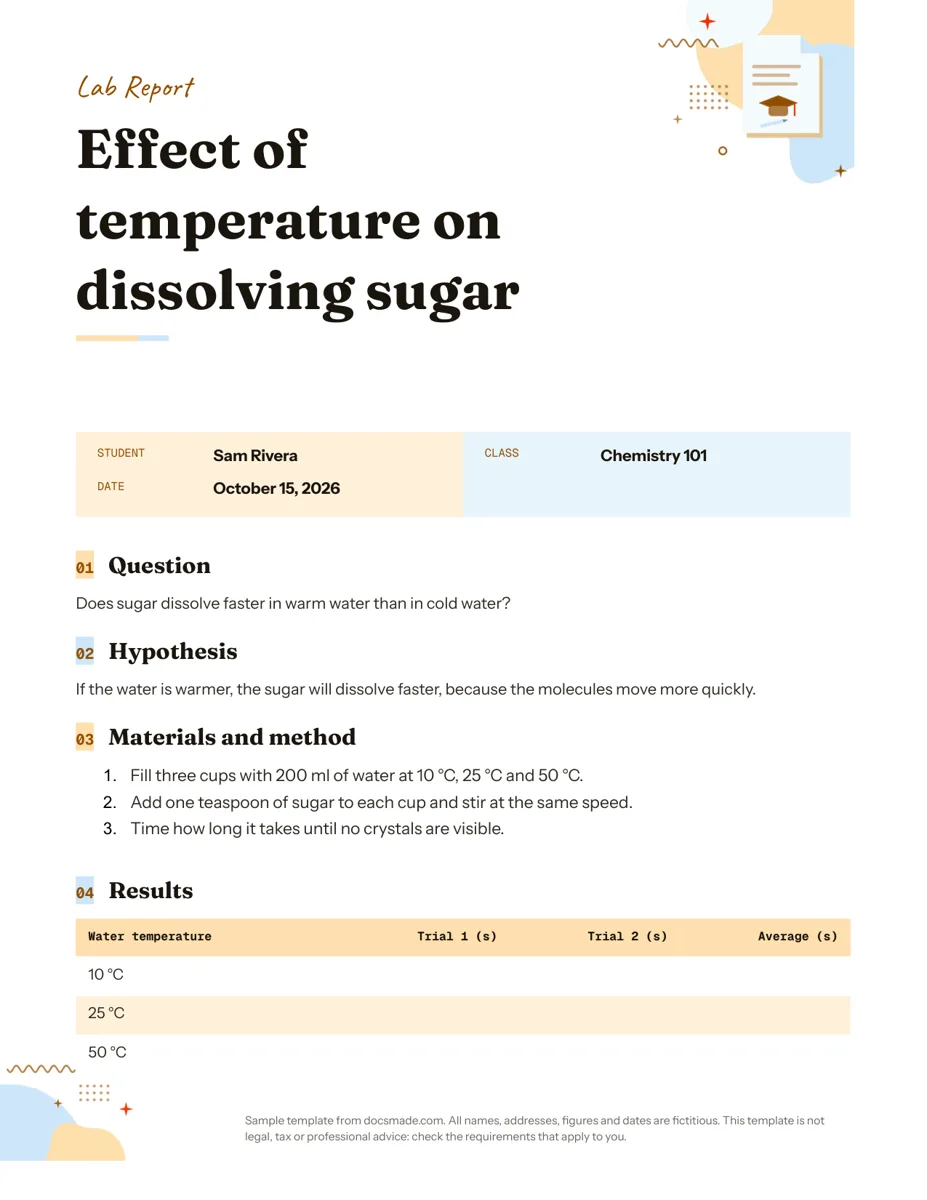 Education Google Docs Lab Report Template for Science Classes Free lab report template for Google Docs: question, hypothesis, method, results table and conclusion. Preview it, copy it, or get .docx and PDF. View template →
 -
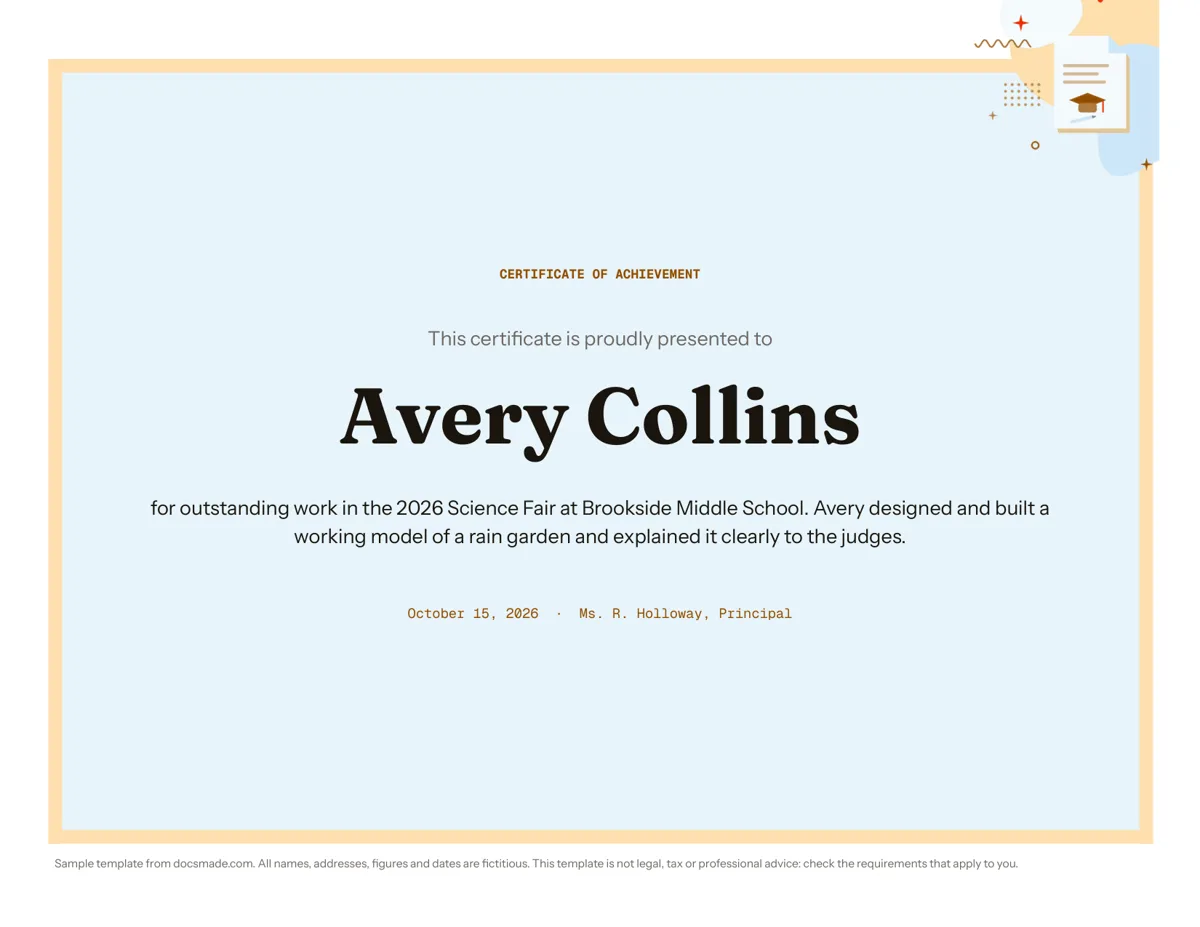 Education Certificate Template for Google Docs: Certificate of Achievement Free award certificate template for Google Docs: a framed landscape certificate of achievement. Preview, copy and edit, or download .docx or PDF. View template →
 -
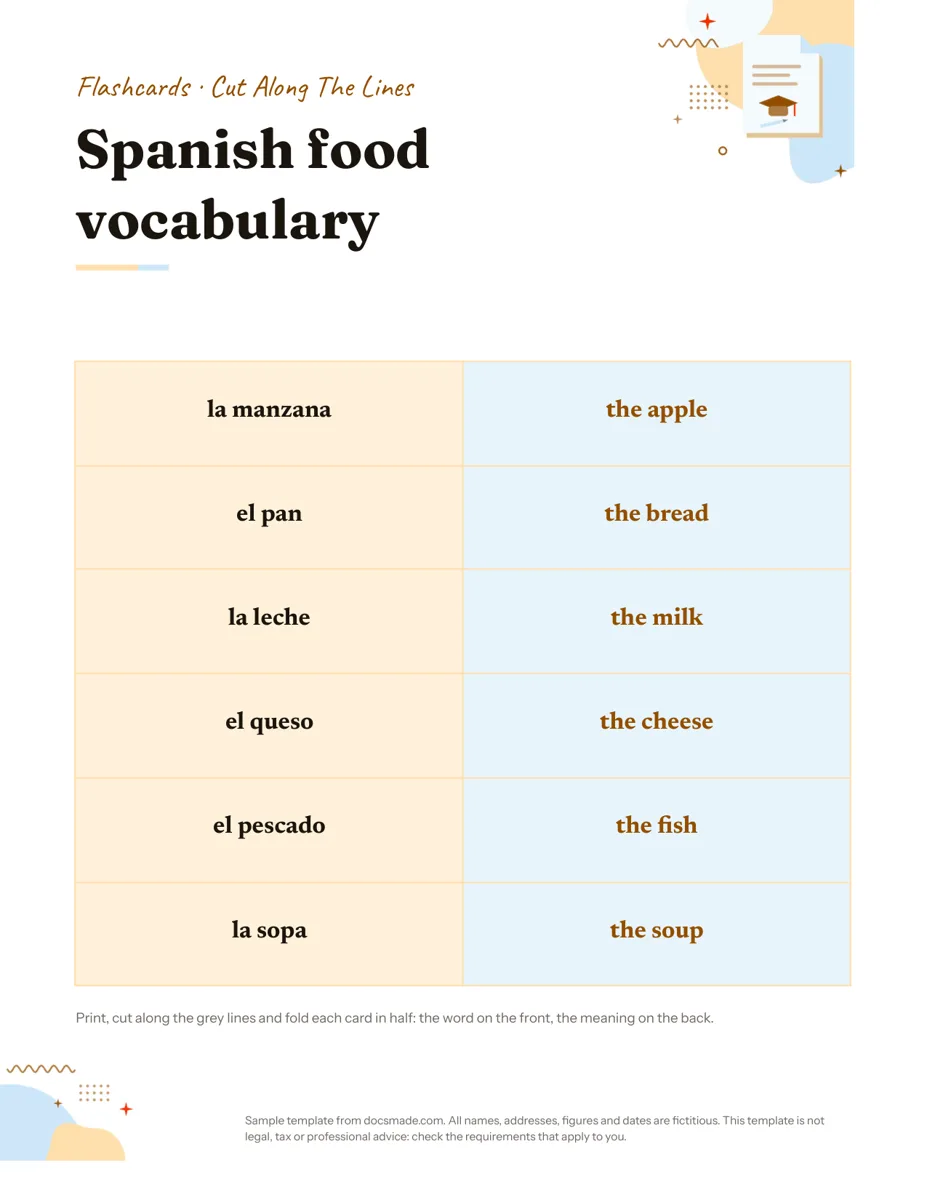 Education Google Docs Flashcard Template: Printable Cut-and-Fold Cards Printable flashcard template for Google Docs: a cut-and-fold grid with the word on the front and meaning on the back. Copy it, or get .docx or PDF. View template →
 -
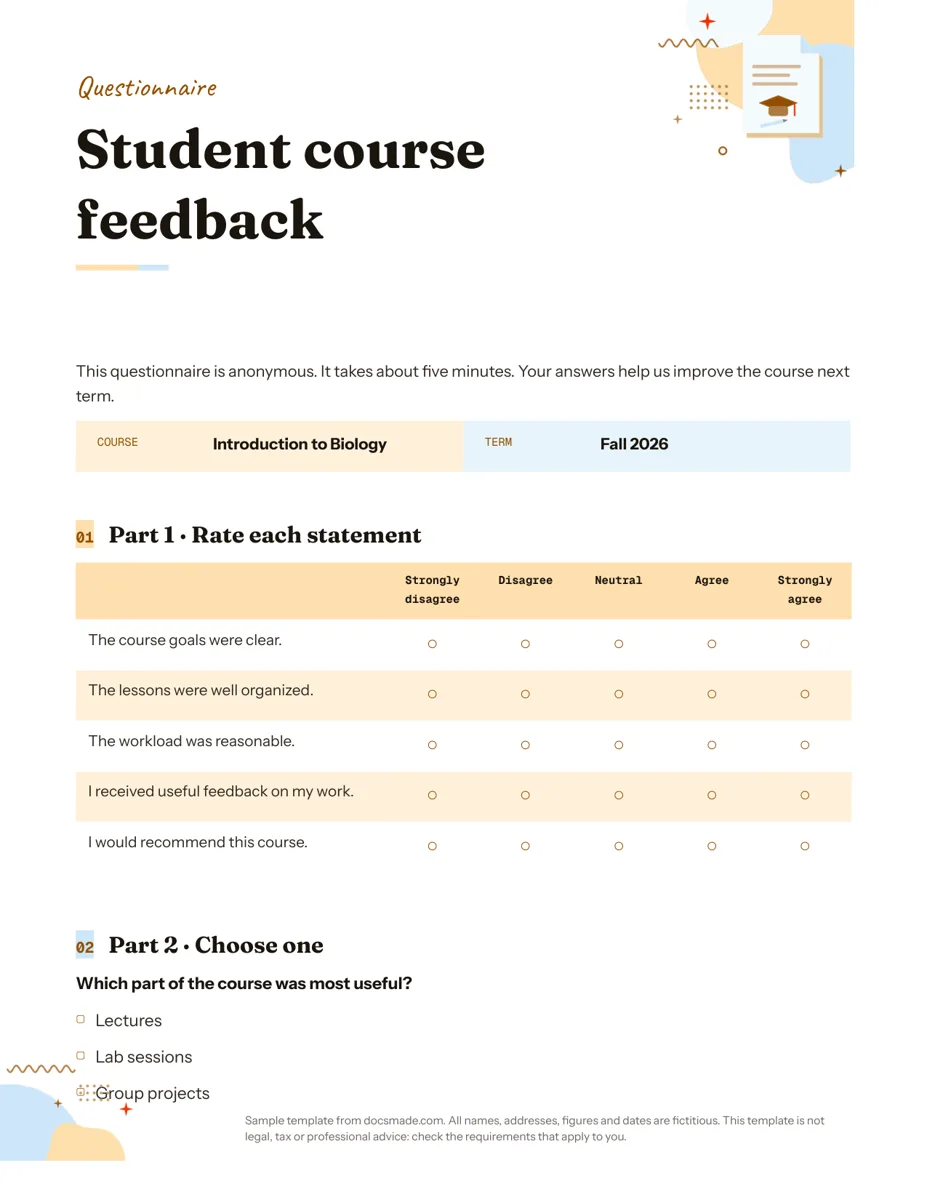 Education Google Docs Questionnaire Template for Printable Feedback Printable survey template for Google Docs with rating scale, multiple choice and open questions. Preview, copy, or download as .docx or PDF. View template →